Navigation
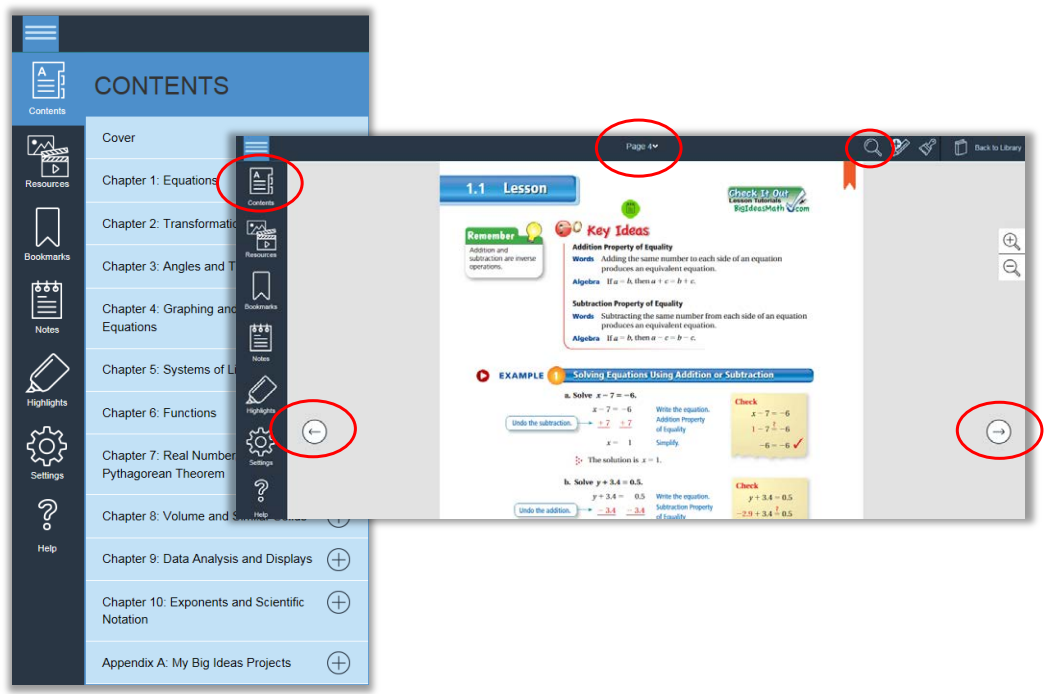
- Use the Contents button on the left menu bar and select a chapter and/or section.
- Click on the Search button on the top menu bar and type in a keyword.
- Use the right and left navigation arrows to scroll to the desired page.
- Enter the page number using the Go To Page option, which can be found by clicking on the page number at the top.
Bookmarking
Clicking on the gray bookmark  at the top of a page will turn it red and add it to the
list of bookmarked pages on the left menu bar.
at the top of a page will turn it red and add it to the
list of bookmarked pages on the left menu bar.

Customizing the View and Audio Options
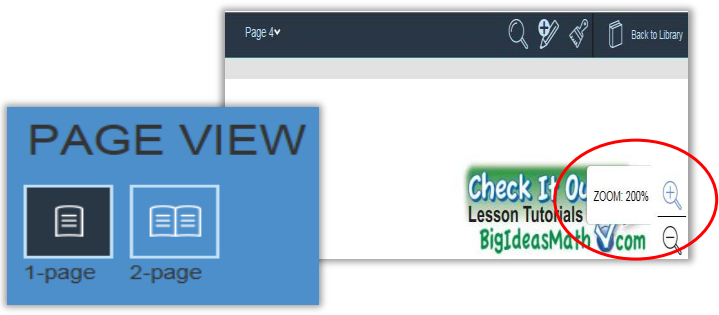
The Student Dynamic eBook provides several options for customizing the view. Students may choose from viewing one or two pages at once by clicking on Settings from the left menu bar. Students can also adjust the size of the text and images on the page by zooming in and out using the tools on the right menu bar.
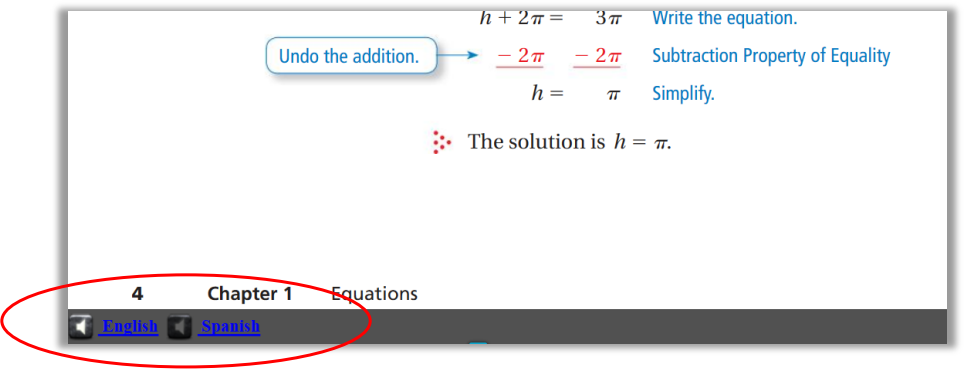
At the bottom of the screen, students can choose to hear the audio in either English or Spanish.
Making Notes/Drawing Tools
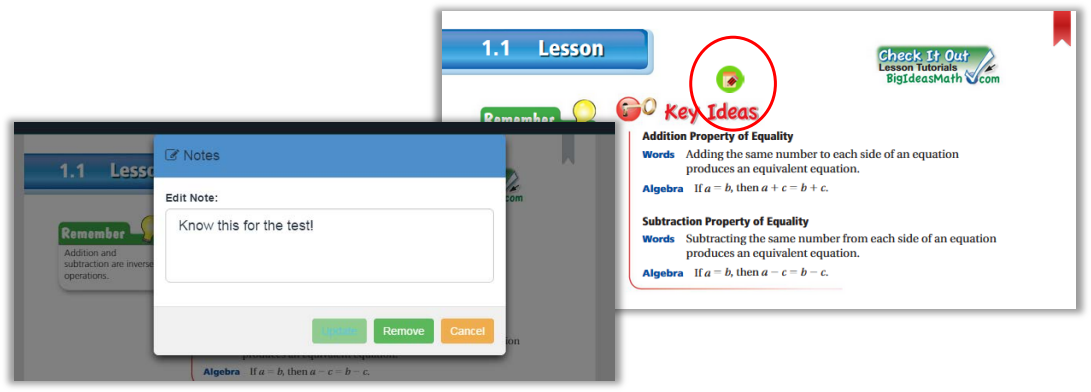
Clicking on the Add Note tool in the top menu bar will direct
students to tap anywhere on the page to add a note. Once the note is typed and
saved, a  icon
will appear on the screen so that it can be referenced, updated, or removed.
icon
will appear on the screen so that it can be referenced, updated, or removed.
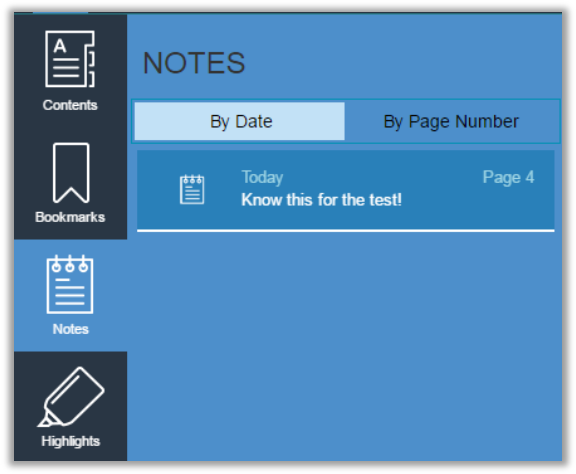
Students may also reference any notes by clicking on the Notes icon located within the left menu bar.
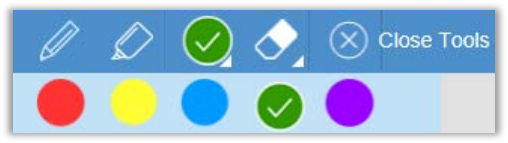
Selecting the Drawing Tool from the top menu bar will give students the option to use a pen or highlighter in the eBook. Students can also change the color of the tools and erase the work.