-
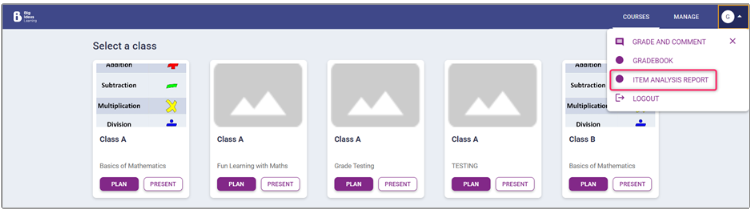
Select ITEM ANALYSIS REPORT from the Profile menu in
the global navigation.
-
Choose a Course, Class and Assignment and select
GO.

-
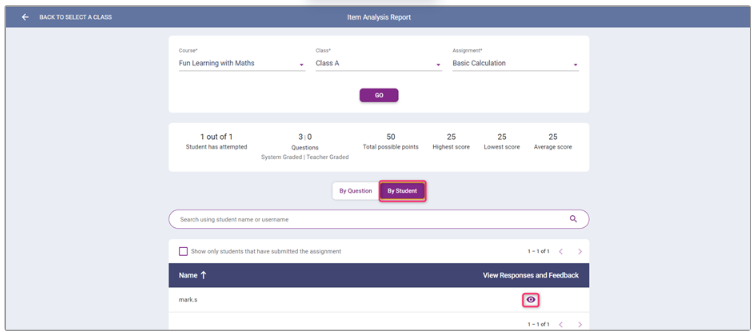
View the item analysis report.
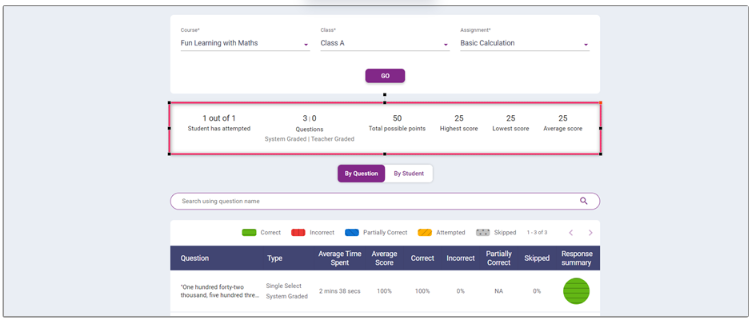
The summary in the report shows the:
- Count of students that have attempted the assignment of the total number of students assigned the assignment.
- Counts of system-graded vs. teacher-graded questions in the assignment.
- Total possible points that can be scored.
- Highest score achieved by a student.
- Lowest score a student has received.
- Average score of all the students that have attempted the assignment.
-
Select the By Question tab of the report.
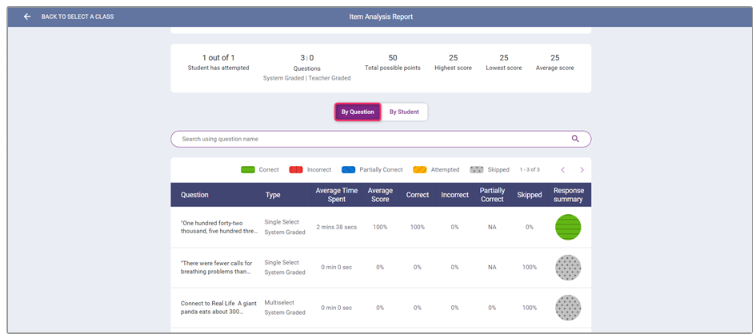
The report lists all the questions in the selected assignment, along with the:
- Type of each question.
- Average time spent by students on each question.
- Average score achieved by students for each question.
- Percentage of students who answered each question correctly.
- Percentage of students who answered each question incorrectly.
- Percentage of students who answered each question partially correctly.
- Percentage of students who skipped each question.
- Visual representation of the correct, incorrect, partially correct and skipped percentages for each question.
Only the score and time spent will be displayed for teacher-graded questions.
-
Select the By Student tab of the report. Select the
View Responses option for a student. The option will
be disabled for students that have not attempted the assignment.
-
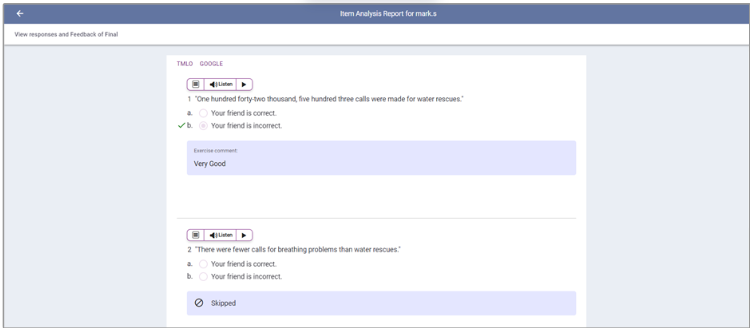
View the student’s responses and teacher feedback for the assignment.