MyAdaMath Teacher Help
Expand a lesson in the Learning Path, and select PROGRESS REPORT.

View the lesson progress report.
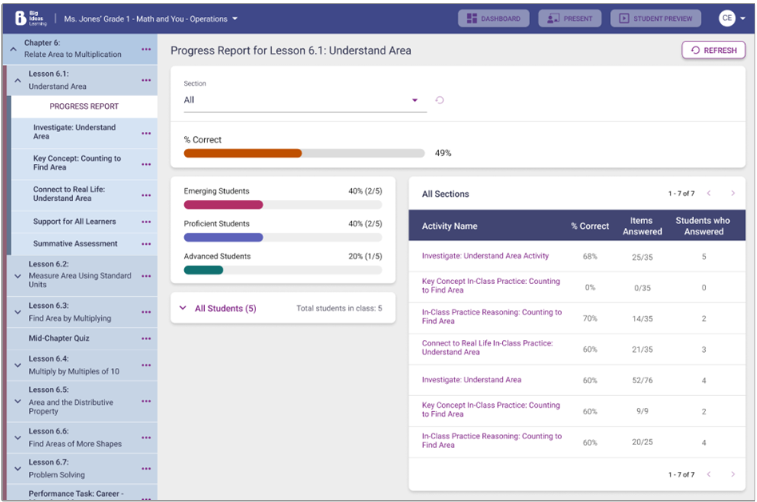
- The report shows the overall percentage of all questions in the activities of the lesson that are being answered correctly by students that have attempted them.
- Based on the ranges specified, the percentage of students falling into the Emerging, Proficient and Advanced categories is displayed.
- The roster of the students in the class is displayed along with their proficiency. The student’s names will not be clickable until a specific activity is selected.
- A list of activities in the lesson is displayed along with the percentage of questions in the activity (learning object) being answered correctly, the number of questions answered out of the total items in the activity, and the number of students that have answered those questions.
- Select the REFRESH button to reload the report with the latest data.
- Use the dropdown to navigate to a particular section of the lesson. When a particular section is selected, use the reset option to go back to the default of all sections.
Select the name of an activity (learning object).
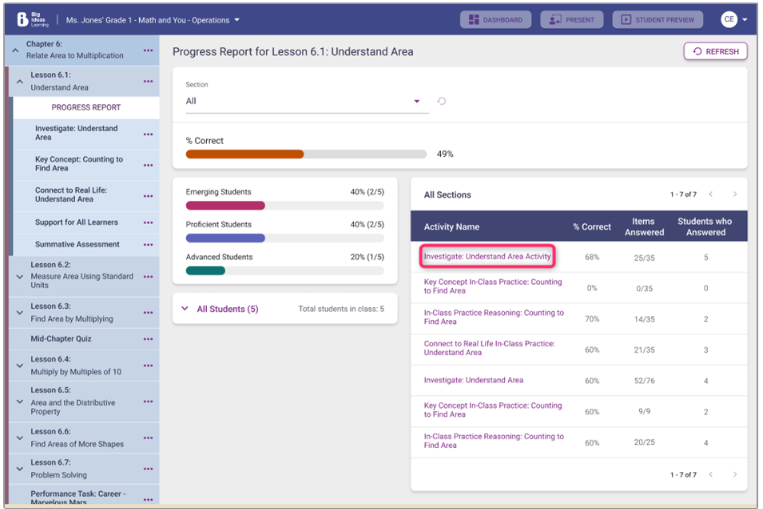
View the report for the exercises (questions) within the selected activity
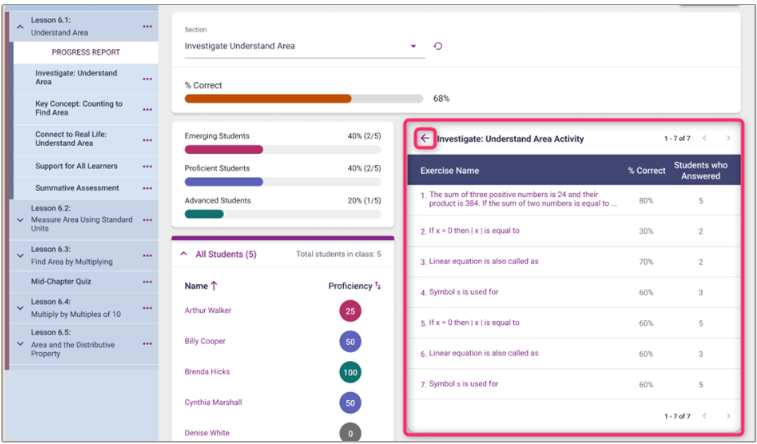
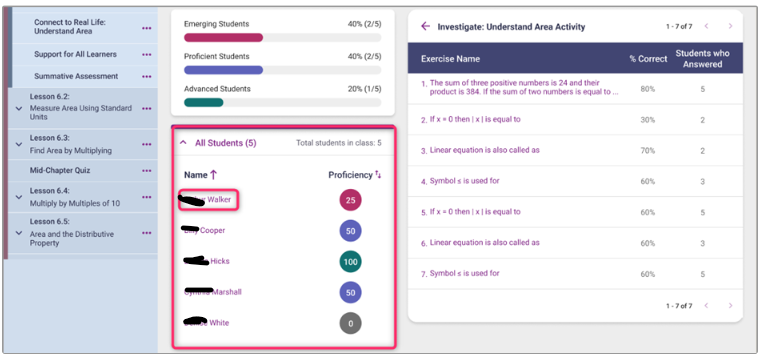
- The report will show all the same information but with the list of activities replaced by a list of exercises within the selected activity.
- A list of exercises (questions) in the selected activity is displayed along with the percentage of students answering the exercise correctly and the number of students that have answered that exercise. Select the back button to return to the list of activities. The list of questions within a grouped question will be listed individually.
- Select the REFRESH button to reload the report with the latest data.
- Use the dropdown to navigate to a particular section of the lesson. The section that the selected activity belongs to will be selected by default. When a particular section is selected, use the reset option to go back to the default of all sections.
Select a prompt from the list of exercises to view each student’s response to the exercise. Use the dropdown to jump to a particular exercise. Use the back button to return to the report.
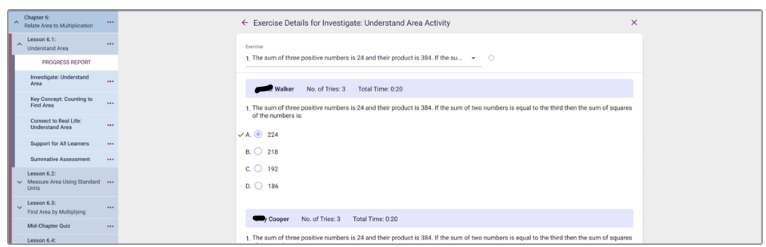
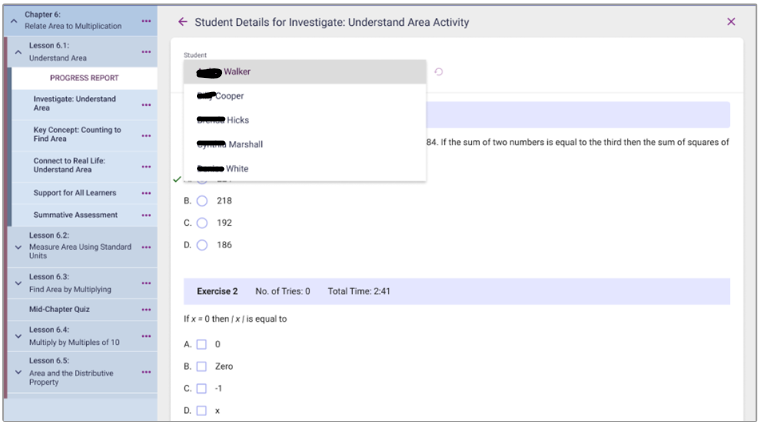
Select the name of a student from the roster to view the student's responses for the exercises in the selected activity. Use the dropdown to switch between students.