
MindTap Instructor Help
- Proctoring Solutions Help
- Cognero
Before you begin, you must have a link to your MindTap exam published in Canvas. However, students should not access the exam directly through this link. To avoid confusion, consider creating a new module titled "Do not access" and let your students know that you will be notified if they attempt to access the exam through this link.
In Canvas, open a course.
Click Quizzes › +Quiz.
Select Classic Quizzes and click Submit.
This process does not work with New Quizzes in Canvas.
Enter a quiz name and other required information.
Click Questions › +New Question.
Set the question type to Text (no question).
In the empty field, enter instructions for your students.
Click Insert › Link › Course Link.
Click Assignments and select your MindTap exam to add a link to the exam.
Example:
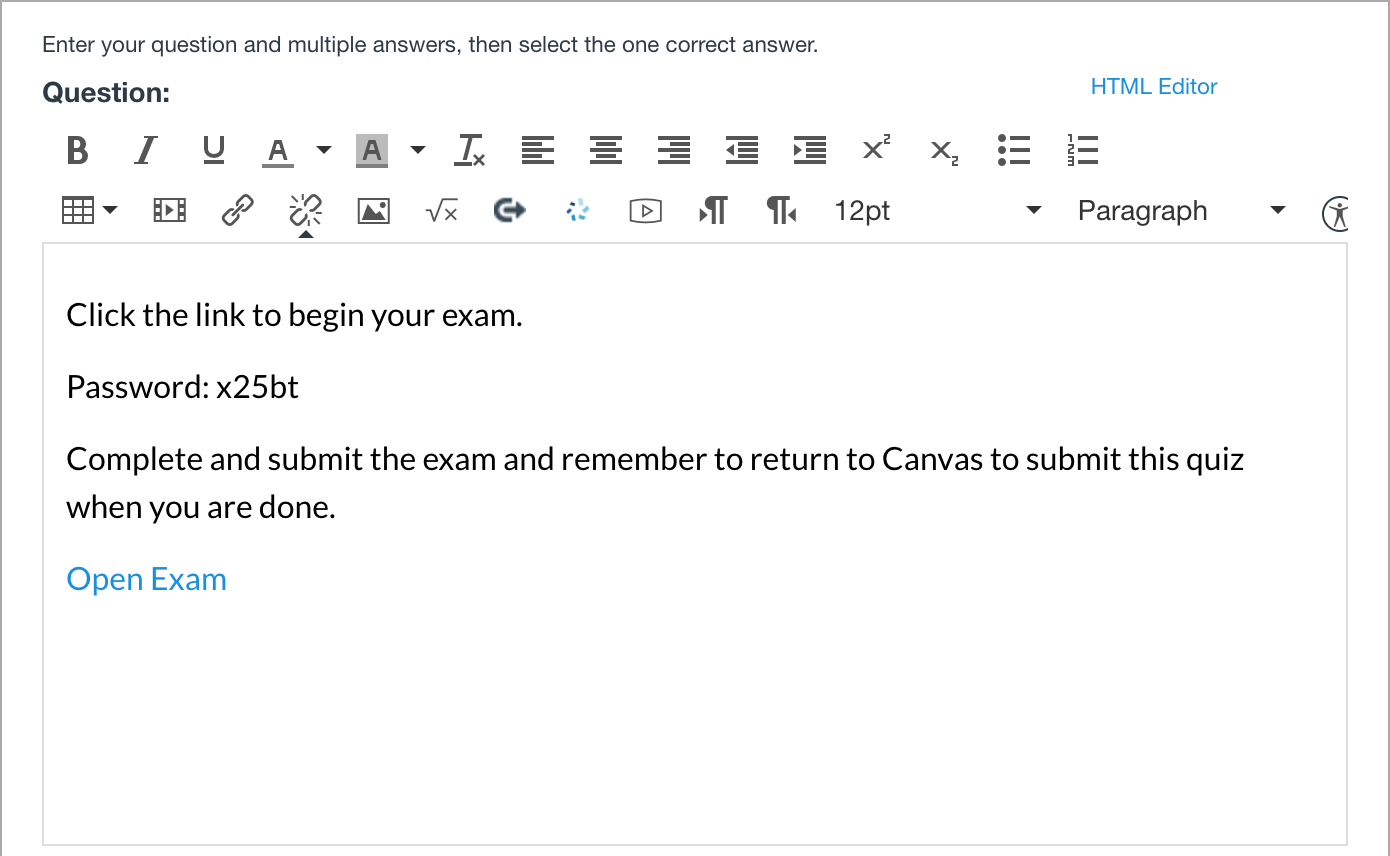
Click Update Question › Save.
In the sidebar, click LockDown Browser.
If prompted, authorize LockDown Browser.
Your new quiz is listed.
Click
 › Settings.
Select Require Respondus LockDown Browser.
Click Advanced Settings › Allow access to specific web domains.
Copy and paste the following domains:
gateway.cengage.com,aplia.apps.ng.cengage.com,cnow.apps.ng.cengage.com,ng.cengage.com,cengage.com,auth.cengage.com,sam.cengage.com,account.cengage.com,samcp.cengage.com,about,etextlauncher.cengage.com,auth.cengage.com,ebooks.cenreader.com,*.cengage.comClick Save + Close.
Open your Canvas quiz in student view to test the experience and make sure you can access your MindTap exam.
Publish your Canvas quiz to make it available to students.