View your learning activities. Change how activities are displayed and filter the learning path to see only certain kinds of activities.
Preview an Activity
Launch activities from the learning path.
This task is different depending on the version of MindTap used in your class.
If these directions do not match what you see in your class,
click  in the toolbar above and select your MindTap version.
-
View the instructor or student version of the activity.
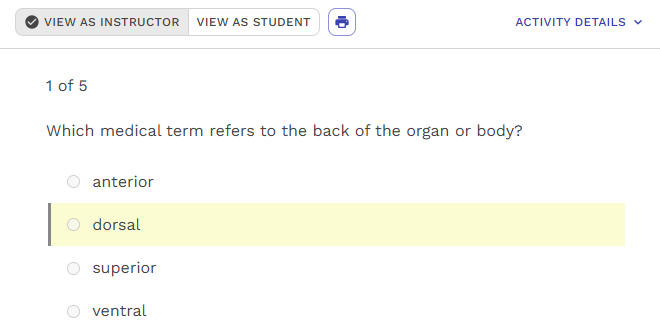
- Click View as Instructor at the top of the
activity to see the activity on one page. Correct answers are
highlighted, and any feedback is shown.
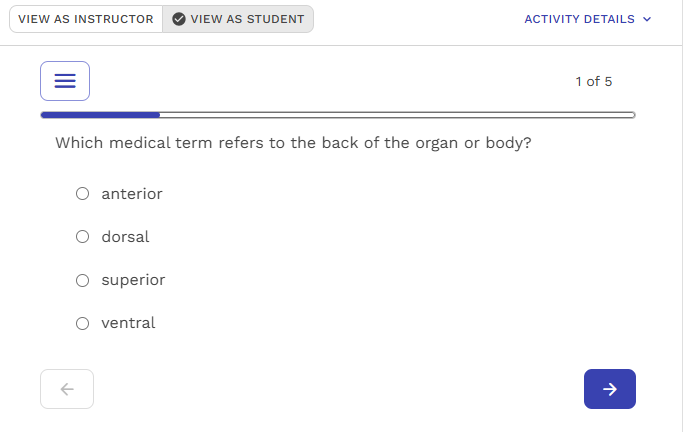
- Click View as Student to see the activity as
a student would. Each question is on its own page and answers are not
marked.
- Click View as Instructor at the top of the
activity to see the activity on one page. Correct answers are
highlighted, and any feedback is shown.
Change Activity Display on the Learning Path
 and
and  are not shown at the top of the learning path, you have
disabled rolling week view for your course.
are not shown at the top of the learning path, you have
disabled rolling week view for your course.- Outline View
-
This view displays activities according to the structure of the textbook. You can hide activities from your students and arrange activities as needed.
To use outline view, click
. - Rolling Week View
-
This view displays activities due each week, starting with the current week.
To use rolling week view, click
.NoteIf an activity due date has passed or there is no due date set, the activity does not display in rolling week view.
To filter the activities in outline or week view, click Filters  and select the filters that apply.
Additional Views in Progress
You can also view activities in the Progress app Home tab.
- Rolling View
- This view displays the following:
- Activities coming up in the next 7 days
- Activities that have already passed the due date
- Activities that have no due date but have submissions
- Percentage of submissions
- Average score for activities
- Outline View
- This view displays activities following the outline view. You can click
on the activities to view:
- Individual student scores
- Number of attempts
- Activity information
- Reports
Note Reports are not available for all courses.
-
In the toolbar, click
 .
.
-
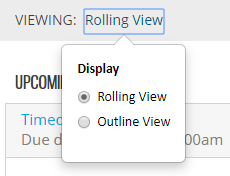
To switch between views, click the current view name beside
Viewing and select the view you want to
see.