
MindTap Instructor Help
In the toolbar, click
 .
.Click the Analytics tab.
Click the chart you want to view.
- Engagement Level
Shows correspondences between your students' engagement levels and overall scores.
Engagement is calculated based on a combination of factors including time in course, activities opened, highlights made in the textbook, and searches.
- Time in Course
Shows correspondences between the amount of time your students have spent in the course and their overall scores.
- % Activities Accessed
Shows correspondences between the percentage of activities your students have opened and their overall scores.
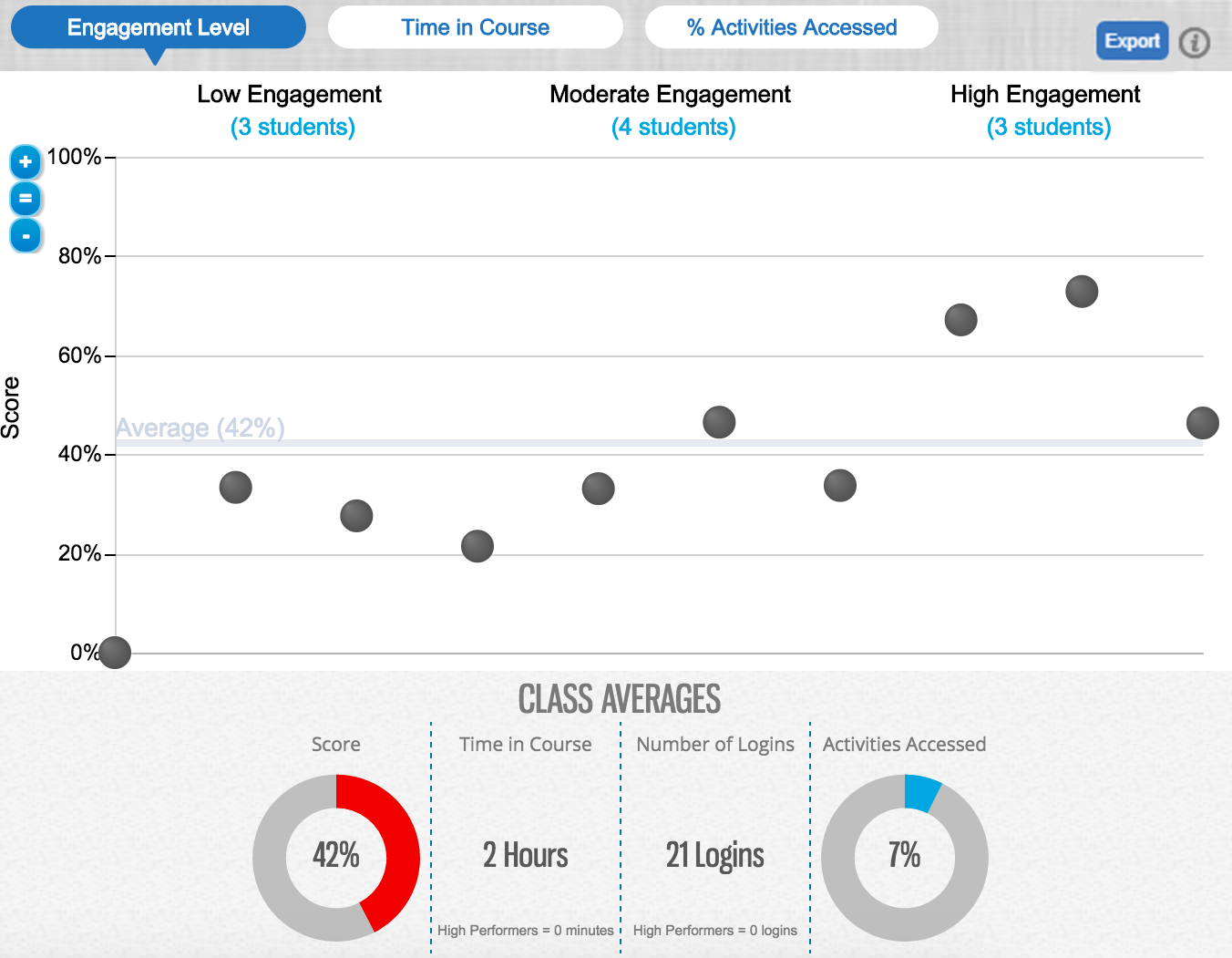
Move your pointer over a dot on the chart to view summary information for the student. Click the summary information to view detailed performance.
Students who have not logged in to MindTap are not shown in analytics graphs.