This article describes the three types of accounts available in Courseware, and the features of each. Courseware offers accounts for instructors, students, and administrators; each type of account has capabilities and permissions aligned with those roles.
Instructors and students
Instructors and students are the two most popular types of accounts in Courseware. When you receive an instructor account from Visible Body’s Education Team, you can:
When you receive a student invite to a course, you are:
- Added to the roster
- Have access to all the published content for that course
- Have access to reference content on the My apps sections of Courseware
This table distinguishes between the capabilities and permissions for instructors and students :
| Instructors | Students | |
|---|---|---|
| Course Resources, Assignments, and Announcements | Instructors can create and edit course resources, assignments, and announcements. | Students can view published course resources, assignments, and announcements. |
| Gradebook | Instructors can view and edit all students’ grades. | Students can view their own grades. |
| My Apps | Instructors can access Visible Body’s web apps and mobile reference apps. | Students can access Visible Body’s web apps and mobile reference apps. |
| Course Management and Customization | Instructors can invite people to the course, manage the class roster, and use the Question Bank and Quiz Bank to assign and customize quizzes. | Students do not have access to course management and customization tools. |
Administrators
Anyone with an administrator Courseware account at a school can create custom roles, assign permissions, and manage courses for that school. This video overviews the administrator capabilities and permissions. They are also described below along with instructions for each.
Default Admin Role
Note: The default Admin Role cannot be edited, duplicated, or deleted.
The Courseware Admin can view, create, edit, and duplicate all other roles. The Admin role has access to all instructor features, and can set up types of roles with restricted permissions. Admins can set new permissions for the default Instructor role, but the default Instructor role cannot be deleted.
The Admin sidebar “Roles and Permissions” tab on the left navigation panel allows role access. To request Admin role access for your institution, contact your Visible Body Rep or Customer Engagement Specialist.
Manage roles
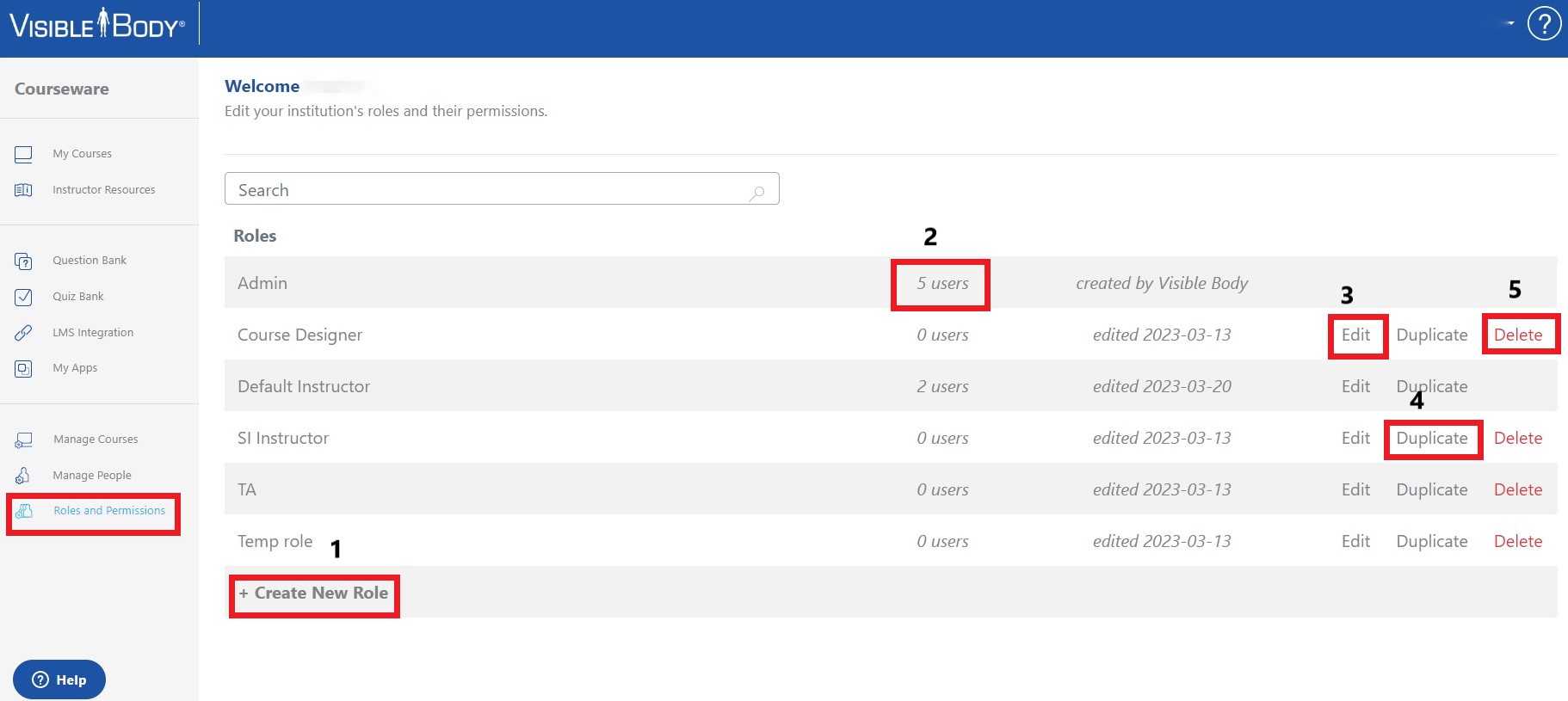
Admins have access to the Roles and Permissions page, where they can:
- Create and name new roles
- Add users to a role
- Edit an existing role
- Duplicate a role
-
Delete a role (except Admin and default Instructor roles).
Note: If a user is removed from a role, or a role is deleted, that user who had that role will be added back to the default Instructor role.
Edit permissions
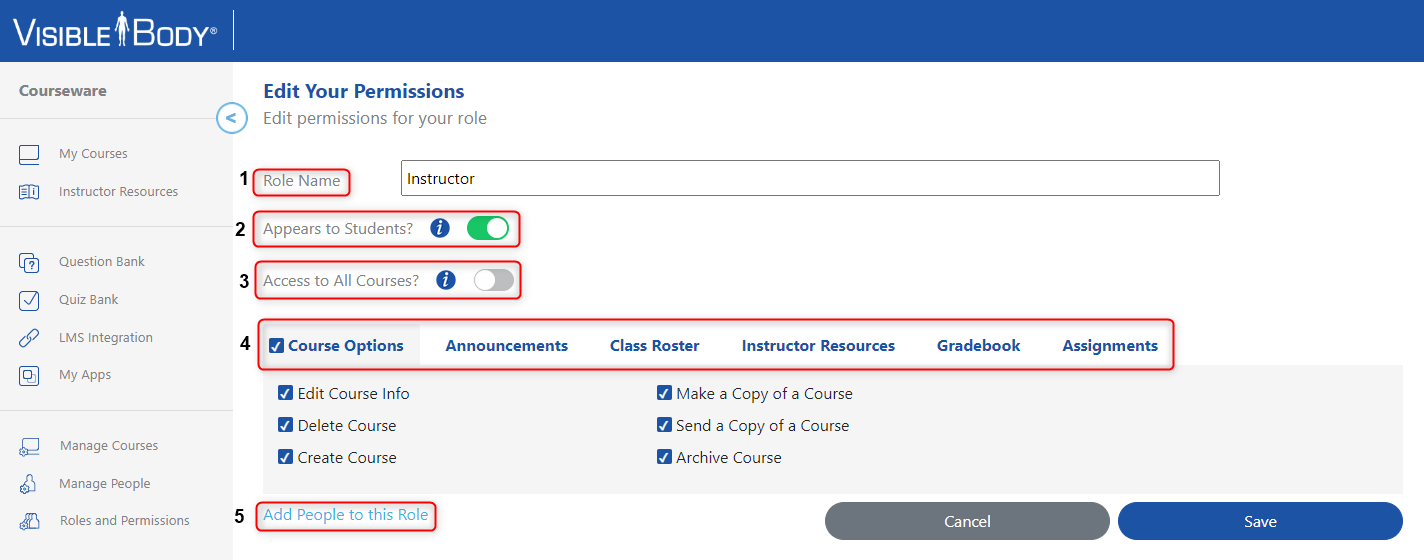
This feature allows Admins to edit:
- Role name
- The option for role name and email address to appear in the course banner
- The option to allow access to all courses in your institution
- Categories of permissions for the role within the permissions area,
including:
- Assignments
- Course Options
- Gradebook
- Announcements
- Class Roster
- Course Resources
- Users in this role
Manage People
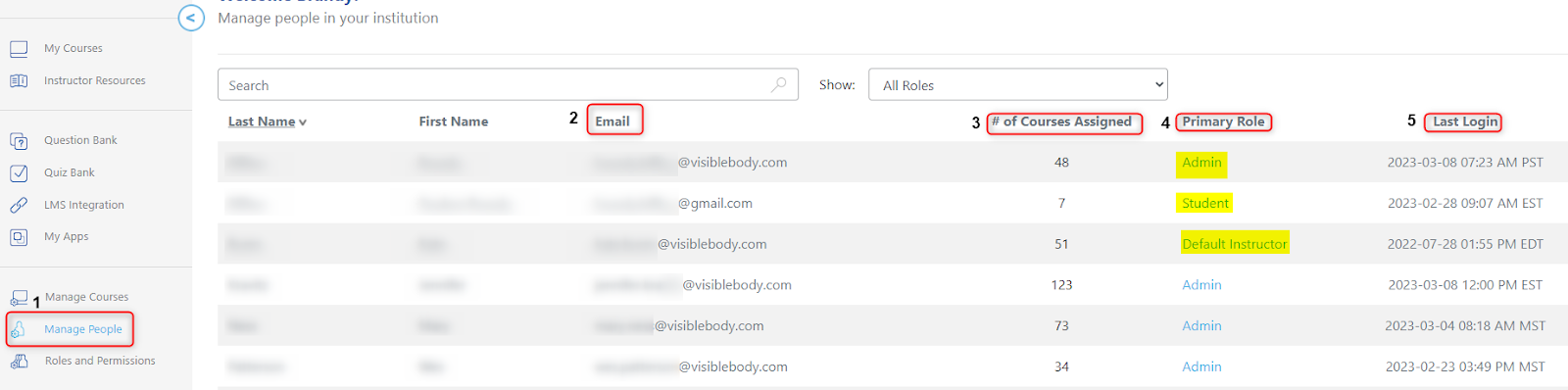
This feature allows the Admin to:
- Search users
- Confirm email addresses used for login
- View the number of courses a user is assigned
- Confirm primary roles
- View a user’s last login
Manage Courses
With the Manage Courses page, you can view details of all courses at your institution in one place.
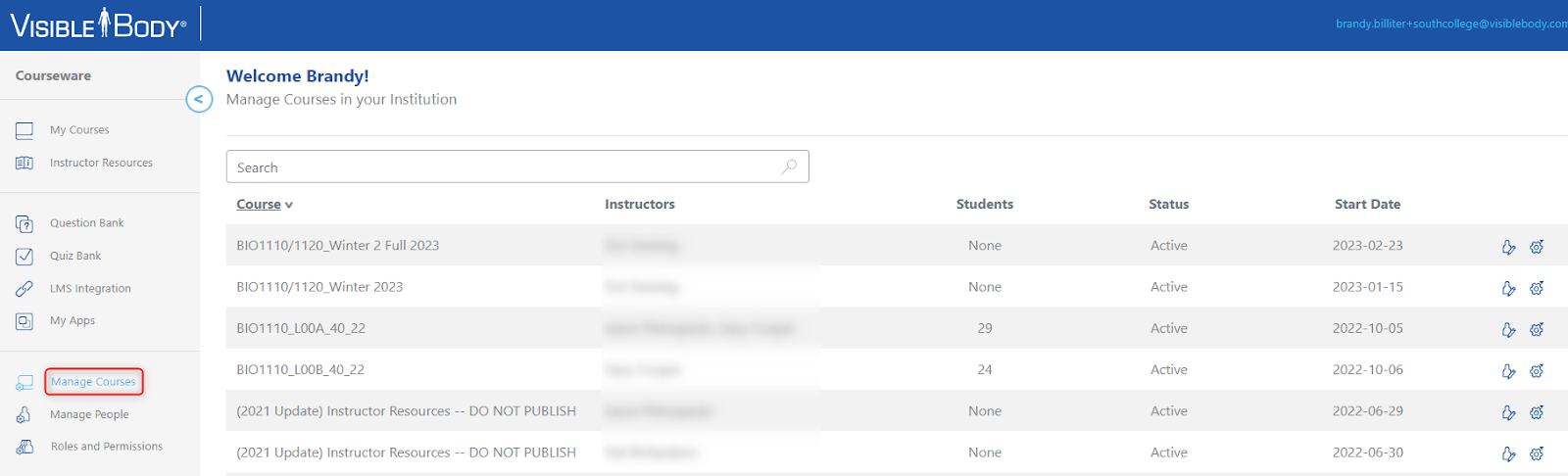
Selecting the Manage People icon  allows Admin to:
- Add users to a course
- Adjust or assign roles to the users in a course
-
Change ownership of the course
Note: This feature prevents courses from being permanently deleted from the institution, because ownership must be transferred to another user before the course owner removes themselves from the course.
Clicking the Course Options icon  allows Admin to:
- Edit course information
- Download a course copy to the Admin account
- Send a copy of the course to another user
- Archive a course
- Leave a course
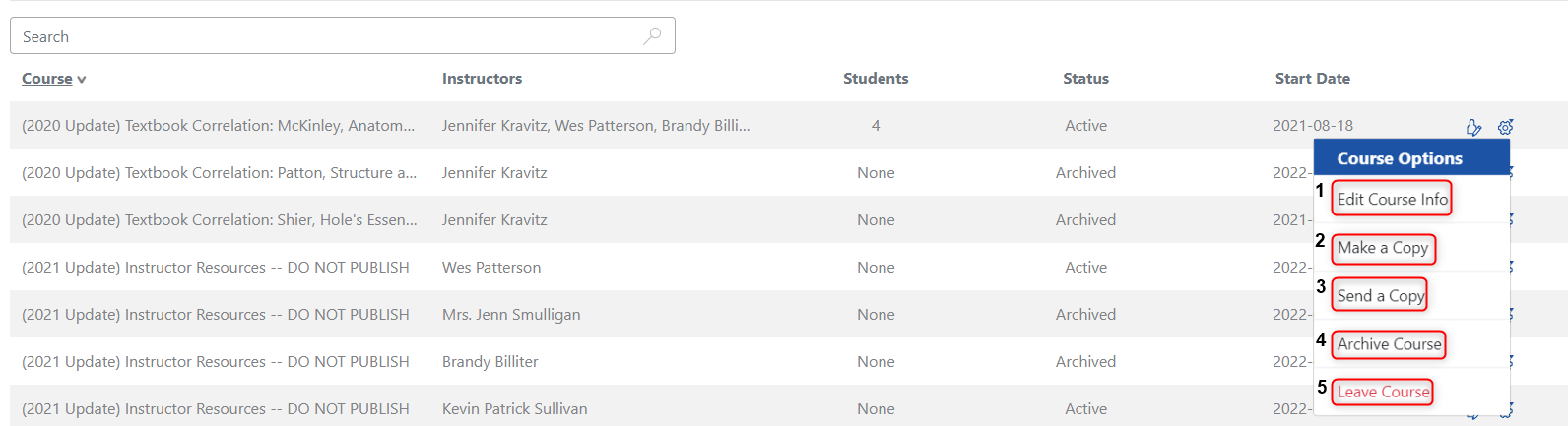
These options allow for someone other than the instructor who owns the course to complete course customizations.