Use HTML tags to add links, images, and formatting to your private messages.
Enter HTML tags in the Message box of your WebAssign private message.
A warning message will display until the closing tag is entered. If your message contains HTML errors or disallowed tags, the message will not send.
HTML tags cannot be used in the subjects of messages.
| Format | Tag | Typed Message | Displayed Message |
|---|---|---|---|
| Link | <a href="URL">link
text</a> |
Check the <a
                                             href="https://help.cengage.com/webassign/student_guide/introduction.htm">WebAssign
student help</a>. |
Check the WebAssign student help. |
| Image | <image
src="image-location.filetype"> |
<img
src="https://help.cengage.com/webassign/instructor_guide/images/marvin_ethanol_complete.png"> |
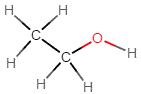 |
| Bold | <b></b> |
vector <b>F</b> |
vector F |
| Italic | <i></i> |
4<i>x</i> |
4x |
| Subscript | <sub></sub> |
CO<sub>2</sub> |
CO2 |
| Superscript | <sup></sup> |
10<sup>9</sup> |
109 |
| Ordered list |
|
|
1. First 2. Second 3. Third |
| Unordered list |
|
|
|