Read your students' Ask Your Teacher messages often to understand what problems they are having with their assignments. You can also review your own replies to these messages.
Ask Your Teacher messages are organized as conversations between you and one student about one assignment. A conversation might have messages about more than one question on the assignment, and it might include messages from other instructors who have been granted access to your class.
-
Expand
Ask Your Teacher and click
Unanswered.
To read conversations marked as answered, click Answered.
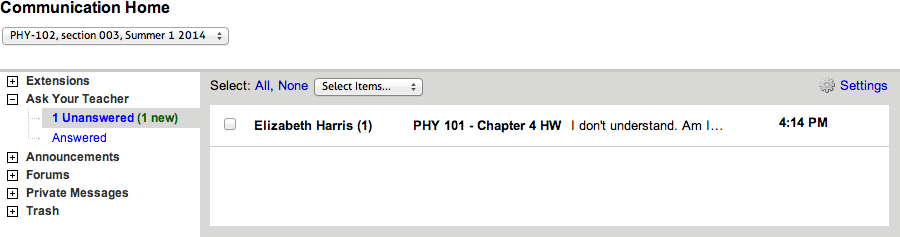 Conversations are sorted from newest to oldest based on the last message in each conversation. Messages within each conversation are sorted from newest to oldest. The columns are:
- The student's name followed by the number of messages in the conversation
- The assignment name
- The first several words of the most recent message
- The time or date of the most recent message
-
Click the conversation you want to read.
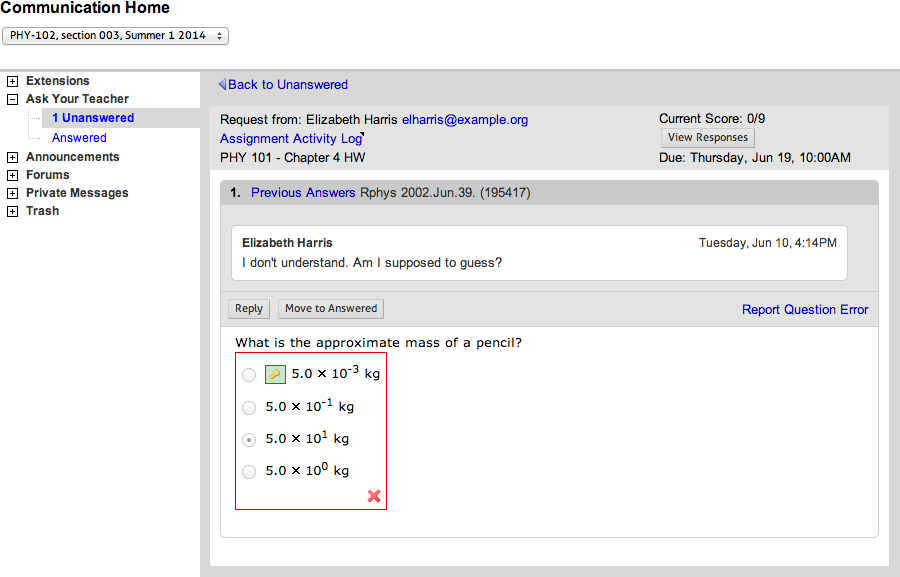
Assignment questions with unanswered Ask Your Teacher messages are listed in the same order and with the same numbering as on your student's assignment.
For each assignment question, Ask Your Teacher messages are listed chronologically with the most recent message at the bottom.
Note If you are viewing answered Ask Your Teacher messages, only assignment questions with answered Ask Your Teacher conversations are shown.