WebAssign Instructor Help
- Sign In / Account
- Course Packs
In the menu bar, click Assignments › Folders.
Alternatively, open the My Files window when editing an assignment, question, or announcement.
From this page:
Do this:
Question Editor
Click My Files in the Page Tools panel.
Assignment Editor
Click Include File for the Instructions.
Communication Home
Click My Files to the left of your announcement text.
Navigate to the file or image you want to change.
Click the file name.
The File View window opens.
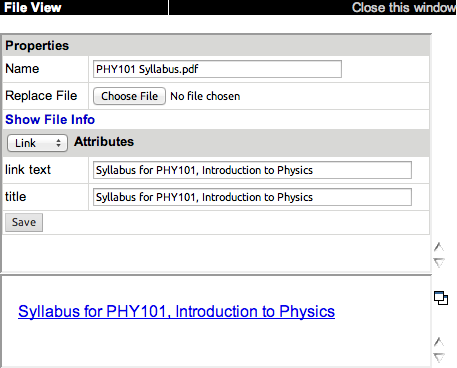
In the Replace File field, select another file to replace the one that is currently displayed.
Click Browse or Choose File, depending on your browser.
Navigate to the file you want to upload.
Click Open or Choose, depending on your browser.
Click Save.
Your existing file is replaced with the new file you uploaded.
- Any references to your file now use the new file. This includes both current and past classes and assignments.
- If your new file has a different name than your old file, the new filename is used.
- Update Your Resource Materials
- Upload Images, Media, or Documents to My Folders
- Set Display Text for an Image, Media, or Document File
- Display Images in Your Coursework
- Add Resource Links in Your Coursework
- Rename a Folder, Assignment, Question, or File
- Link to External Resource Materials in Your Coursework
- Play Media Files in Your Coursework