Big Ideas Math integration will allow you to make assignments directly from Canvas providing the ability to report scores back to your Grade Book.
-
Navigate to the Assignments section of the Canvas
course. Click the +Assignment button.

-
Once the assignment page is open you will need to add an Assignment
Name. You can also add details and information from the
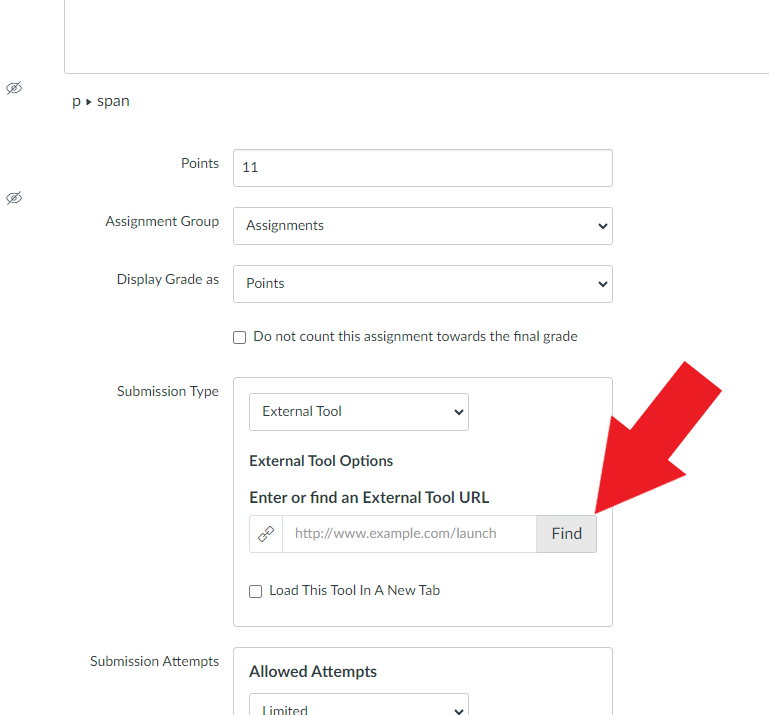
assignment on this page. Navigate to the submission type and make sure it is set
to External Tool. Click Find to
open the Big Ideas Math application.
-
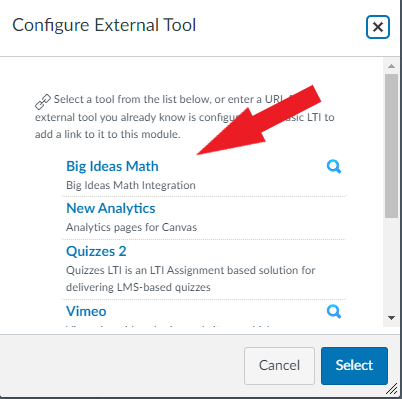
Click Big Ideas Math.
-
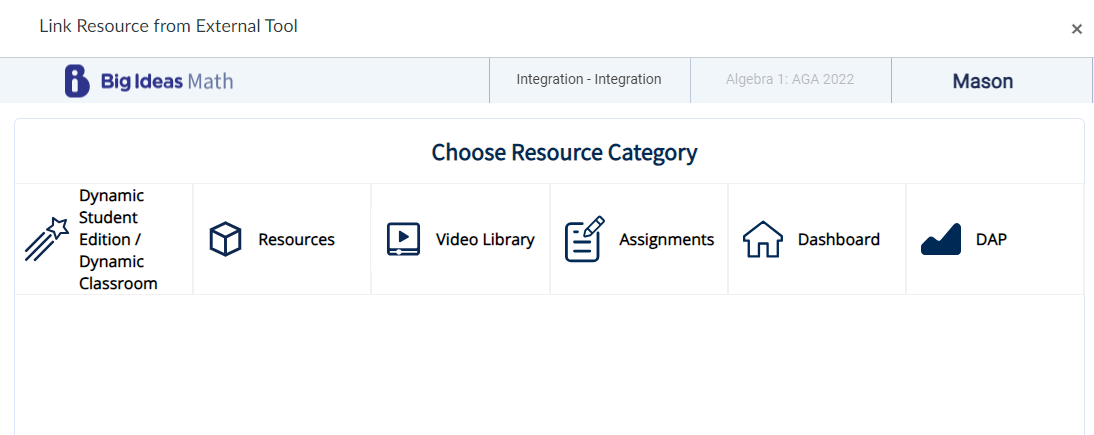
Select Assignments or DAP from
the Big Ideas Math External Tool Resources.
-
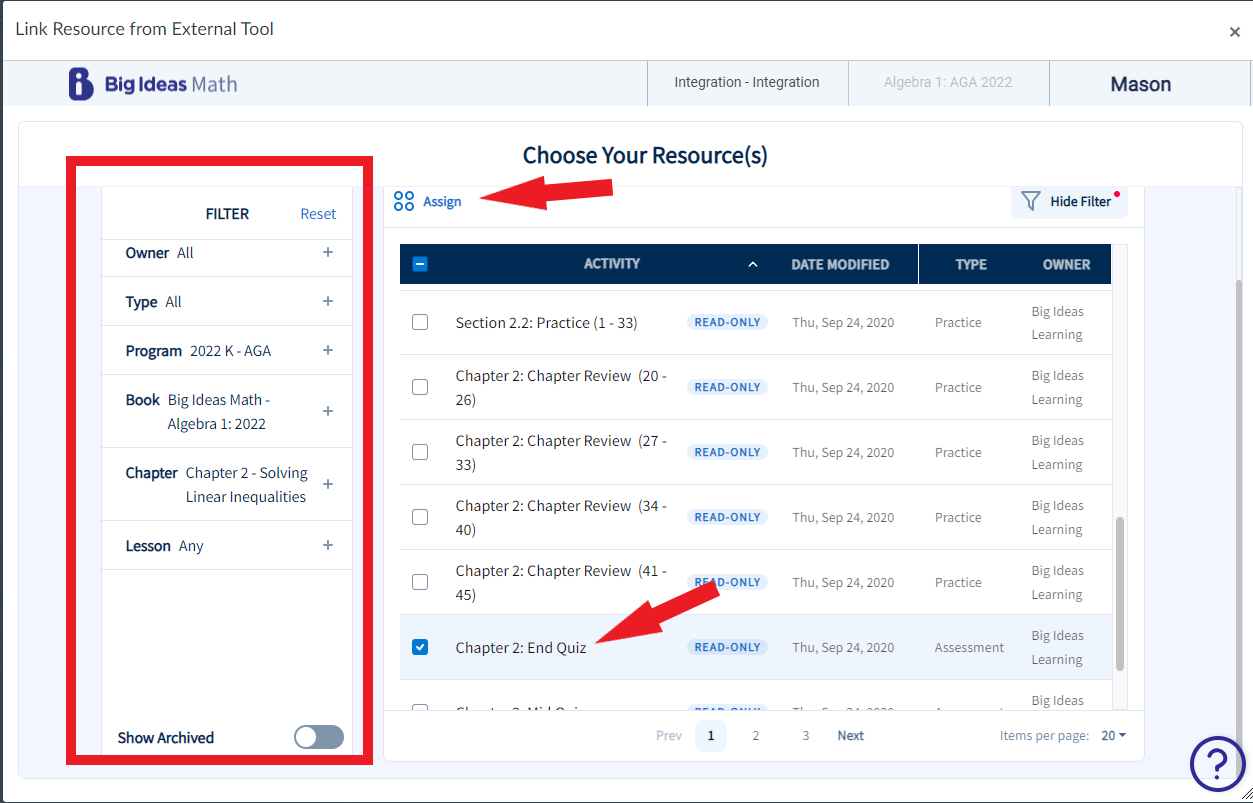
Once the assignment section is open you can filter the content by Type,
Program, Book, Chapter or Lesson. Click the check box for the name of the
assignment you wish to assign to your class. Click the
Assign button at the top of the screen.
-
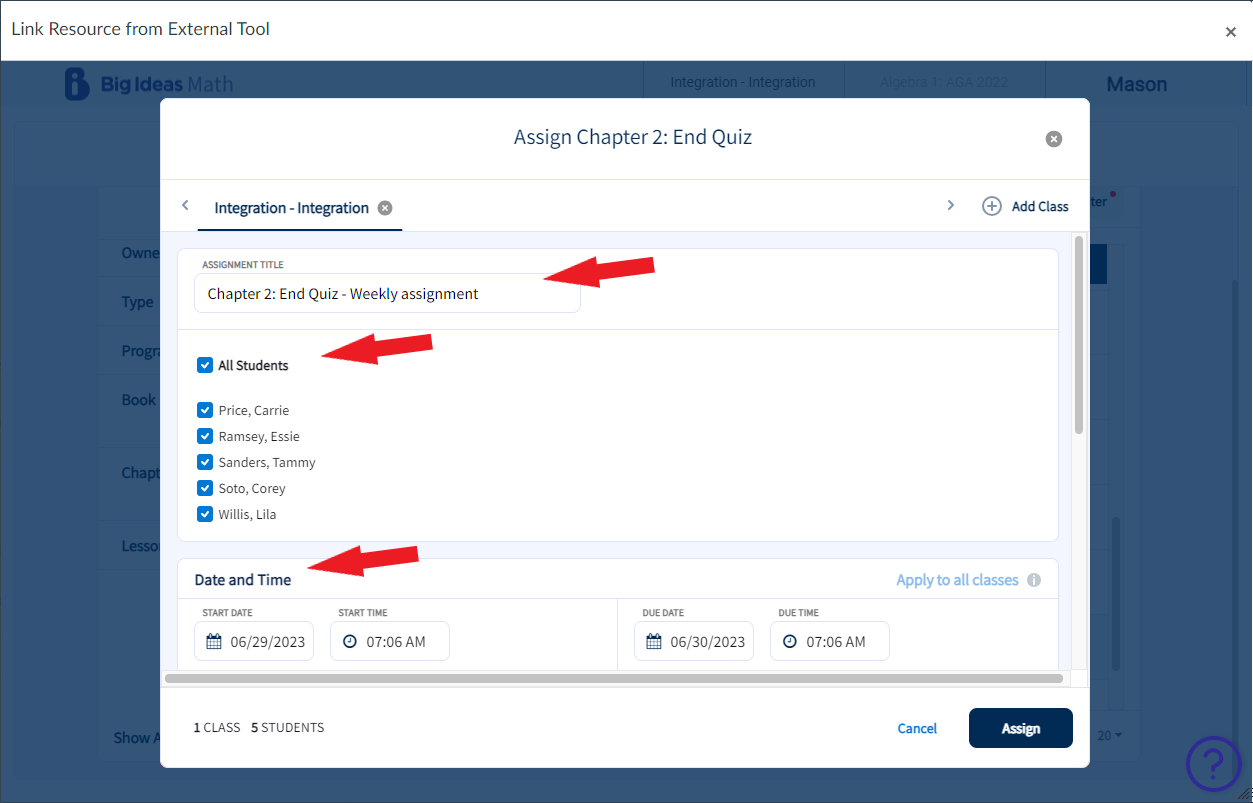
By default the name of the assignment will appear as listed in Big Ideas Math.
- You can change the Assignment Title.
- Select the individual students or All Students you wish the assignment to go to.
- You can also modify date and time the assessment is available for the users to complete.
-
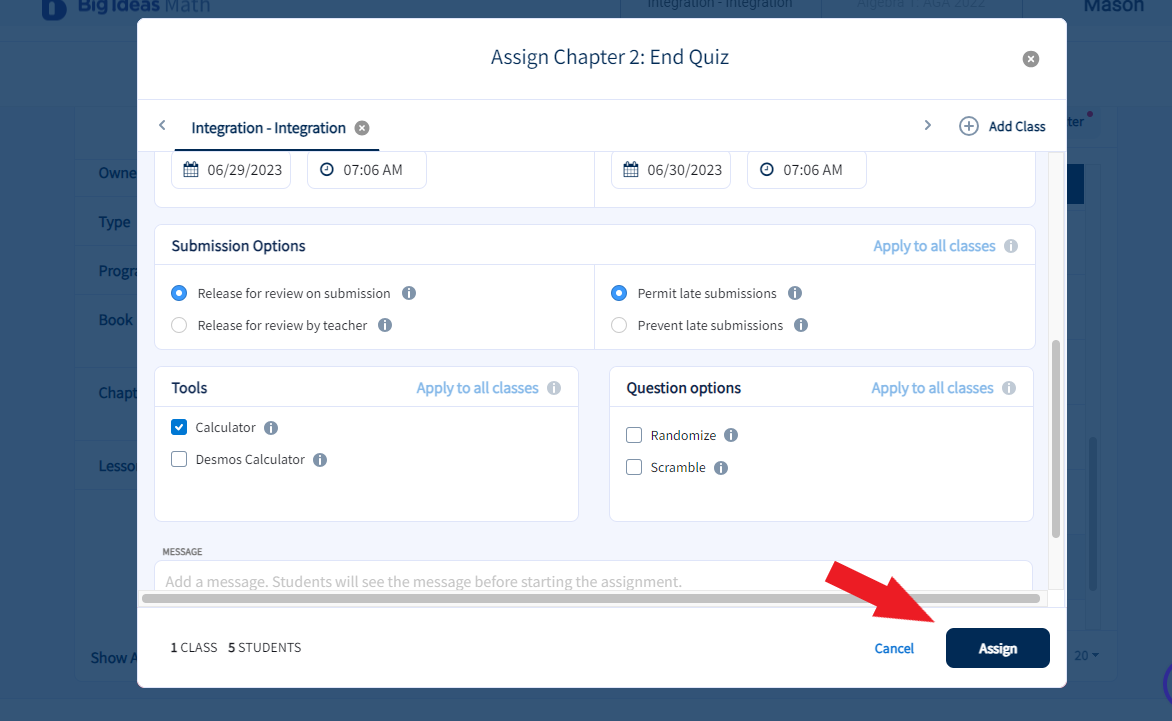
Additional settings that can be modified: Submissions options, Tools, Question
options and message to the user. Once complete, click the
Assign button.
-
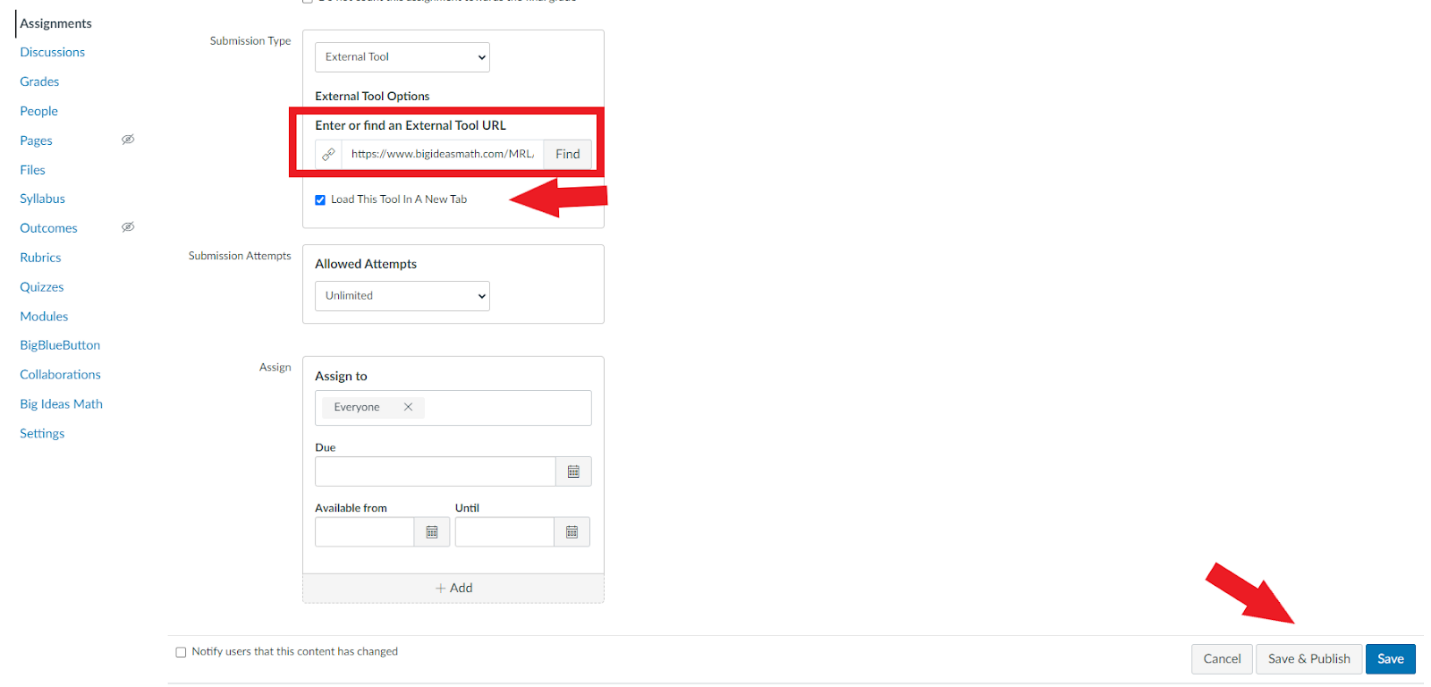
Set Submission Attempts to Unlimited to allow syncing
multiple times if you update any scores and choose an Assignment Group. It is
also recommended to select Load this tool in a new
tab.