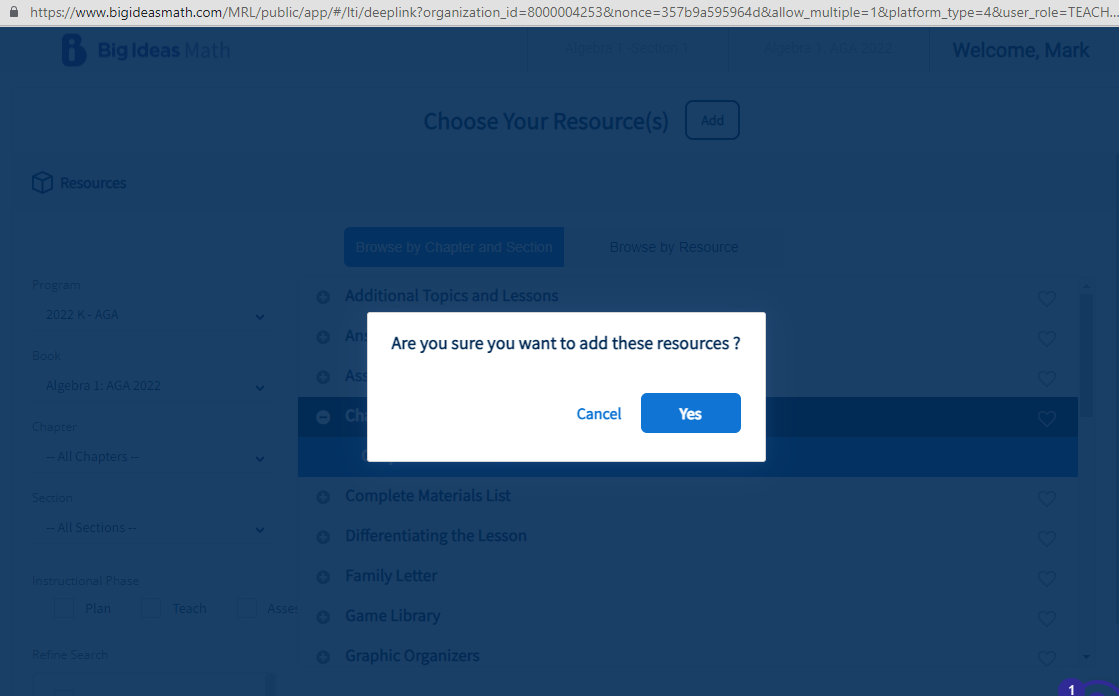
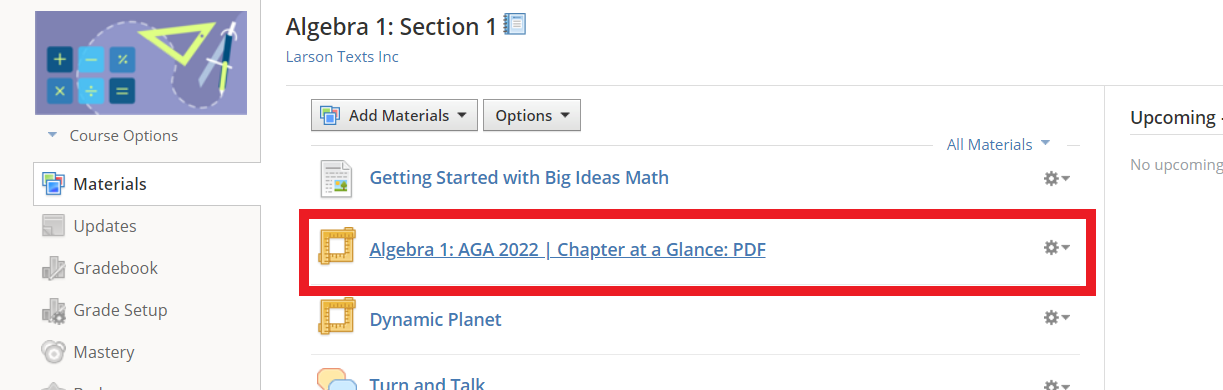
Big Ideas Math content links can be added to Schoology using Materials.
-
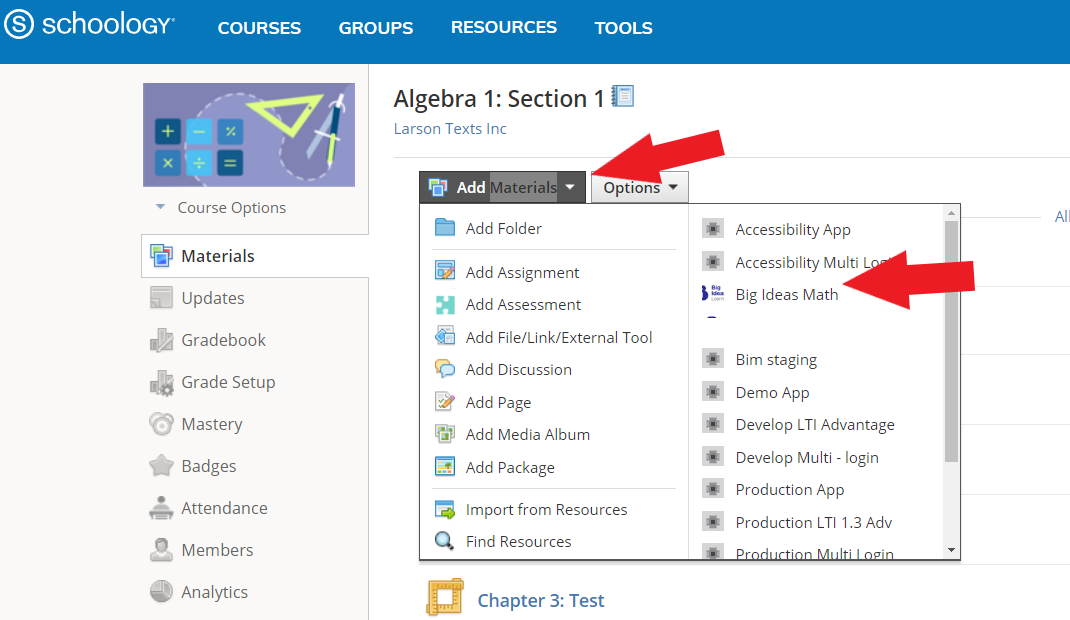
Select Add Materials to create a new resource links for
your students.
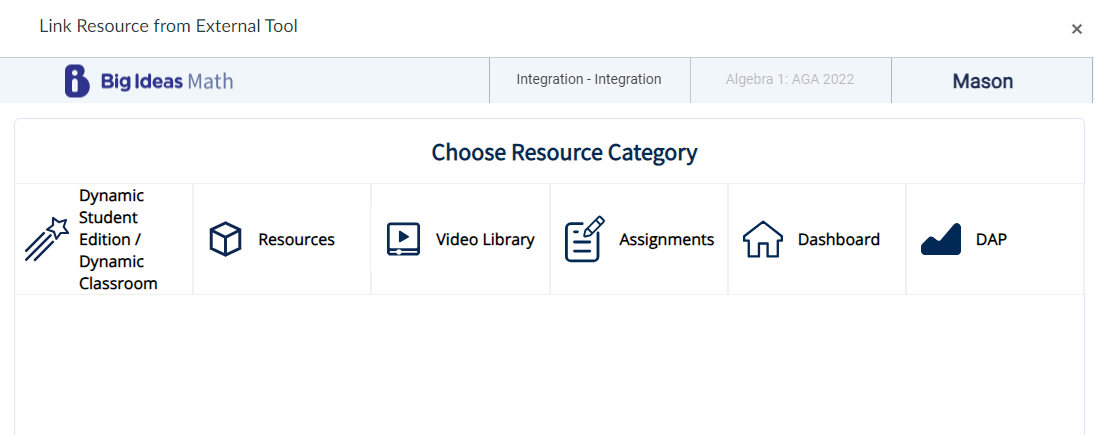
- You can select which Big Idea Resource you would like to add to the Module. Big Ideas
Dashboard and Dynamic Student Edition are items that may only need to be added once
to a
Module. Resources, Video Library, Assignments and DAP will contain chapter specific
resources.
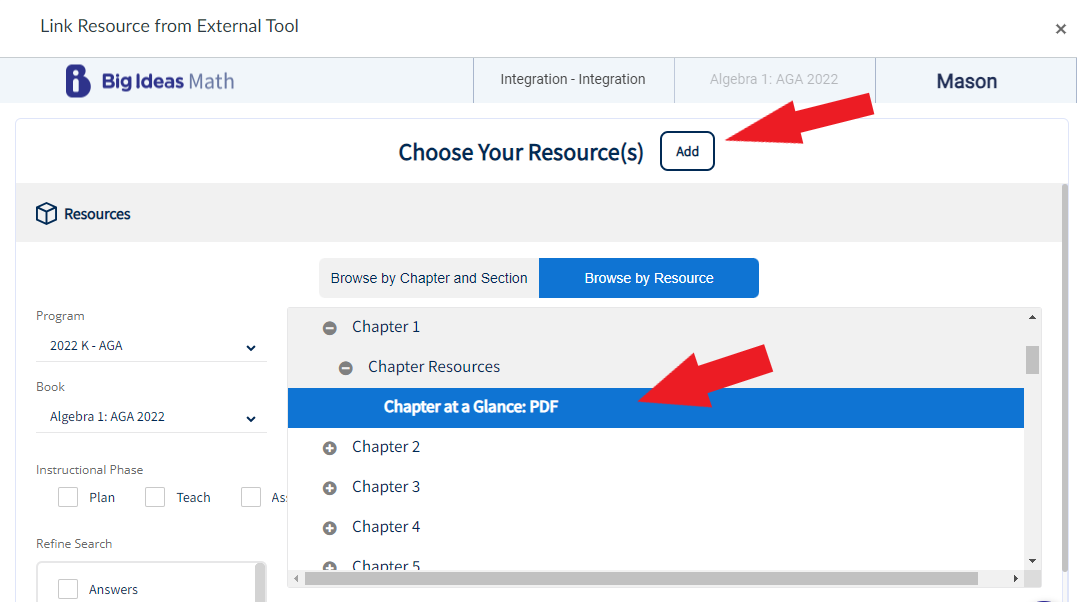
- Once you have the resource selected you will click Add in the Big Ideas Math
window. The Item will be highlighted and once an item is selected the add button will
be
selectable.
-
Click the Yes button to add this to your Schoology
module.