Within Schoology you can now make an assignment for multiple classrooms at the same time through the external tool.
If you are unfamiliar with how to make an assignment in Schoology please see Add Big Ideas Math Assignments to a Schoology Course.
-
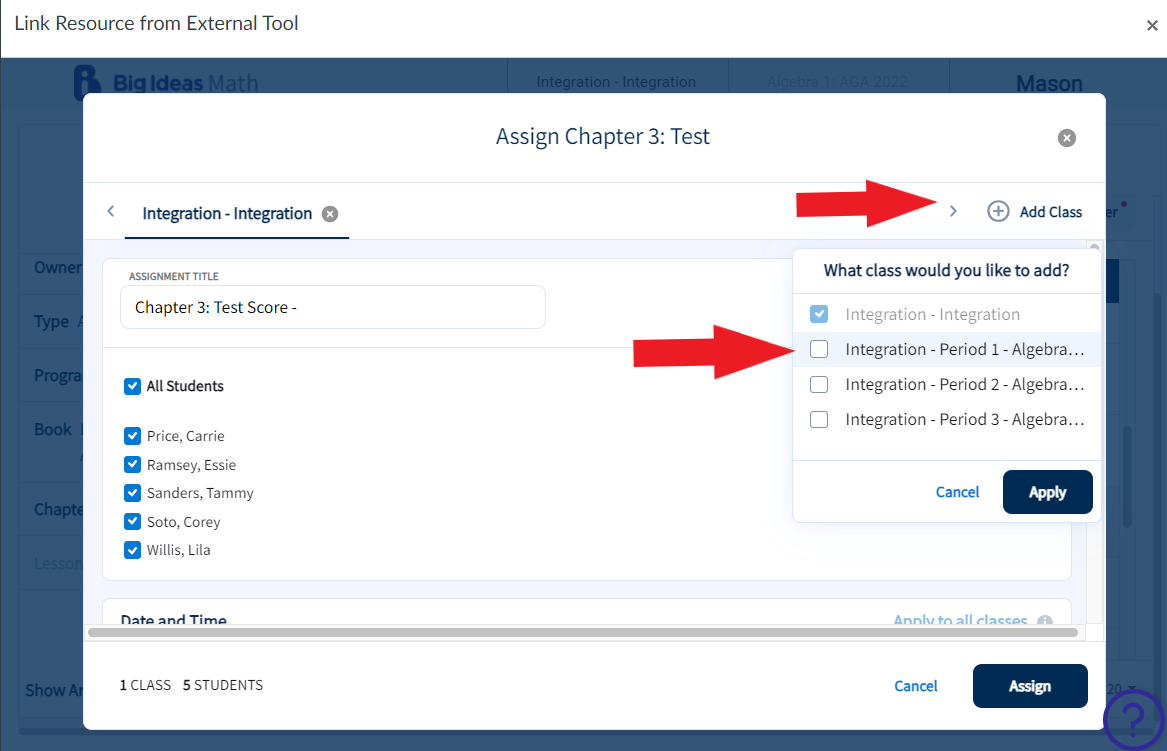
Click the Add Class button, then check the boxes to the
classes you wish to add the assignment to. Click All
Students or individual students you need by class.
-
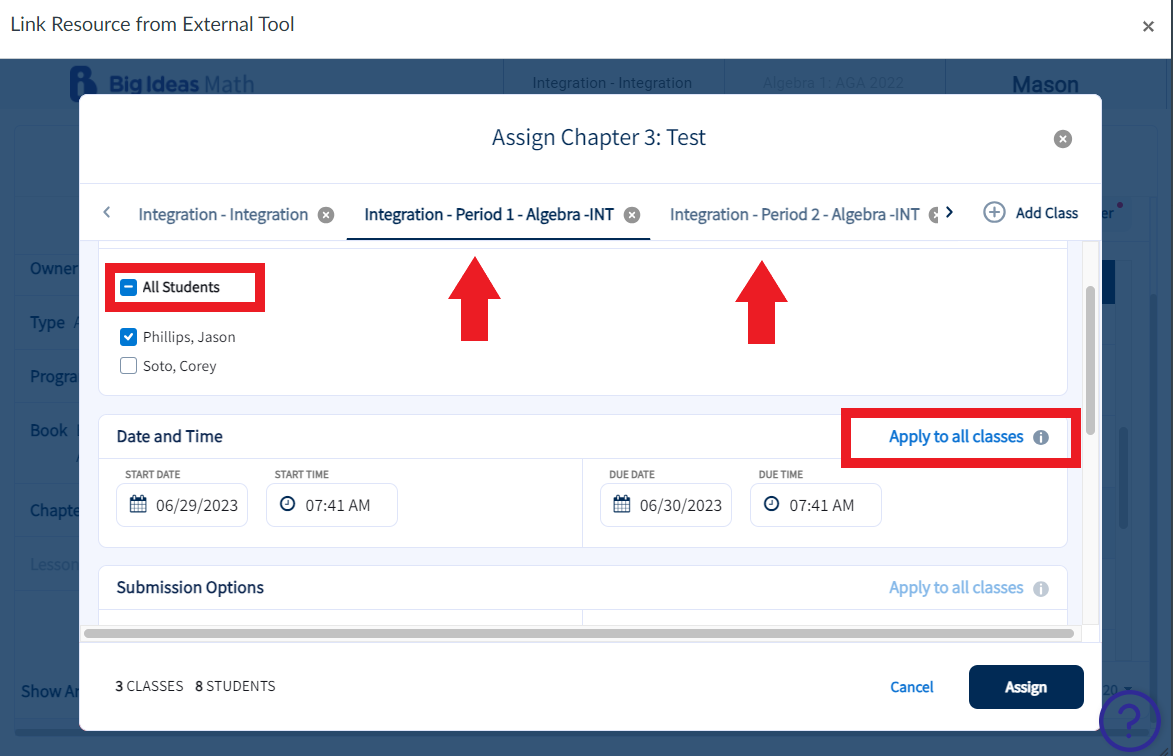
Once the classes have been selected you can navigate between the different
classes to manage the users and settings. Settings which can be applied to all
classes are Date and Time, Submissions Options, Tools and Questions Options.
Click the Assign button to add the link to the assignment
in Schoology.
-
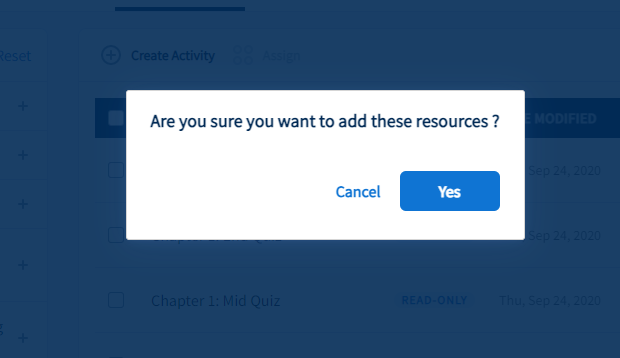
Click Yes to publish the assignment to Schoology.
-
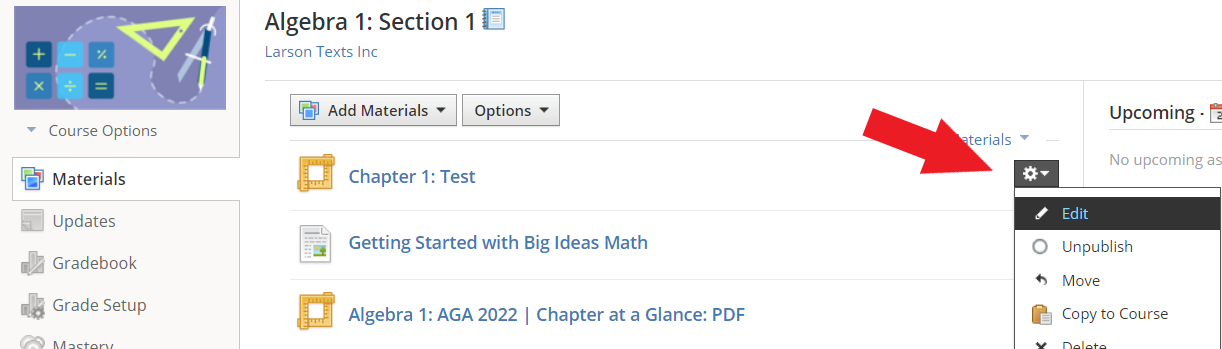
Navigate to the Gear icon and Click Edit
to open the External Tool editor.
-
Select a Category for the Assignment. If a category is
not added the item will not be scored with Schoology.
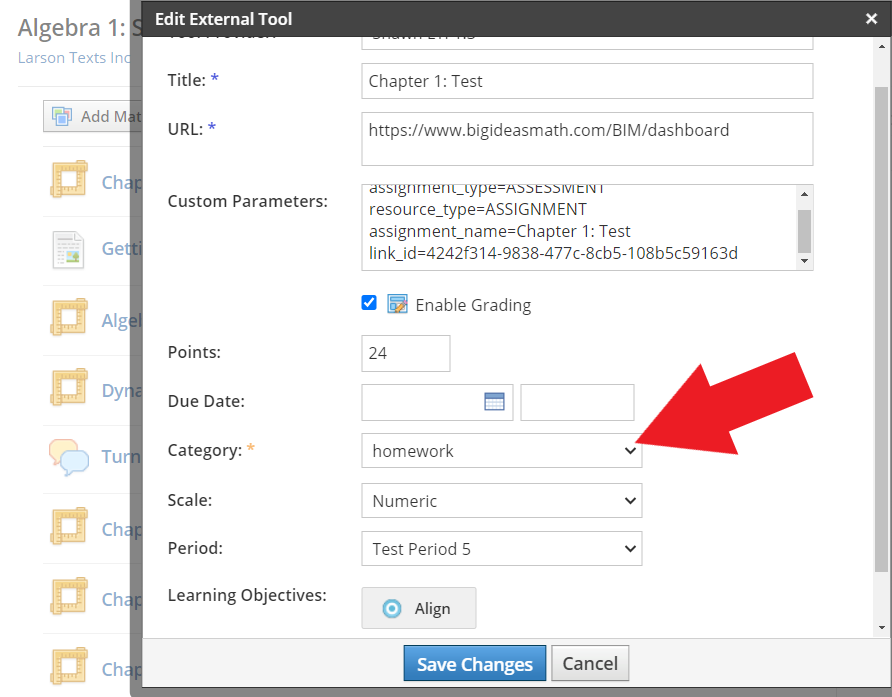
- Ensure Enable Grading is checked.
- Do not modify the URL or Custom Parameters. These should be populated with text similar to the above screenshot.
- Do not copy and place this URL in any other location besides where we place it by default as it may produce errors when users attempt to click it. If other classes or students need access to it, they will be selected during the assignment creation within Big Ideas Math.
- Click Save Changes.