-
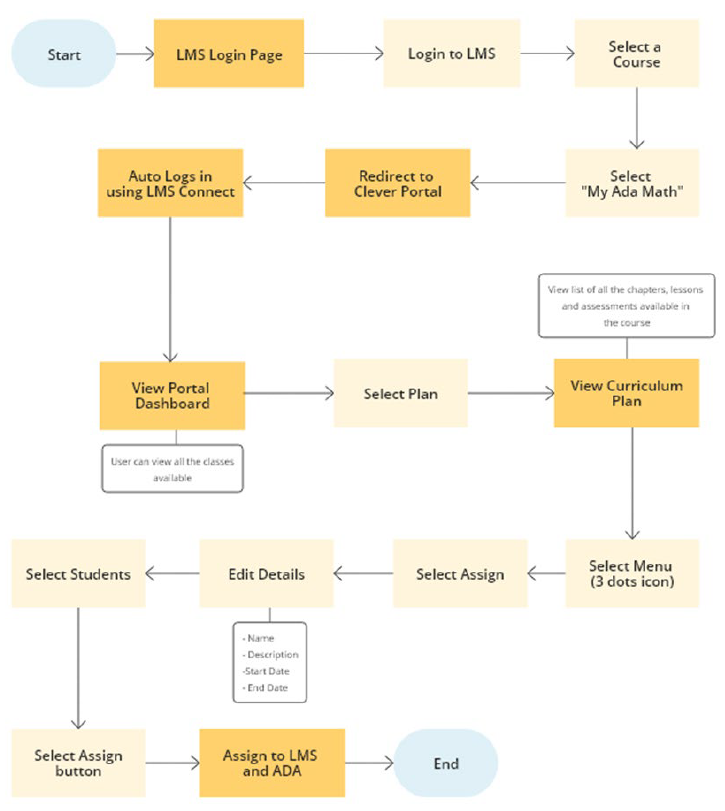
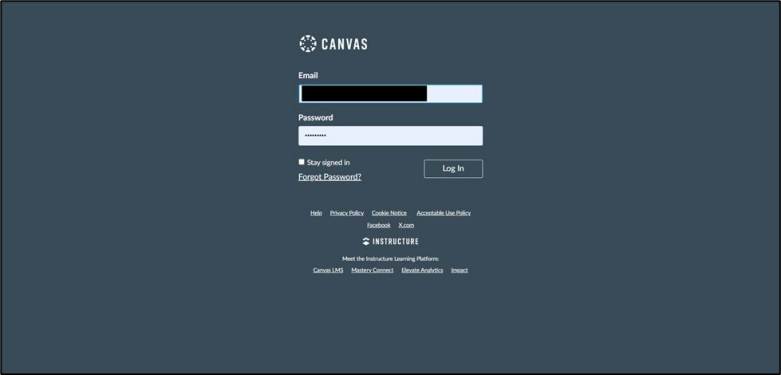
The Teacher will log into the Canvas LMS portal.
-
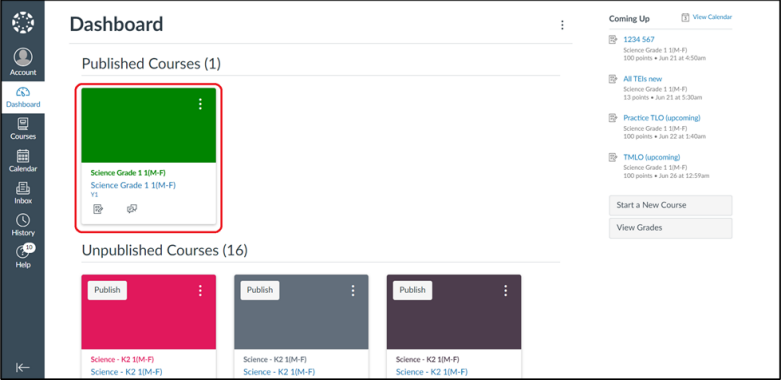
The Teacher will select a course.
-
If the district is connected to LMS connect then the My Ada Math app will be
available on the left-hand side menu option for the teacher.
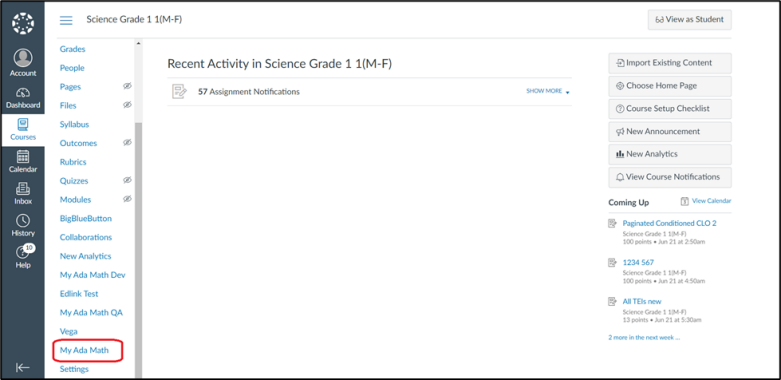
-
When the Teacher selects the My Ada Math app, they will be redirected to the
Math & YOU portal. The portal will then check for any
valid active sessions. If an active session is found, the Teacher will be
redirected to the Math & YOU portal's Dashboard.
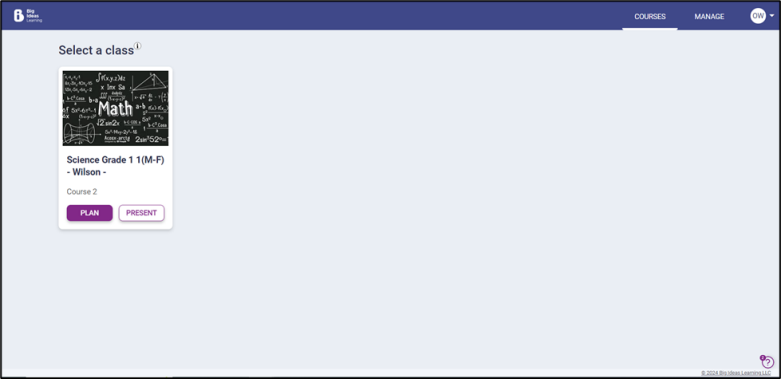
If no active session is found, the Teacher will be redirected to the Clever Login page. There, the Teacher will be authenticated, and upon successful authentication, they will be redirected to the Math & YOU portal.
-
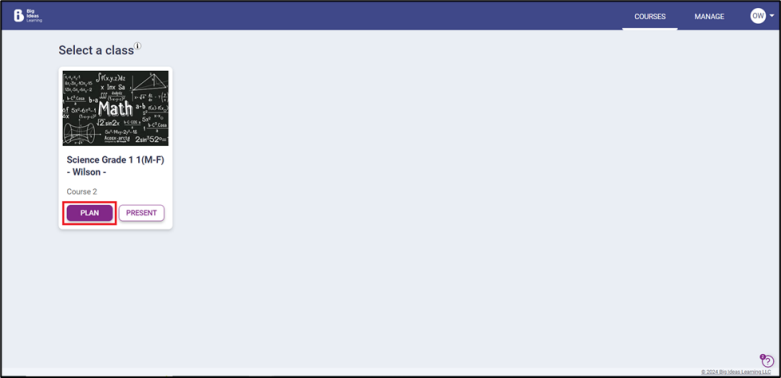
Selecting Plan on the course card will redirect the
teacher to the Course Details page, where they can view all the assessments.
-
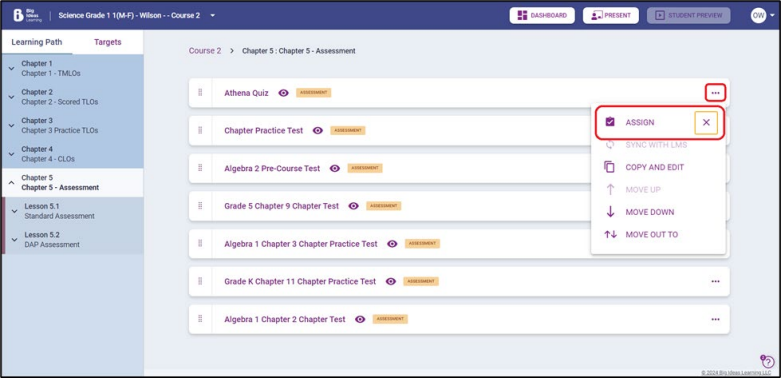
The teacher can assign assessments by clicking the three dots menu icon and
selecting the Assign option.
Note: Assessments are of two types: Practice and Graded. Both types can be assigned to students.
-
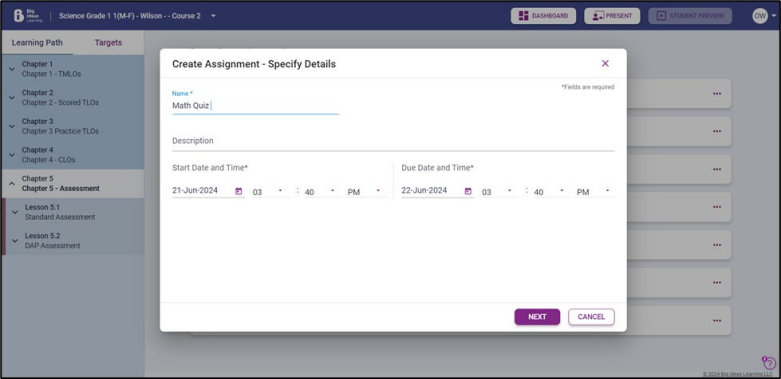
Upon selecting Assign, a Create Assignment modal will
open. Teacher will fill in the following information.
- Name of the assignment: Enter name manually.
- Description of the assignment: Enter description manually.
- Start Date: Select the start date of the assignment from the date picker.
- End Date: Select the end date of the assignment from the date picker.
-
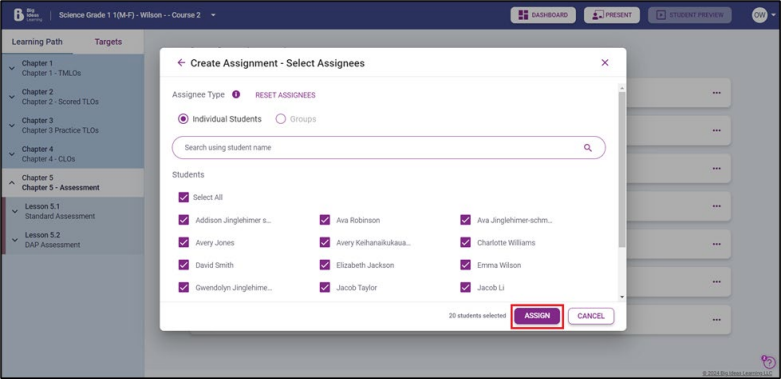
Choose the students who will take the assignment and select
Assign.
-
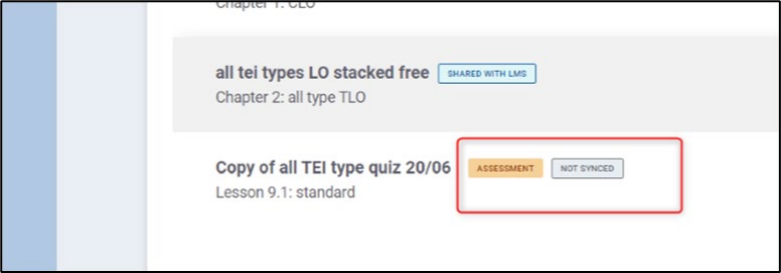
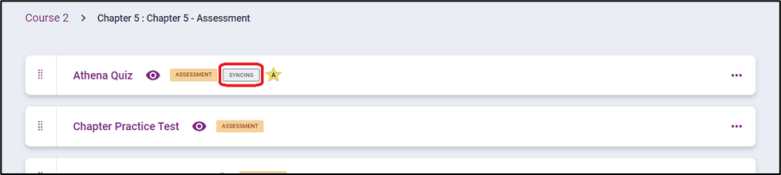
When the Teacher clicks on Assign, the assessment will
now be assigned to the selected students on the Canvas LMS. When the assessment
is syncing, a status label SYNCING will be visible to the Teacher. On success,
the status label message will change to SHARED WITH LMS.
Cross-listing is not currently supported by LMS Connect. Assignments will need to be created for each class in Math & YOU and synced to each class in the LMS.
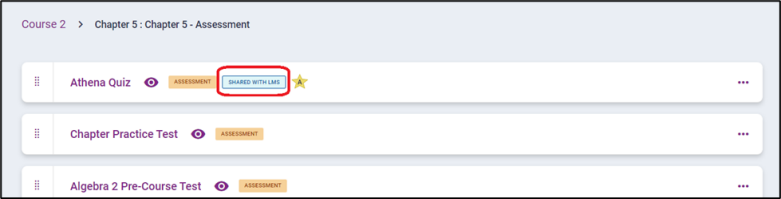
If the sync fails, then a NOT SYNCED label appears.