-
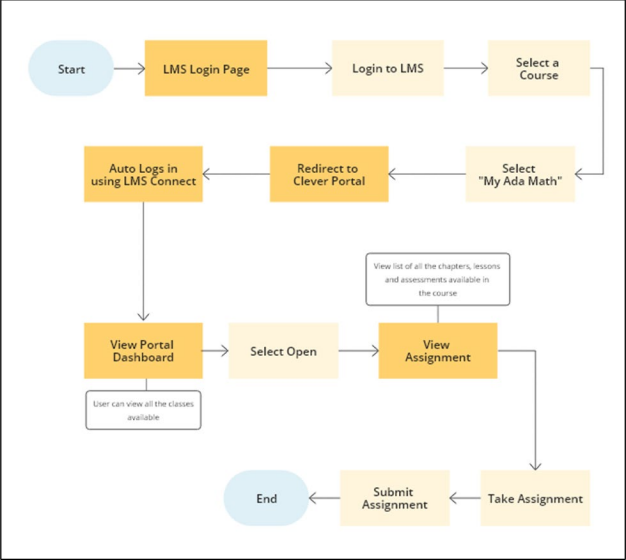
The student will log in to their Canvas LMS.

-
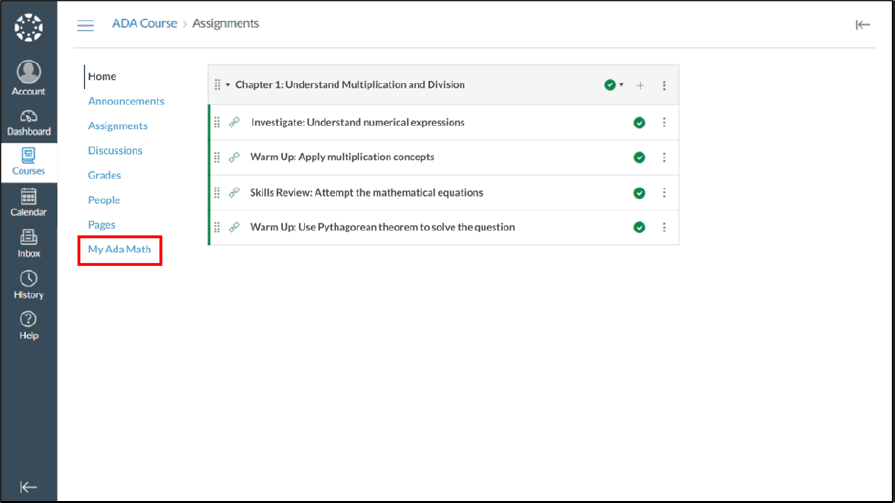
If the district is connected to LMS connect then the My Ada Math app will be
available on the left-hand side menu option to the teacher.
-
When the Student selects the My Ada Math app, they will be redirected to the
Math & YOU portal. The portal will then check for any
valid active sessions. If an active session is found, the student will be
redirected to the Math & YOU portal's Dashboard.
-
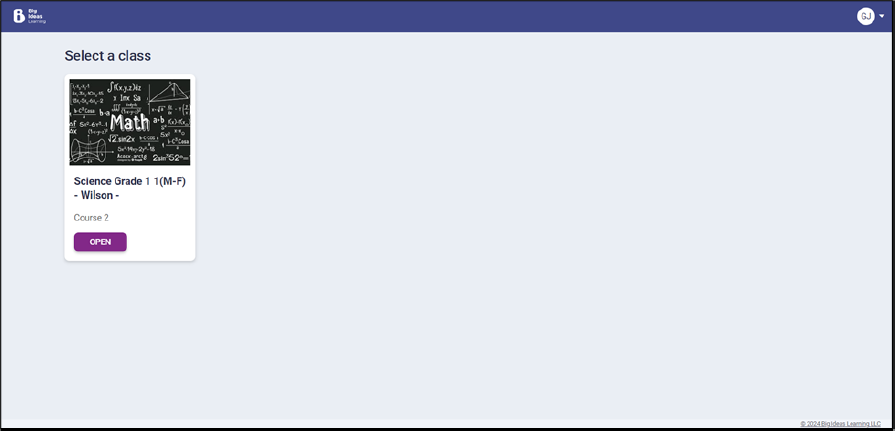
Clicking Open will redirect the student to the
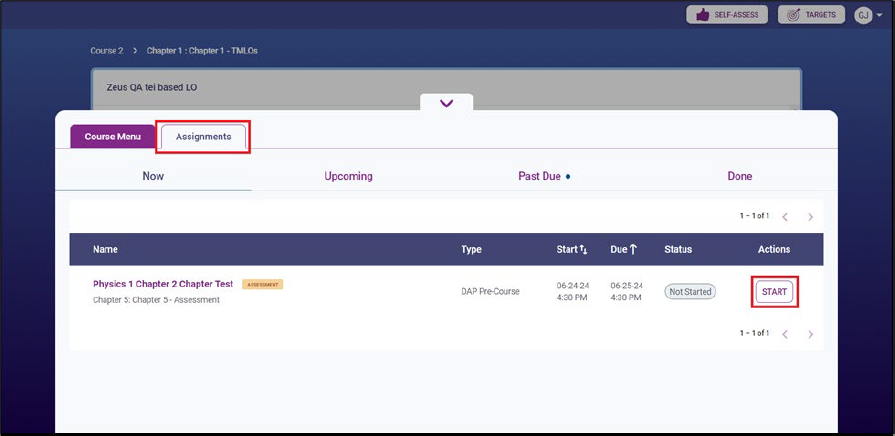
assignment view page. In the Assignment tab, the student
can see a list of all New, Upcoming, Past Due, and Completed assignments.
-
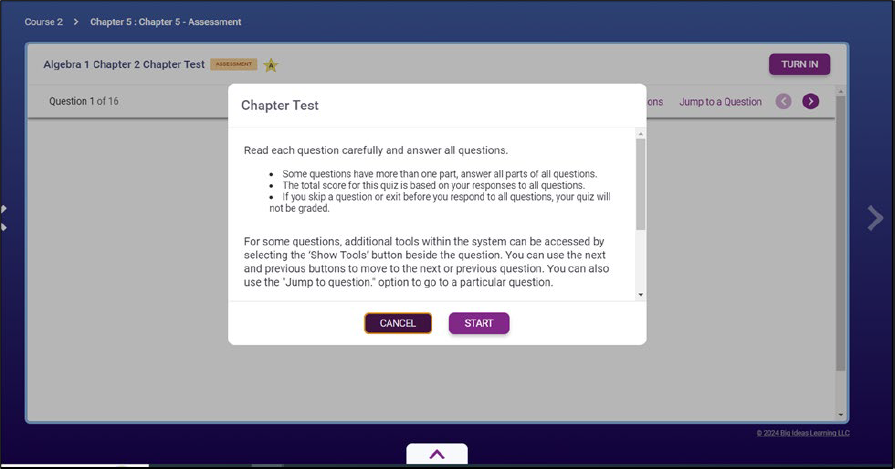
The student can begin the assignment by clicking Start.
Before starting, they will see a list of instructions from the teacher.
-
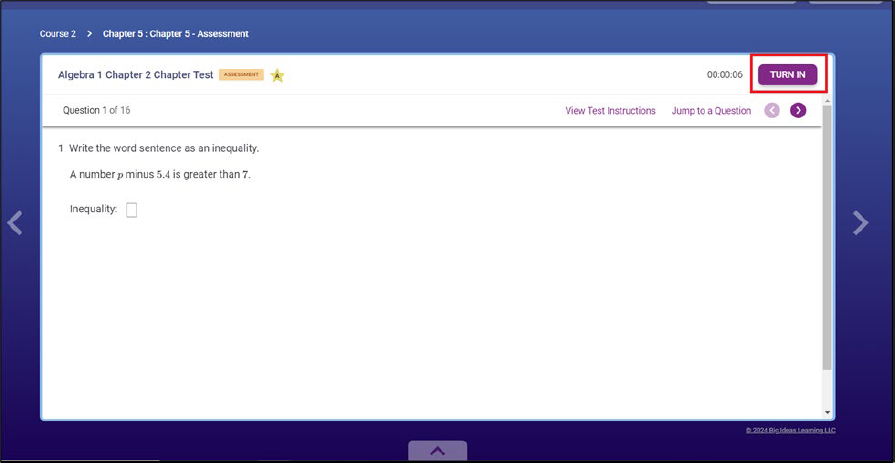
Once the student has attempted all the questions, they can submit the
assignment by clicking the TURN IN button.
-
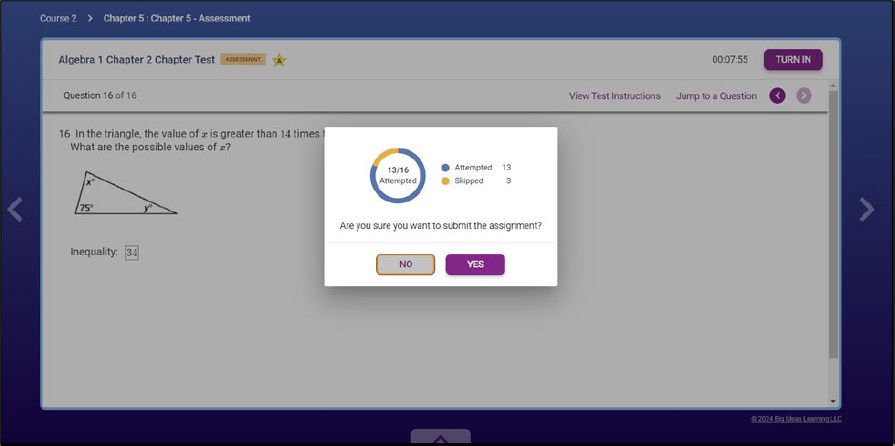
Upon doing so, a confirmation modal will appear, showing how many questions
have been attempted and how many were skipped. The student can review this
information and decide whether to submit the assignment or go back to address
any missing questions.
-
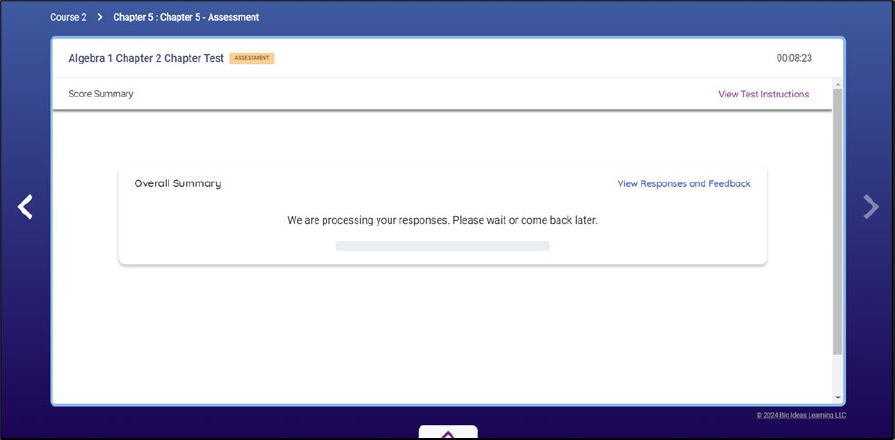
After submitting the assignment, students will need to wait for their
grades.
If the assignment is system-graded, students will see their grades within a few minutes. However, if the assignment requires manual grading by the teacher, students will have to wait until the teacher completes the grading.
-
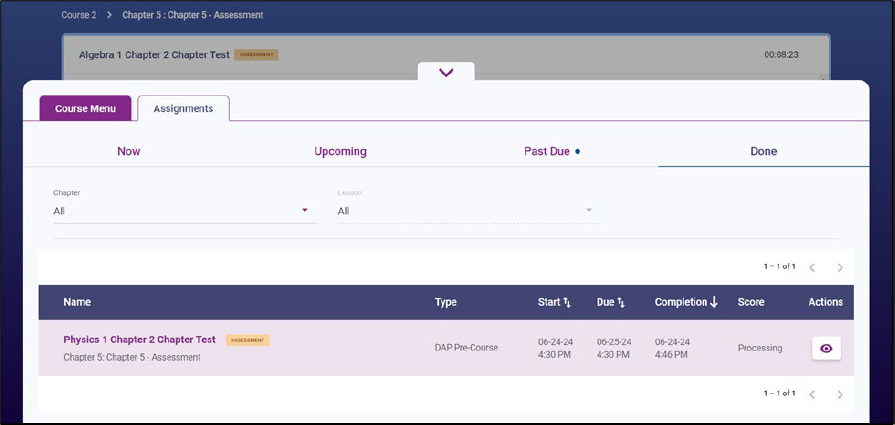
Students can always view their submitted assignment in the
Done tab. Select the Eye icon to view the grades and
details.