-
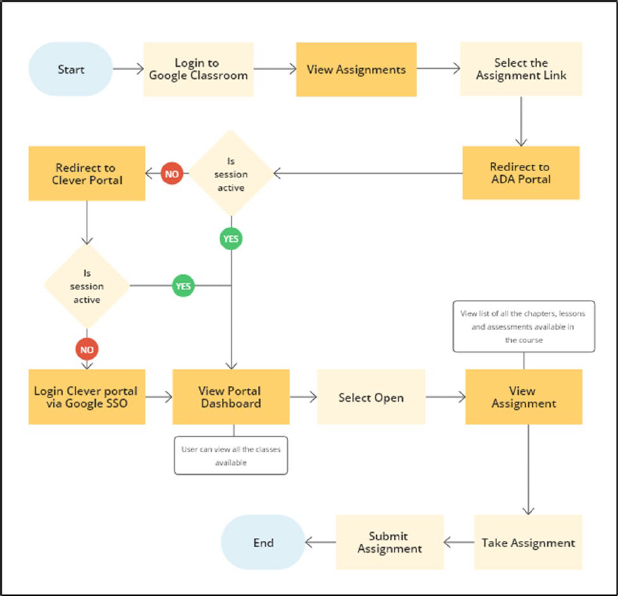
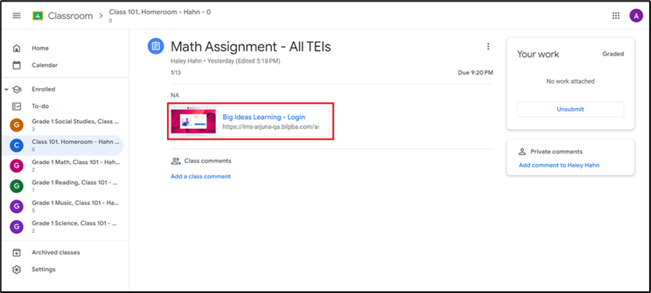
The student will open the assignment on Google Classroom and select the ADA
portal link.
-
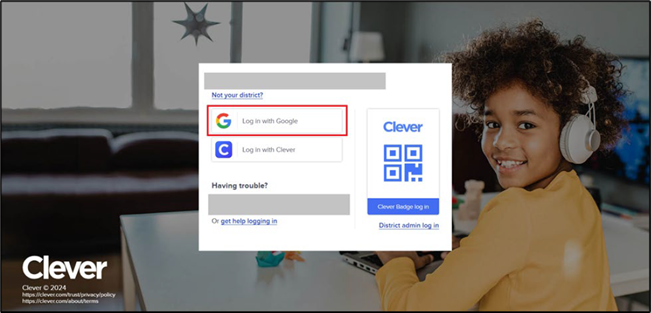
The student will be redirected to the ADA portal. The portal will then check
for any valid active sessions. If an active session is found, the student will
be redirected to the ADA portal's dashboard. If no active session is found, the
student will be redirected to the Clever Login page where the student can log in
using the Log In with Google SSO.
-
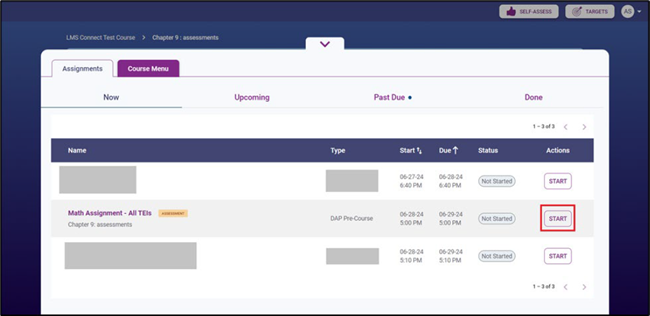
On successful login, the student will be redirected to the assignment player.
Students will be able to take the assignment if it's a valid assignment in ADA.
Select Start to start taking the assignment.
-
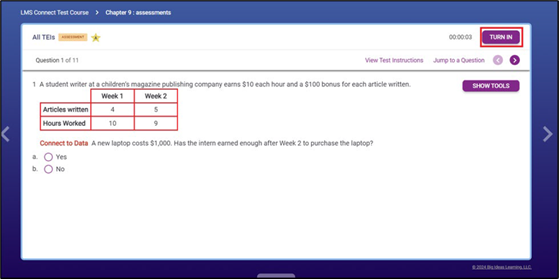
The student can start giving the assignment and going through it. Once the
student has attempted all the questions, they can submit the assignment by
clicking the TURN IN button.
-
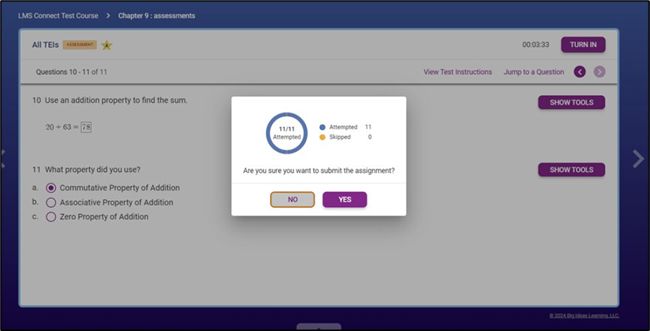
Upon doing so, a confirmation modal will appear, showing how many questions
have been attempted and how many were skipped. The student can review this
information and decide whether to submit the assignment or go back to address
any missing questions.
-
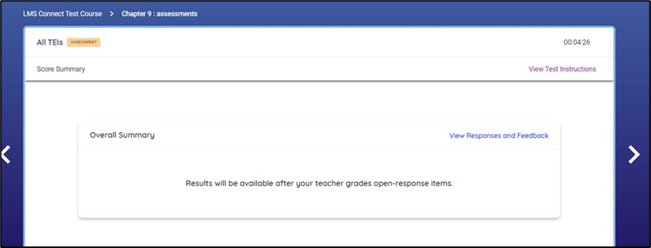
After submitting the assignment, students will need to wait for their
grades.
If the assignment is system-graded, students will see their grades within a few minutes. However, if the assignment requires manual grading by the teacher, students will have to wait until the teacher completes the grading.
-
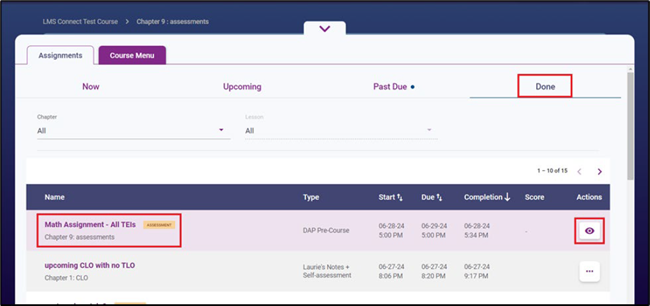
Students can always view their submitted assignment in the
Done tab. Select the Eye icon
to view the grades and details.
-
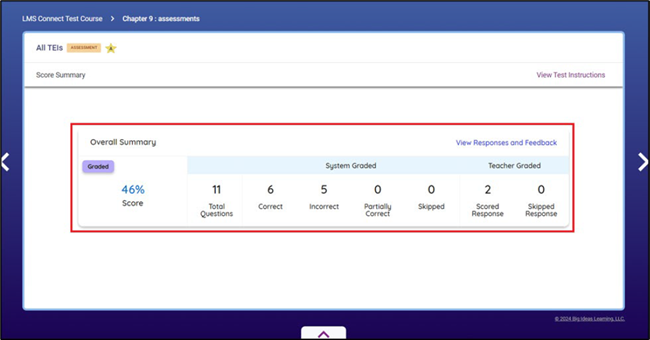
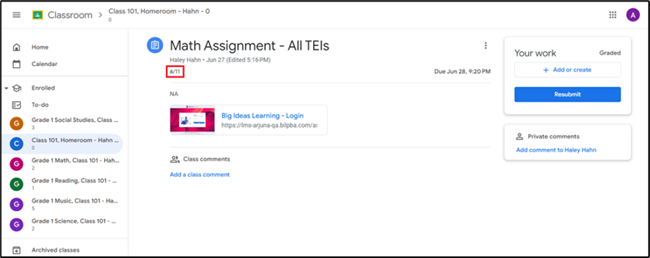
Students can view the grades on the ADA portal or Google Classroom once they
are synced successfully.