-
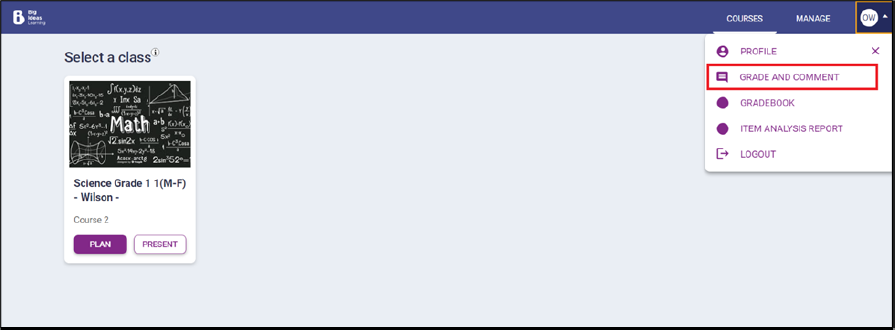
The teacher can grade and add comments to the submitted assignment by selecting
the Grade and Comment option from the profile icon
menu.
-
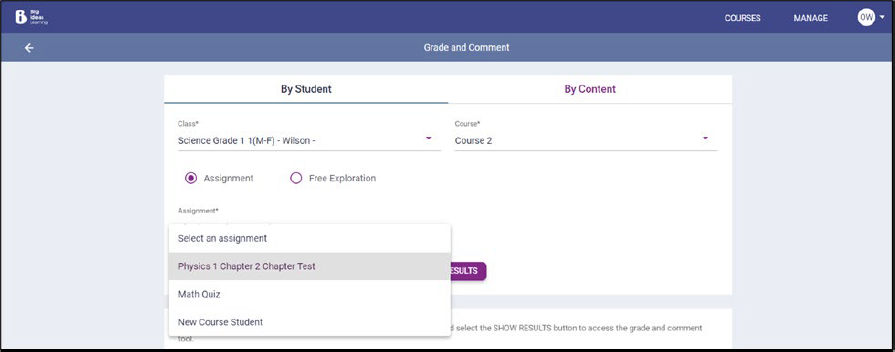
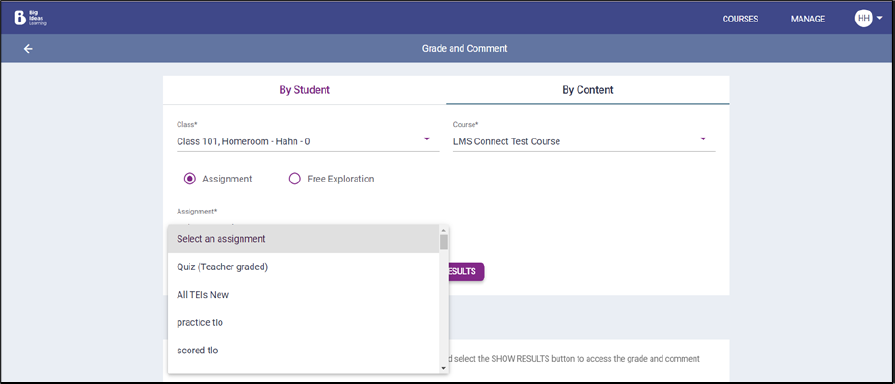
On the Grade and Comment page in the By Student and
By Content tab, the teacher can filter assignments
using the filters.
-
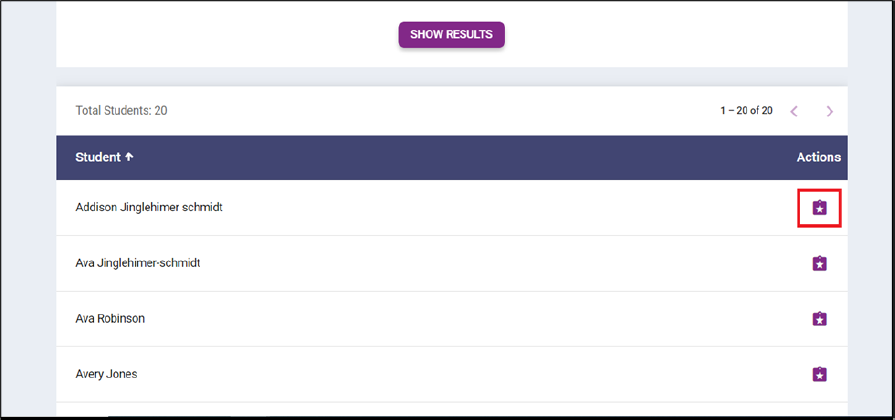
Once the filter is applied, in the By Student tab the
teacher can view the list of all students who were assigned the assignment. By
clicking the Evaluate icon next to a student's name, the
teacher can see the student's responses and grade them accordingly.
In the By Content tab the teacher can view the list of all the content. By clicking the Evaluate icon next to a content name, the teacher can see the student's responses and grade them accordingly.

-
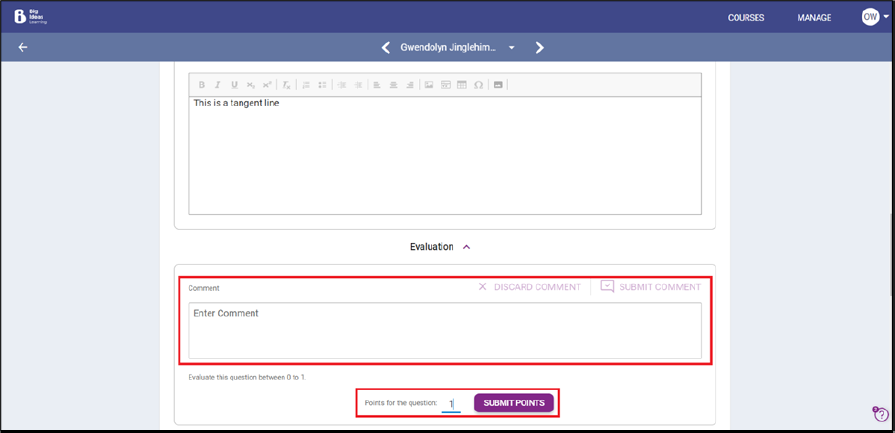
The teacher can add comments and assign grade points based on the student's
answers. When the teacher clicks Submit Points the grades
will be synced with the LMS.
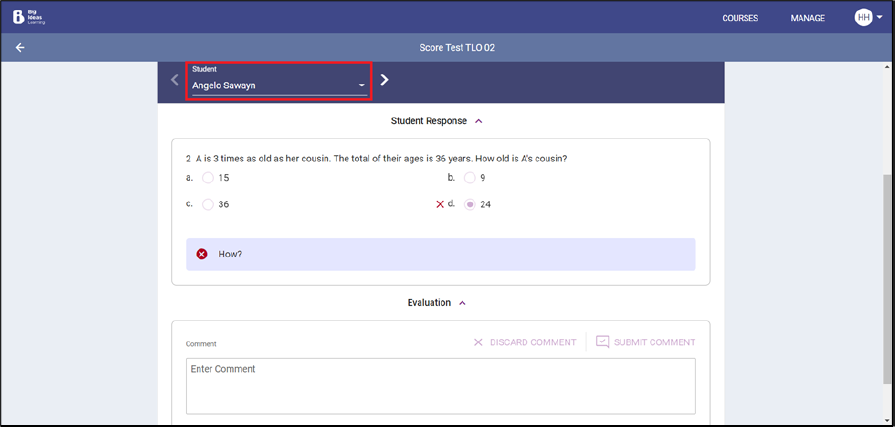
Grading for content: Teachers can view answers for one content for each student and give them grades.
-
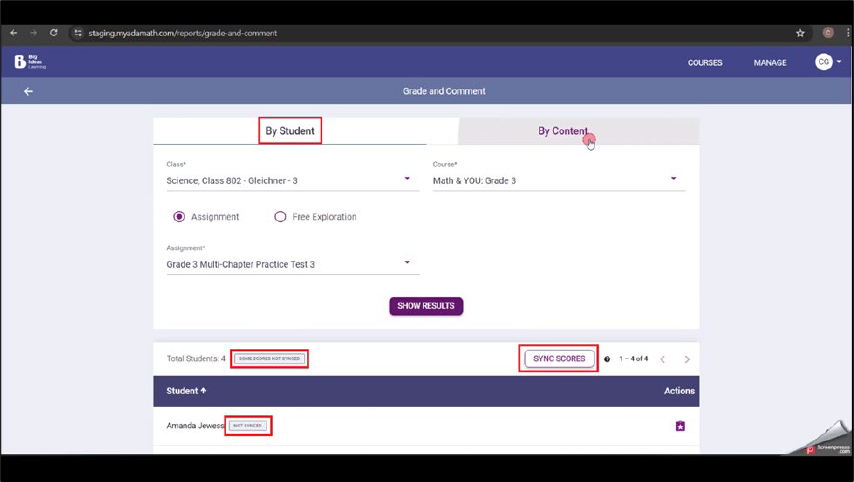
If grade syncing fails, a label SOME SCORES NOT SYNCED will
appear next to Total Students: <Student count> information.
The SYNC SCORES button will be enabled, allowing users to
attempt syncing grades again. A NOT SYNCED label will be
displayed next to the names of students whose grades were not synced.
-
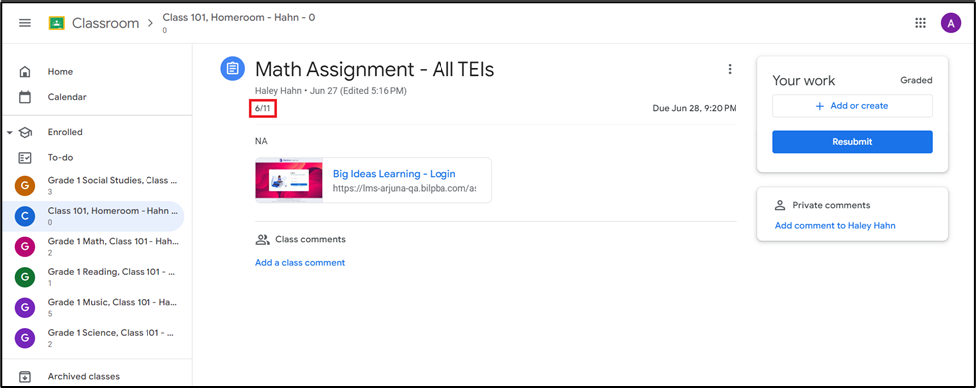
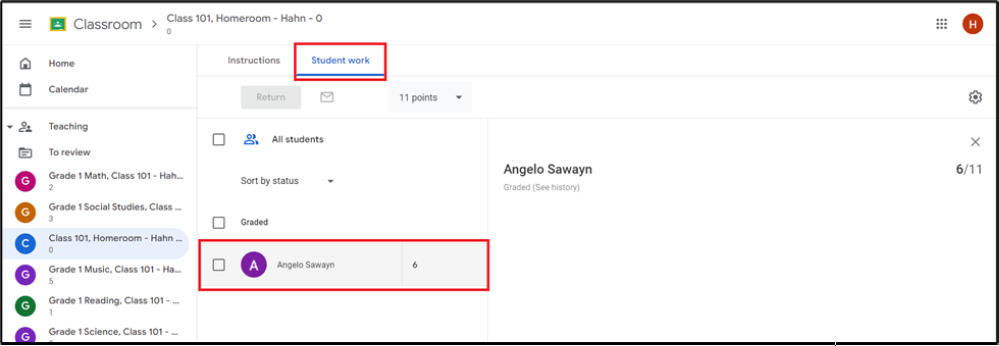
View grades information on Google Classroom.
Teacher View Teachers can view the grades in the Student work tab.
Student View Students can view their grades in the assignment details page.