Password Requirements
Teachers:
- Minimum of 12 characters, 1 uppercase, 1 lowercase, 1 special symbol, different than the last 5 passwords used, is not a common password.
Students:
- When the student account is created/uploaded by a District Technical Admin or
School Admin:
- Minimum of 8 characters with at least 1 uppercase letter and lowercase letter
- Teacher-created account:
- Minimum of 8 characters with at least 1 uppercase letter and lowercase letter
- Student changes the password due to a password reset:
- Minimum of 12 characters, 1 uppercase, 1 lowercase, 1 special symbol, different than last 5 passwords used, is not a common password
-
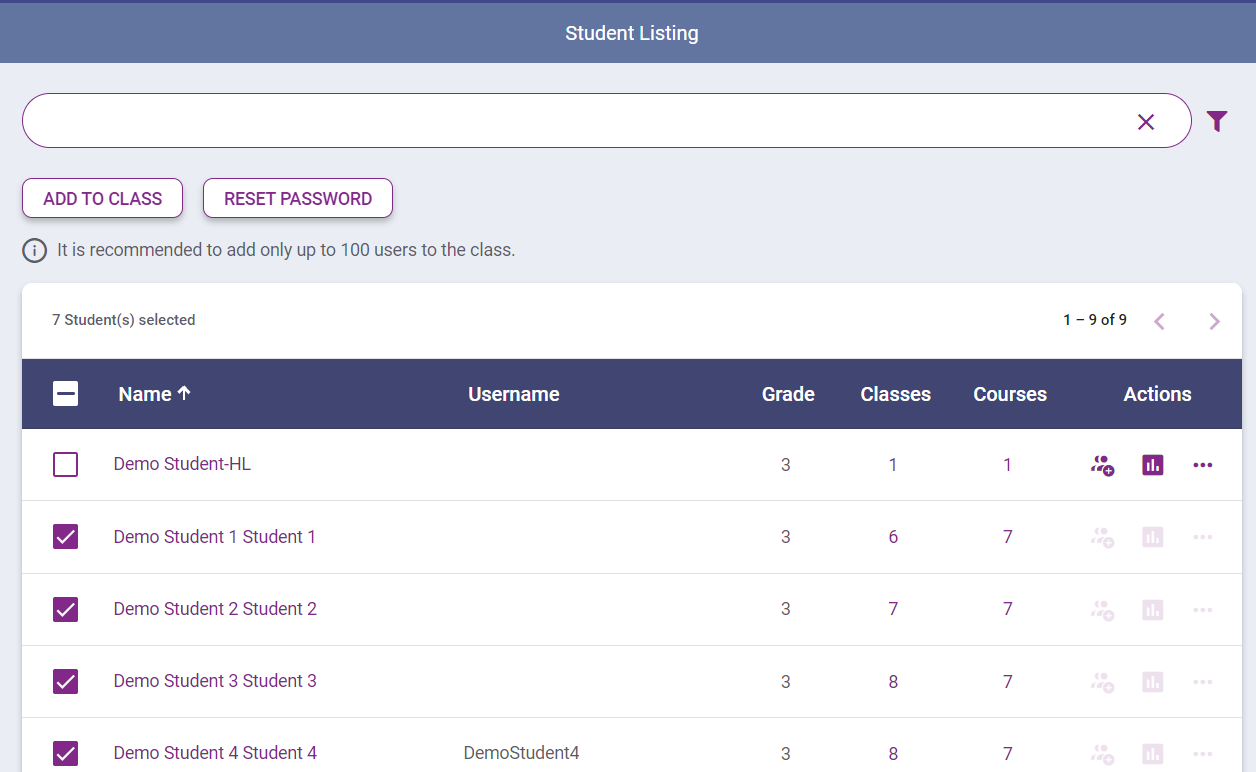
Select the RESET PASSWORD option for a student in the
Student Listing or when editing their details, or select multiple students and
select RESET PASSWORD in the Student Listing.

-
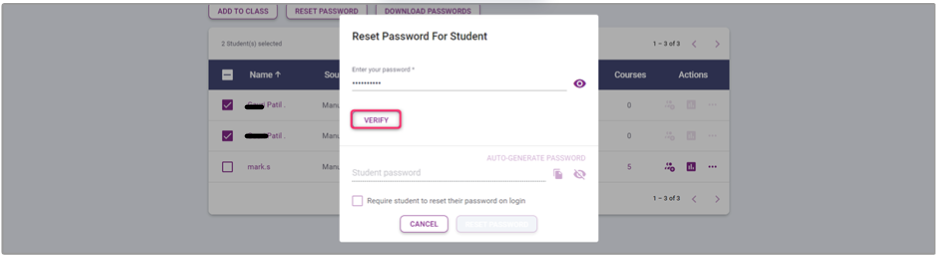
Enter your password for verification and select
VERIFY.
-
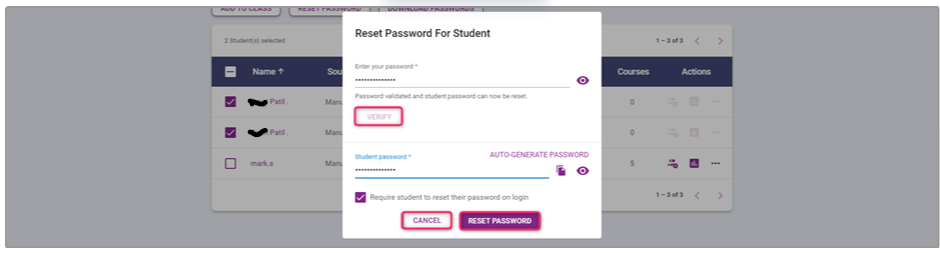
Enter the new password for the student and select RESET
PASSWORD or select CANCEL to close the
modal without changing the password. Select Require student to reset
their password on login to force the student to set their own
password when they first log in using the password shared with them by the
teacher.
 A success screen will display. Select OK to close the success screen and remain on the Student Listing or Edit User page. The new password will be emailed to the student(s) for whom the password was reset.