This article is for any instructor or curriculum developer interested in understanding the library of curriculum assets and technology tools that Visible Body offers to support interactive, visual, and engaging course content.
A broad overview of our curriculum content is available in this PDF Curriculum Guide and reviewed on this Curriculum Overview page.
This article provides a preview of each type of content.
Assignments with correlations
A Visible Body instructor or administrator Courseware account includes access to hundreds of premade assignments. Each assignment includes:
- Learning objectives or standard correlations
- Activities that present content and activities that quiz to assess learning
The time a student spends on a task and their work in these assignments report to the Gradebook. Here is a preview of a premade assignment:
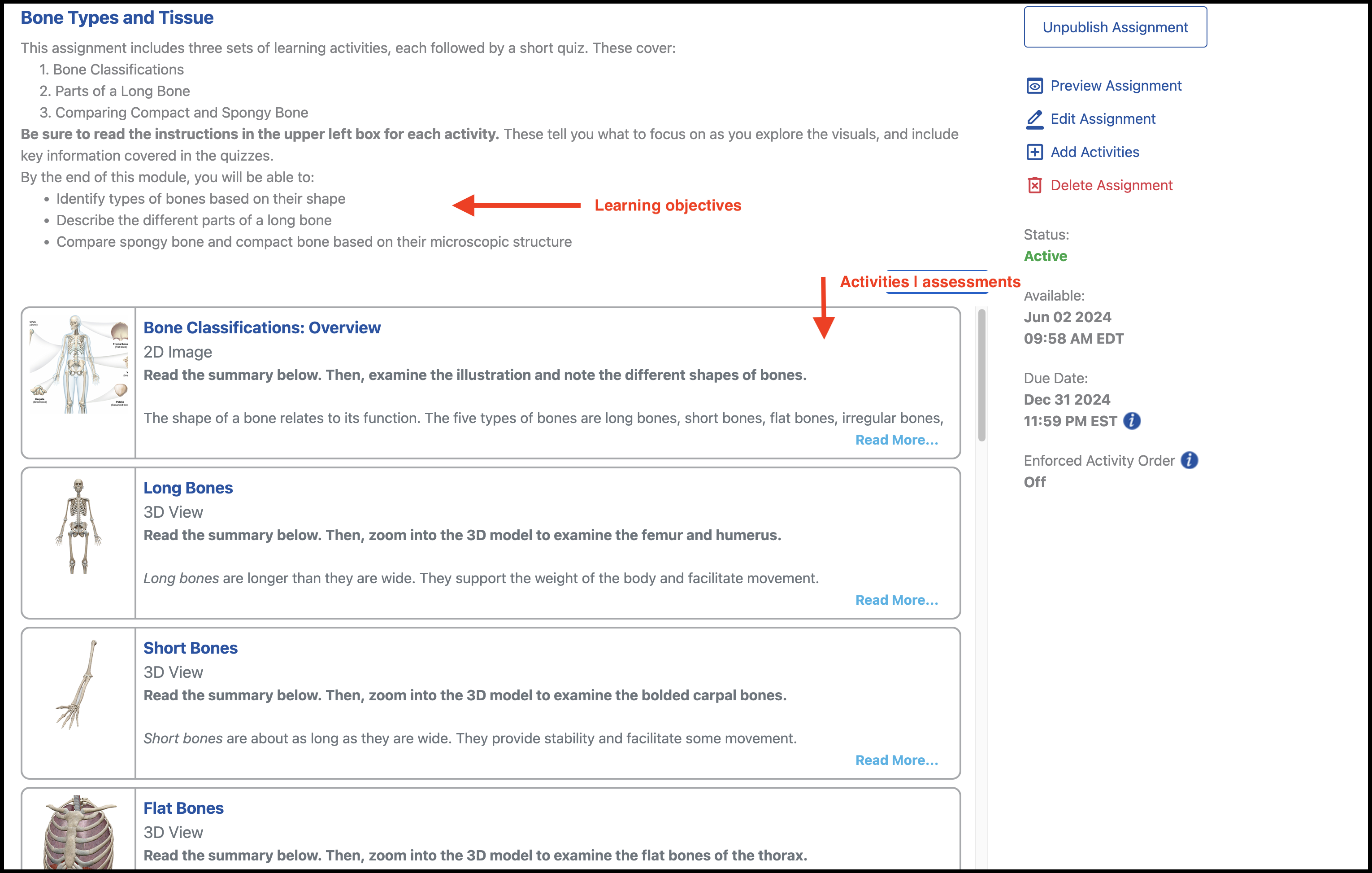
This video of a full assignment walkthrough provides an overview of the student experience.
Currently all these assignments are organized into three courses:
- Biology Lab Activities: Use this link to add to your instructor account.
- Anatomy & Physiology Lab Activities: Use this link to add to your instructor account.
-
Anatomy and Physiology Essential Concepts: Use this link to add to your instructor account.
The courses can be shared with students without any content changes (just edit the Course Information and dates) or can be edited to better match a course.
Courses and course outlines
A Visible Body instructor or administrator Courseware account includes access to dozens of course outlines and textbook correlations. Each course includes:
- Topic folders with visual assets and quizzes from our database for the topic.
- These include assignment outlines with 3D models, animations, assessments, flashcard decks, lab activities, etc.
Here is an example of a course and a preview of an assignment:
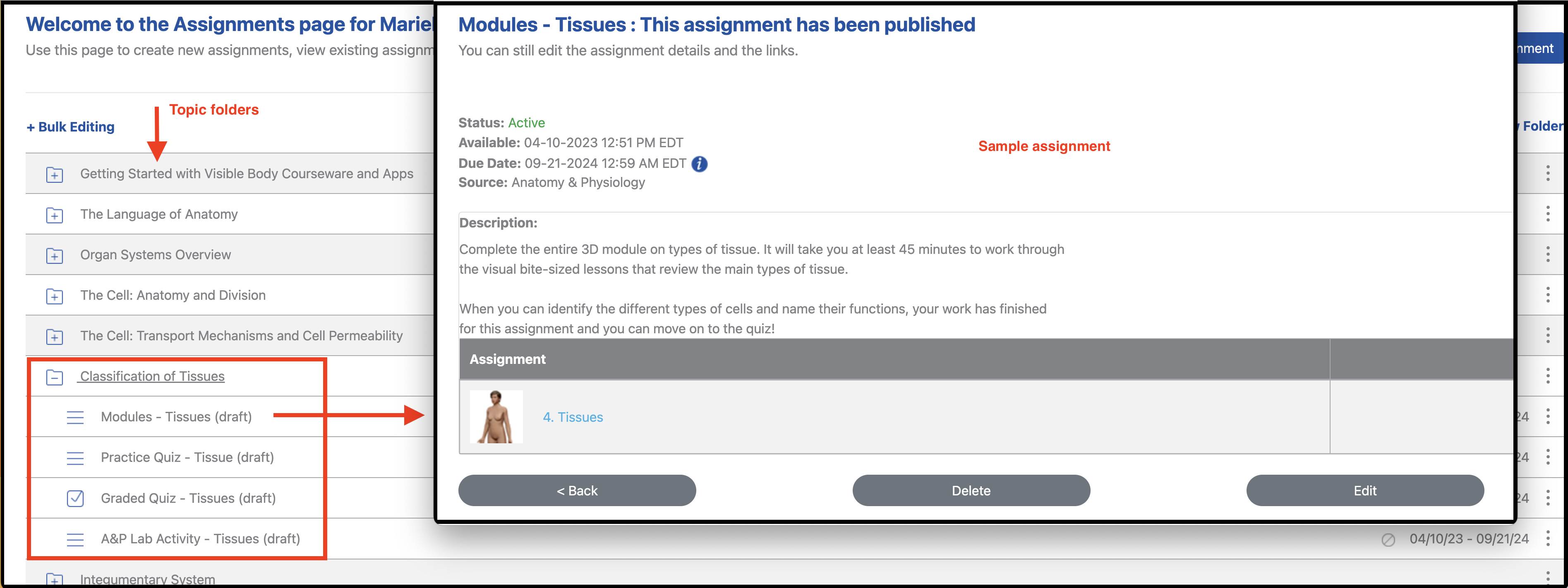
These courses can be added to an instructor or admin account from the Courses page on our website. Select the Premade Courses icon on the main Courseware dashboard page:

Instructors or curriculum developers can use the edit feature to add objectives, specific instructions, or add/delete content in any sample assignment.
Online, in-person, and AR labs
The lefthand menu in Courseware instructor and administrators accounts includes an option to access Instructor Resources. These resources include dozens of lab manuals in one or two formats (Word files and fillable PDFs) that offer both short and extended labs on many popular topics covered in life science courses.
Instructors can use these in two ways:
- Print and share these lab files with students
- Link to them in a Courseware assignment and have students submit electronic files. (This article explains to students how to use the fillable pdf features)
Here is an example Augmented Reality Lab on the Respiratory System and a preview video on AR.
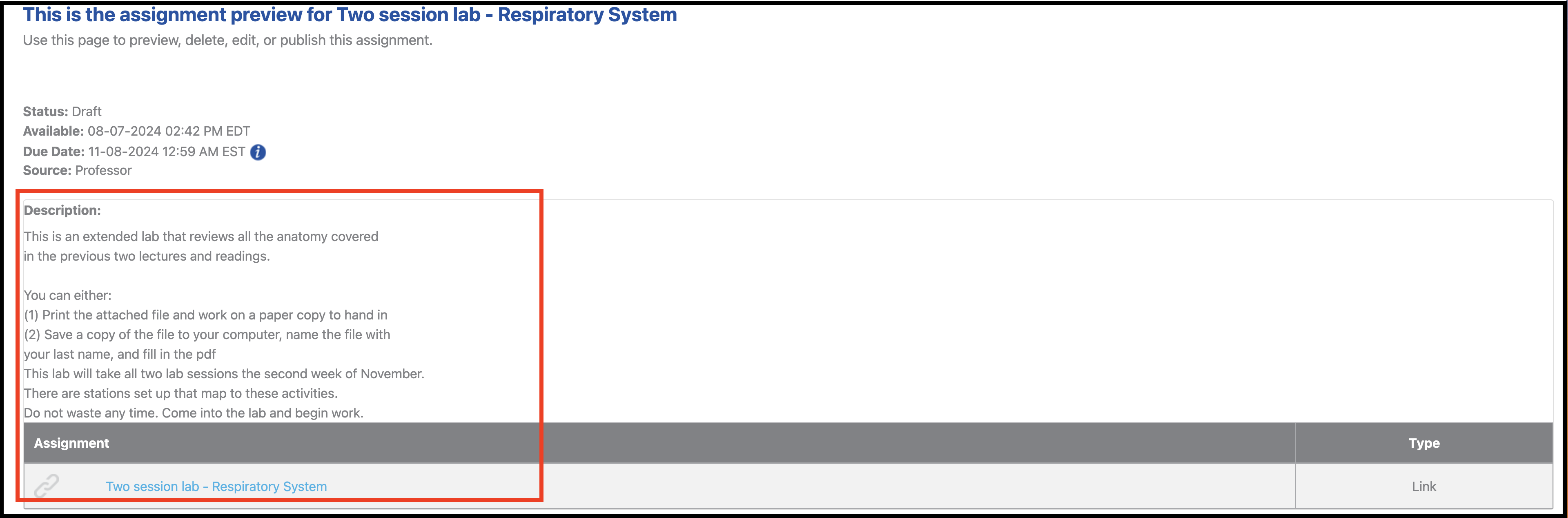
Here is an example extended lab on the The Respiratory System.
Here is an example of how that lab looks to students as a Courseware assignment:
Flashcards and Tours
The lefthand menu in Courseware instructor and administrators accounts includes an option to access Instructor Resources. These resources include dozens of Flashcard decks and 3D model Tours that instructors can use in class or add to a course as an assignment.
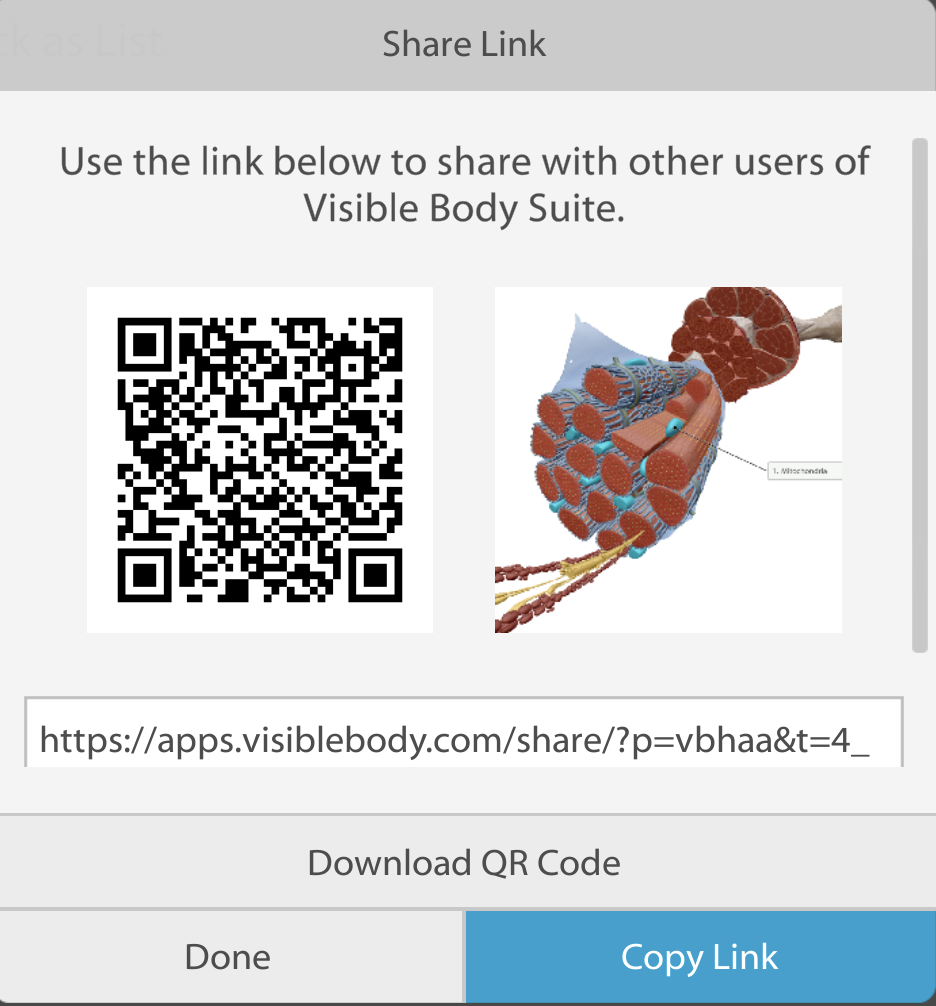
Flashcard decks and Tours can be added to any Courseware account or shared with students by generating a share link or QR Code.
Follow these steps to share 3D Tours and Flashcard decks with students:
- From the My Apps page in Courseware, launch VB Suite
- Under the Study tab (Flashcards) or My Library (Tours) tab, find the content to share
- Click on the three-dot menu to select the Share option
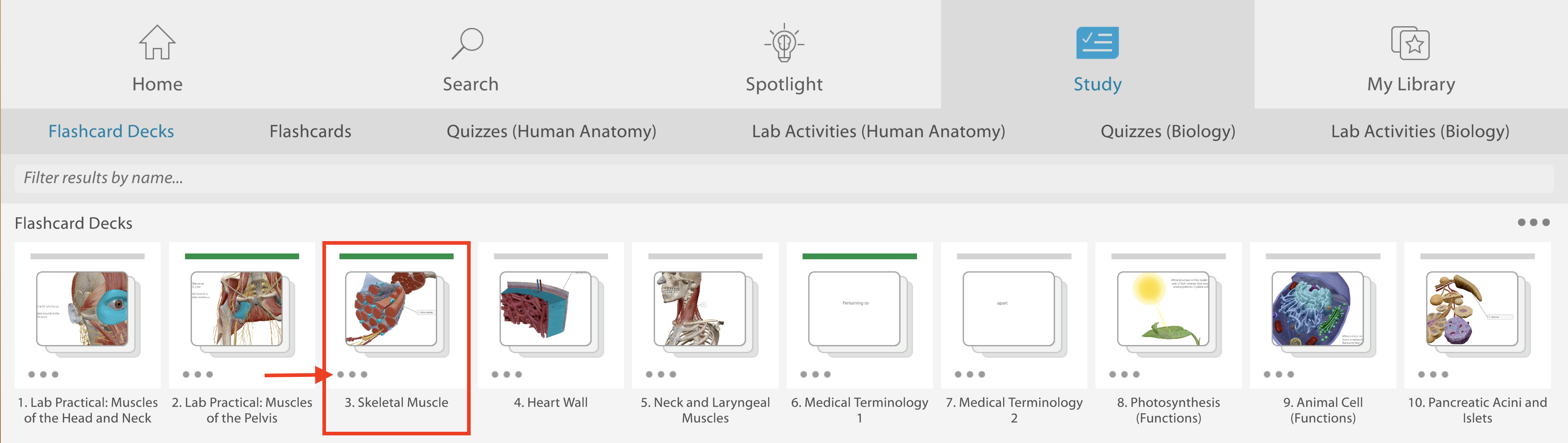
- Any student with an active Courseware account can use that Share link (web
& mobile) or QR code (mobile) to launch the content in VB Suite
Follow these steps to create an assignment using a 3D Tour or Flashcard Deck:
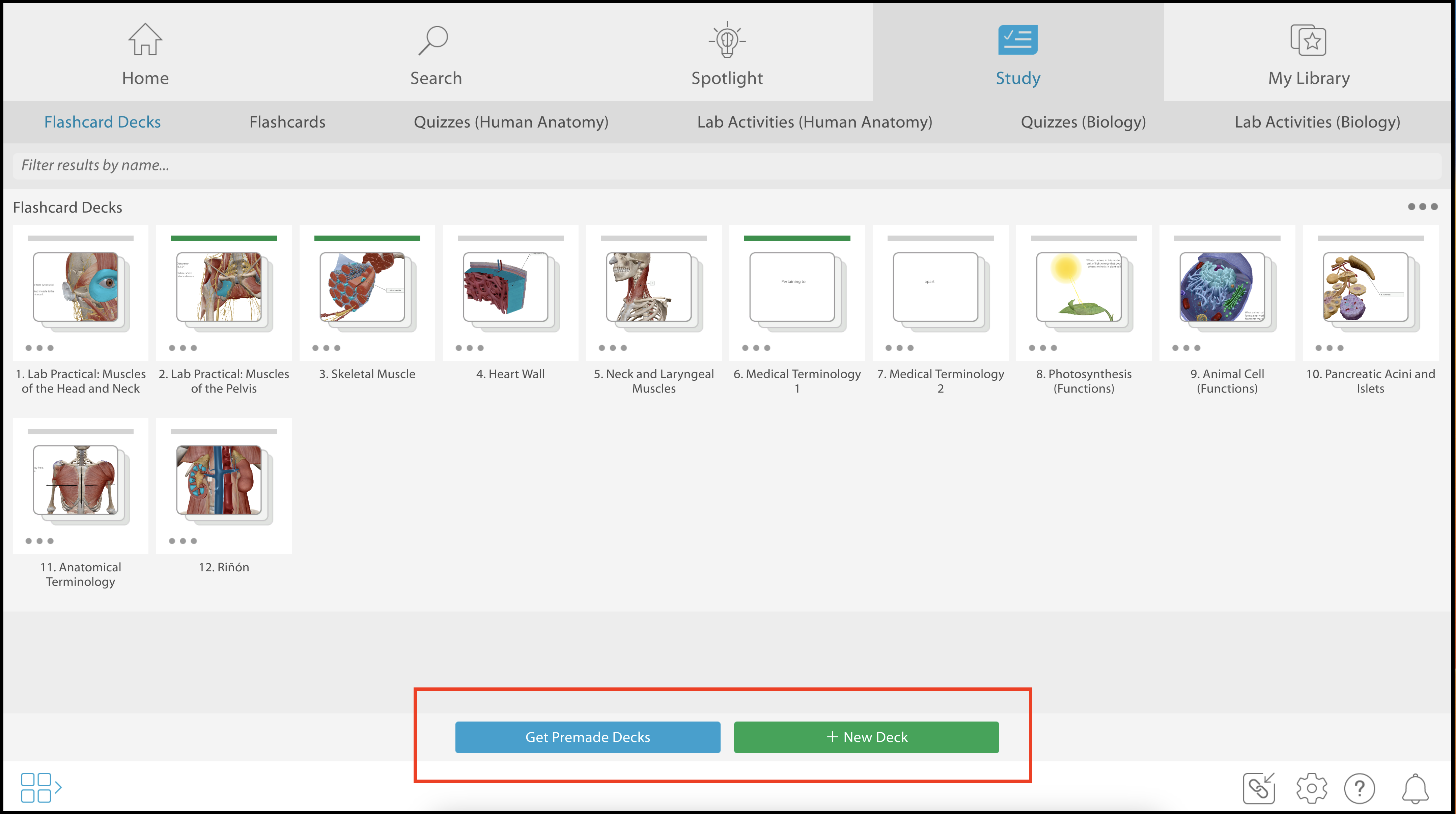
- From the My Apps page in Courseware launch VB Suite
-
From the Flashcard or Tours tabs create or add the decks and tours you want to use for an assignment
- Go to the course and select Create New Assignment
- Select VB Suite for content source
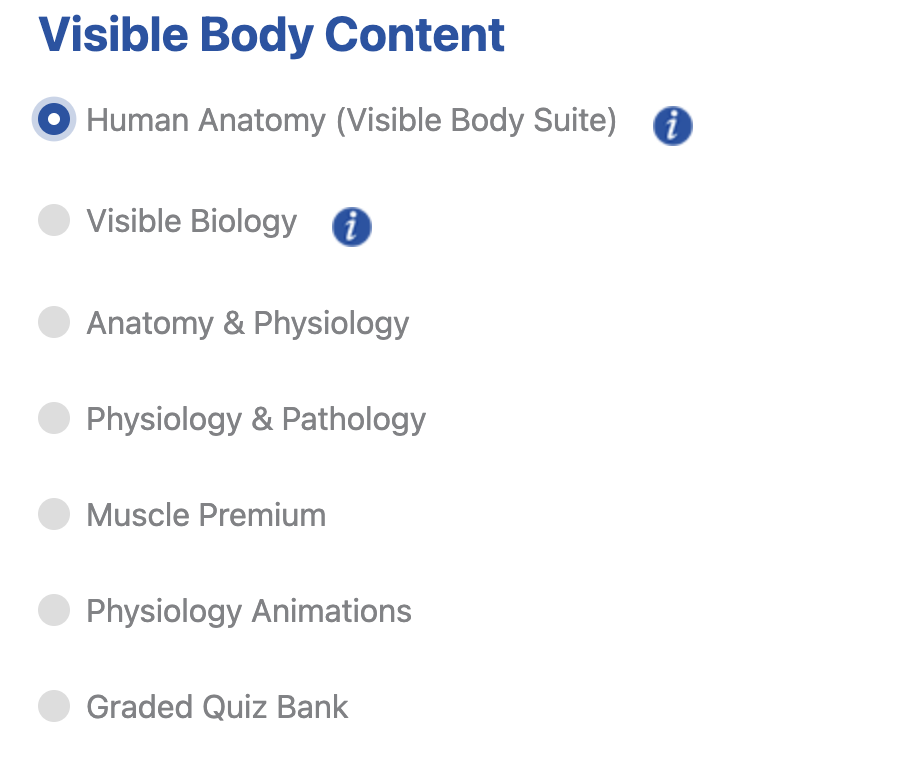
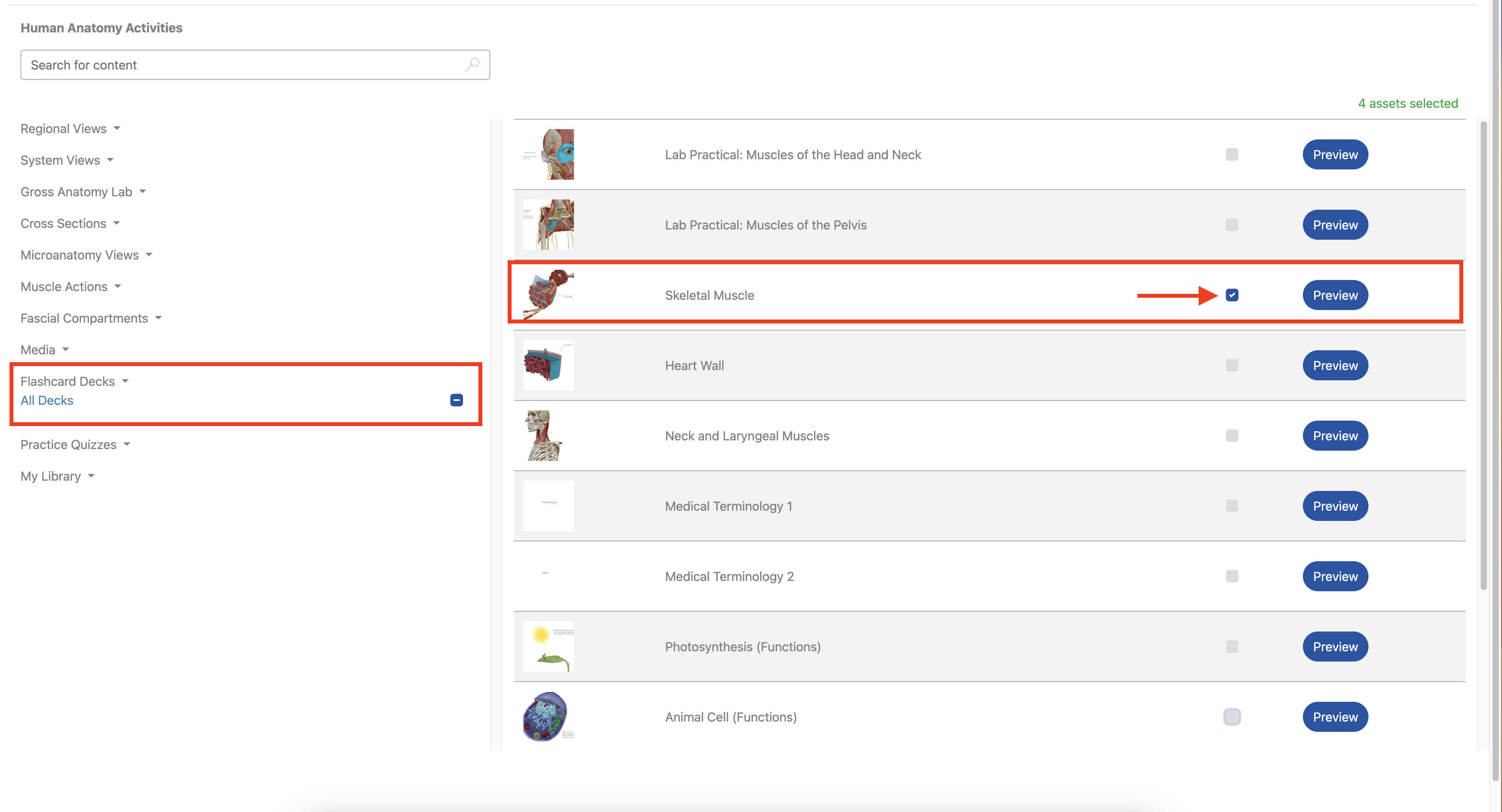
- Find the Flashcard deck drop-down, select it, and select the desired deck
- Complete the remainder of the assignment creation process
Community Content
VB Suite is used at more than 1,000 institutions worldwide.
The VB team is made up of professionals with extensive experience creating additional teaching and learning content. For more curriculum content from our team, here are a few places to check out:
- VB Youtube channel (quick bites, anatomy, bio)
- VB lessons section of our blog
You can use the URL assignment link option in Courseware to make an assignment that uses any of this external content!