
Edit content or student access
If you have course assignments in place and need to make some edits, select the course from the main instructor account dashboard. The course's folders and content are then viewable. Select any assignment to begin making an individual edit.
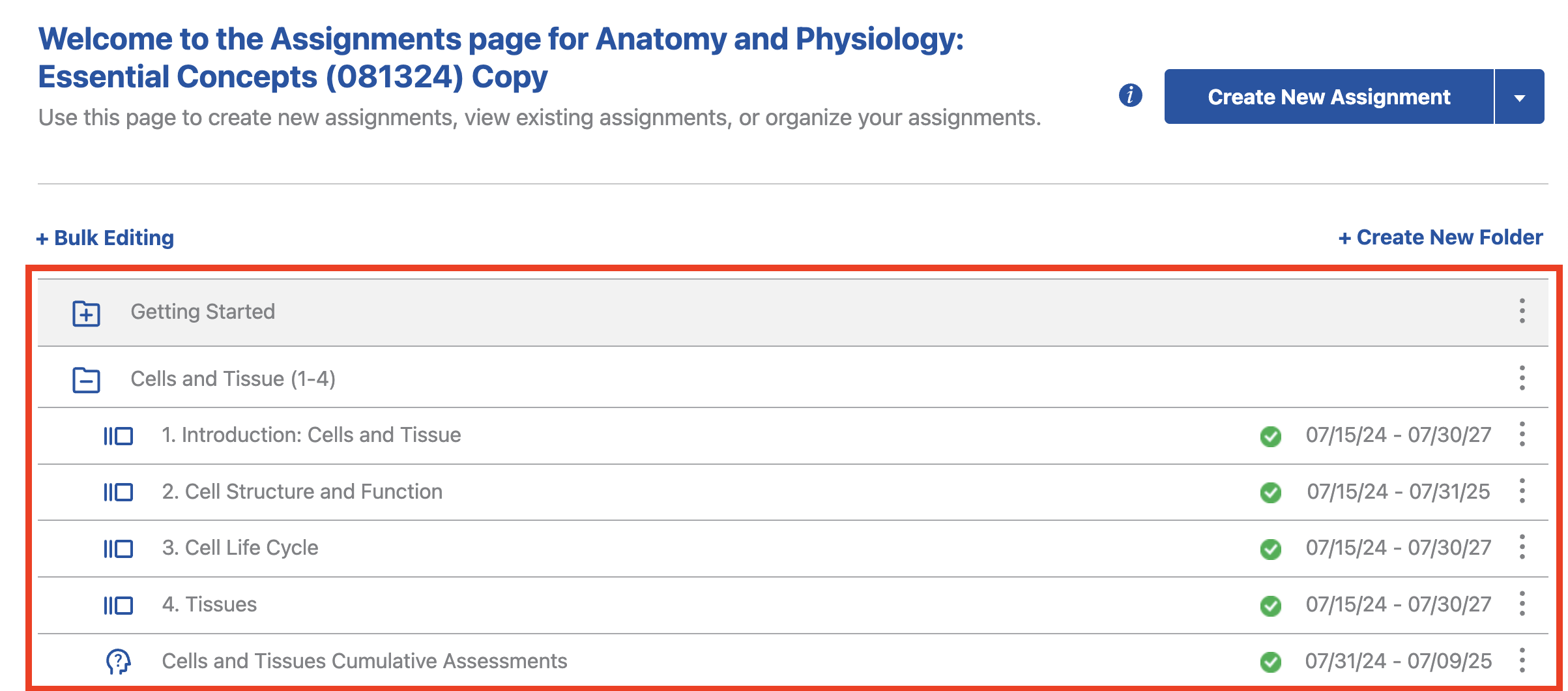
The editing features are the same for both types of assignments. Where the editing options appear are different.
Format 1
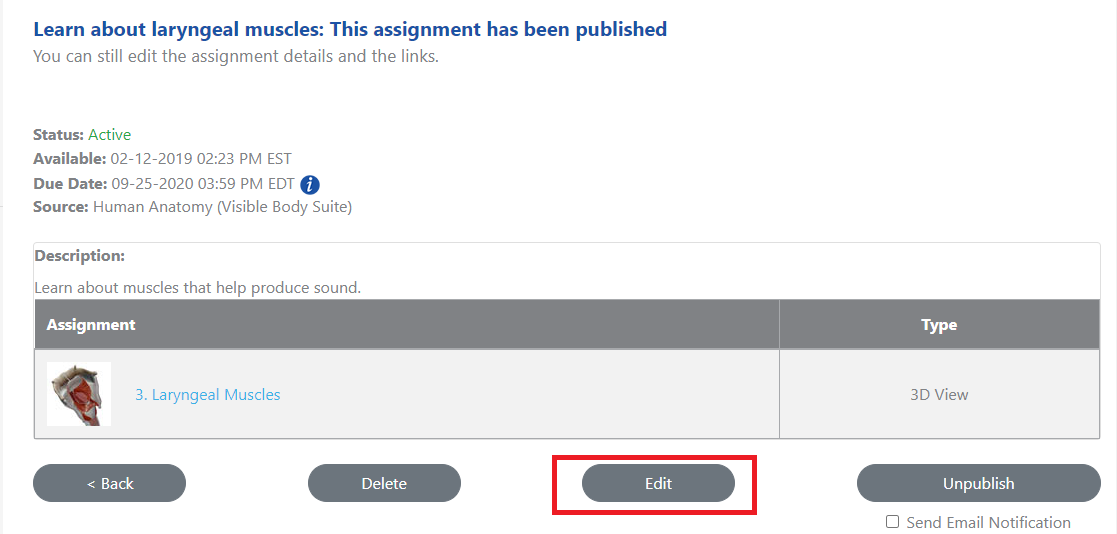
These are the more traditional "discovery" assignments in Courseware. To edit an assignment:
- Select the "Edit" button at the bottom of the assignment.
- In the description, make any content edits you would like.
- Select "Edit Assignment Content" to change assets from the Visible Body database.
- Select "Save."
When your edits are complete, select the "Publish" button.
Format 2
To edit more immersive assignments in Courseware:
- Select the "Edit Assignment" from the assignment screen.
- Edit the title and add student instructions.
- Each the individual activities. For each one, you can change the title, instructions, or order, or delete the activity from the assignment. If students have started working on the assignment, activities cannot be added or deleted.
- Select "Save Changes" when you're ready to save.
To add an activity to the assignment
- Select "Add Activities".
- Use the search and filter options in the left-hand column to find the content that you want.
- Hover over an activity and select "Add to Assignment".
- Select "Save Changes" when you're ready to save.
- When your edits are complete, select the "Publish" button.
Edit location
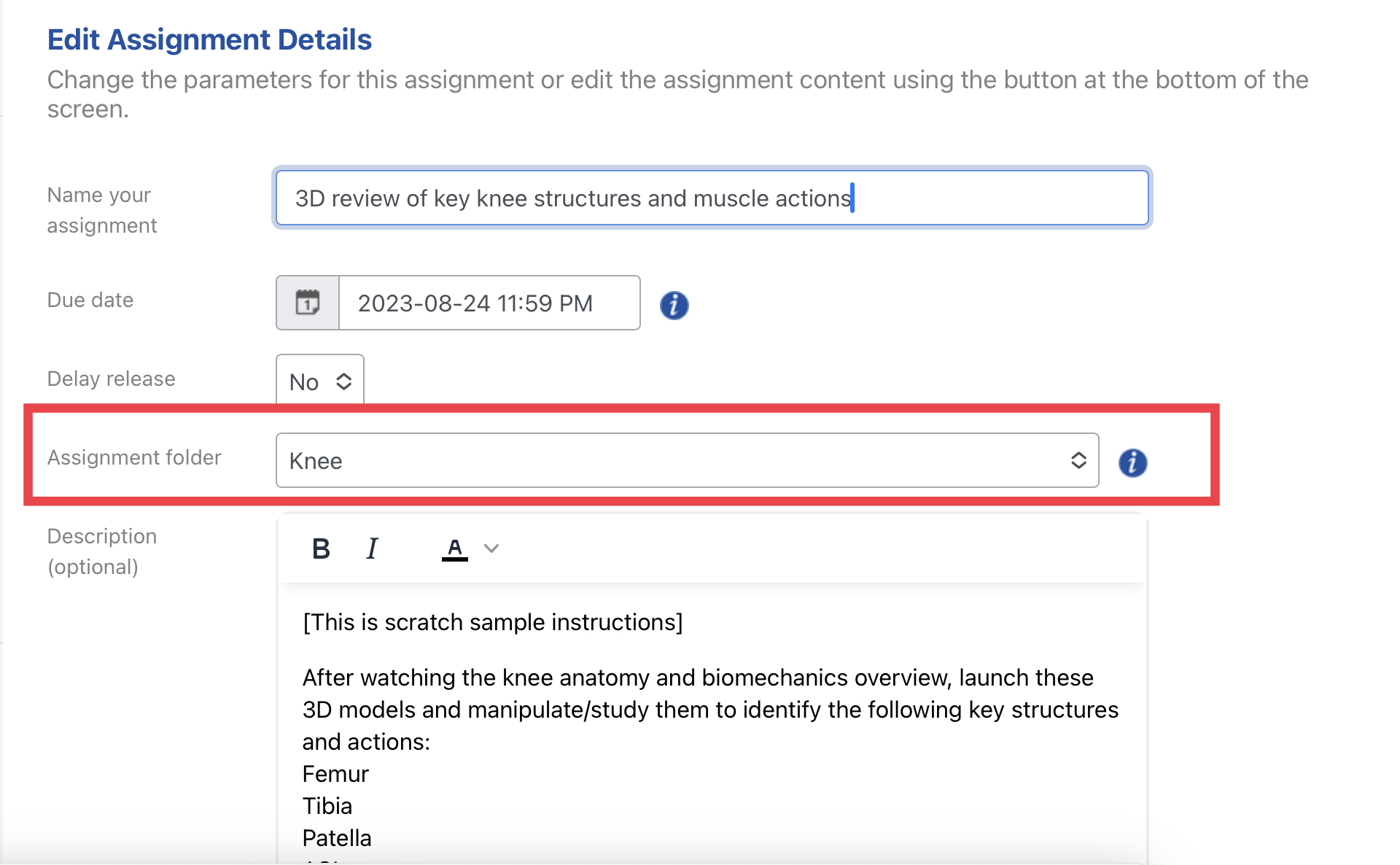
The order of folders and assignments can be changed on the course’s main page by dragging and dropping them. There is also the option to select the Edit feature within an assignment and change the location in the dropdown named Folder or Assignment Folder
Create an assignment
When logged into an instructor account, a list of available courses is viewable in the main area of the dashboard. Select any course to create a new assignment. (If you are searching for assignment ideas, our VB Curriculum resources article may help!)
Start by selecting the type of assignment preferred:
Format 1:
Both the video and steps below describe the assignment creation process for the more traditional assignments.
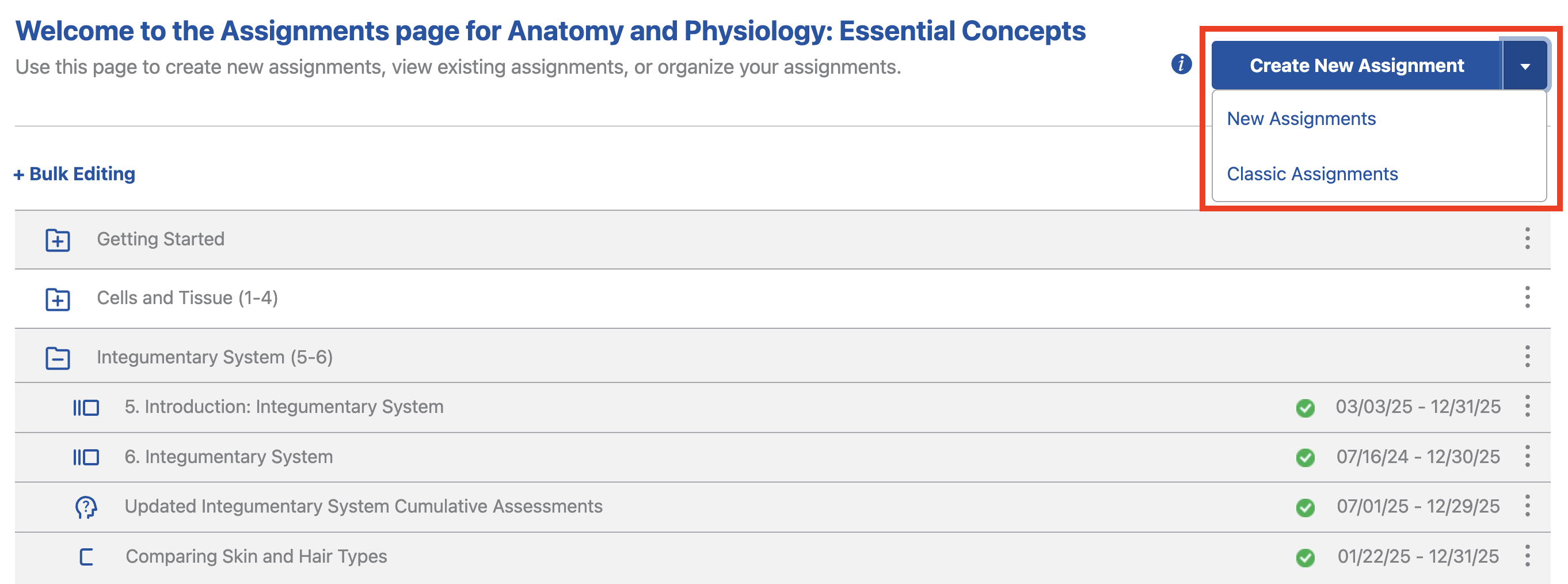
- From your course’s Assignments page, select the arrow next to the "Create New Assignments" button in the top right and select "Classic Assignments".
On the screen that appears, select the source of the content the assignment will use. This could be content from the VB Suite database, content you custom created inside VB suite, or your own content (a file you want to upload or URL you want students to access).
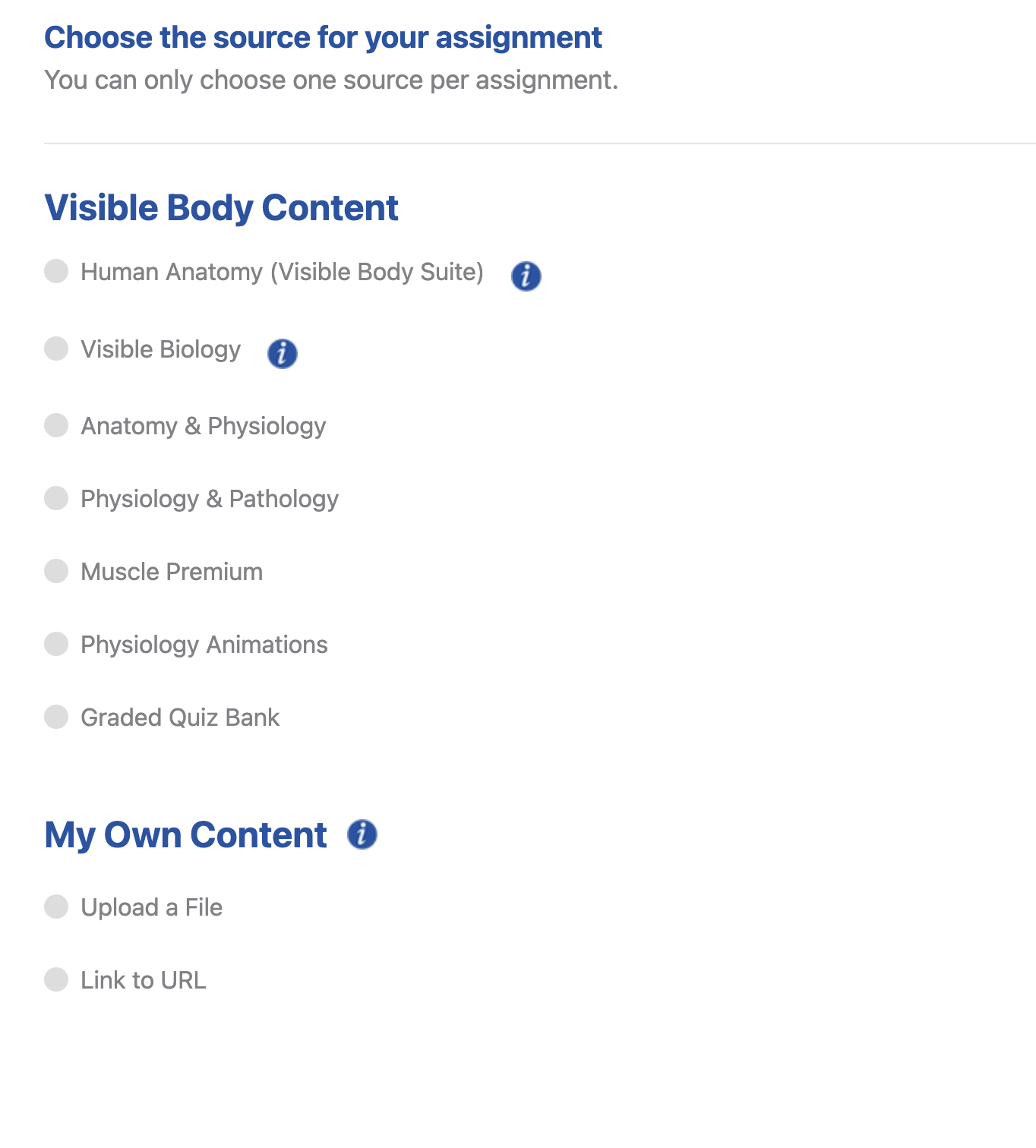
If you select Visible Body Content, you can select the category from within the VB product and then select the visual content. Select Continue on the top right of the screen when your selections are complete.
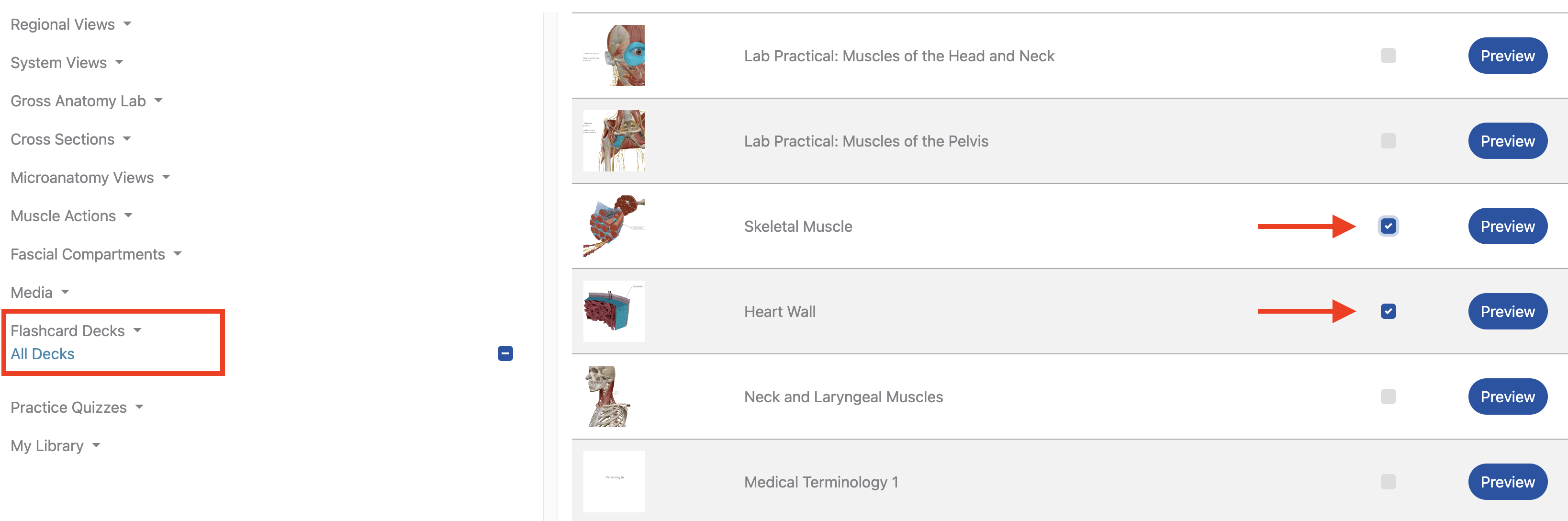
If you select Upload a File or Link to a URL, select Continue on the top right of the screen. (Options to upload a file or link to a url appear on the next screen).
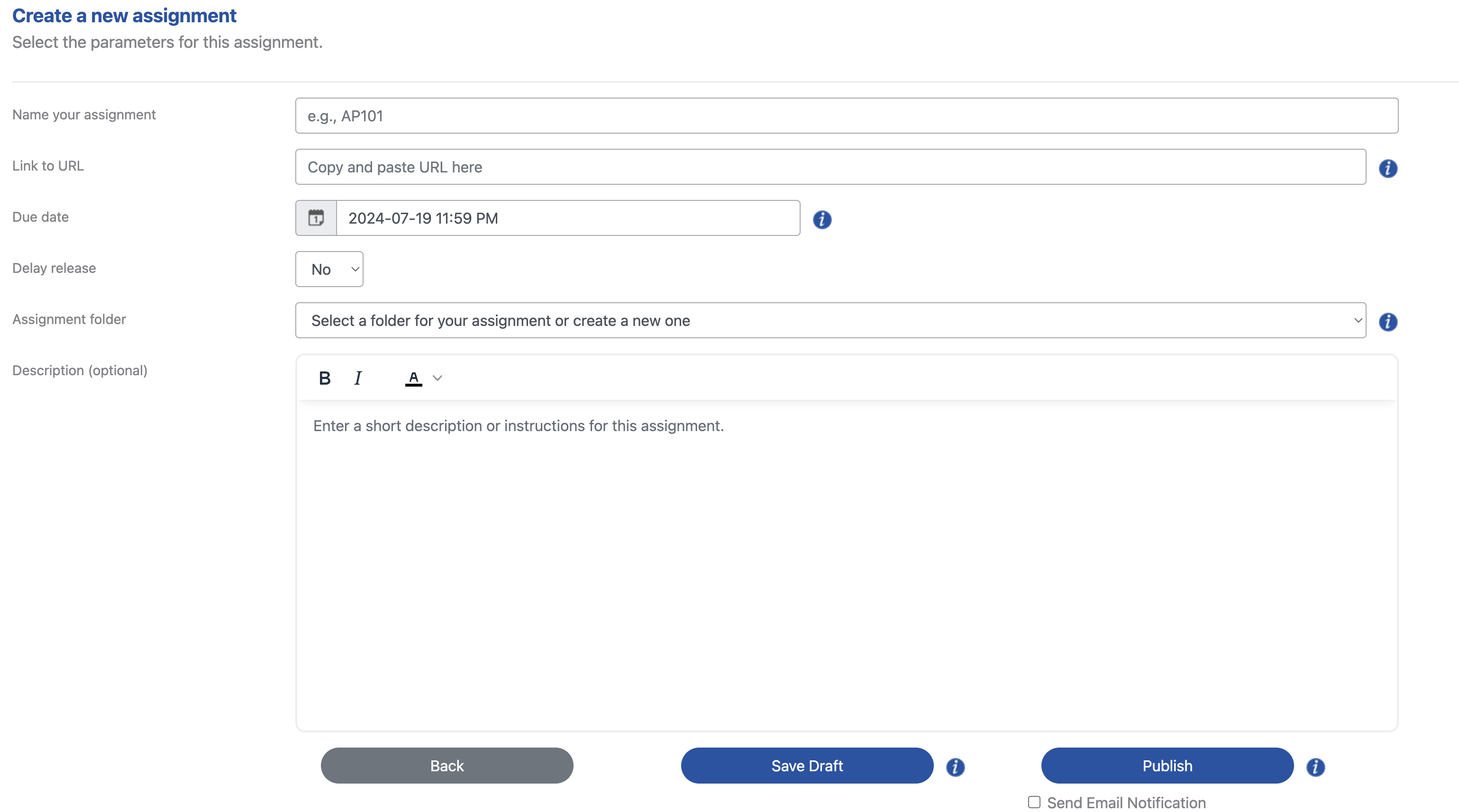
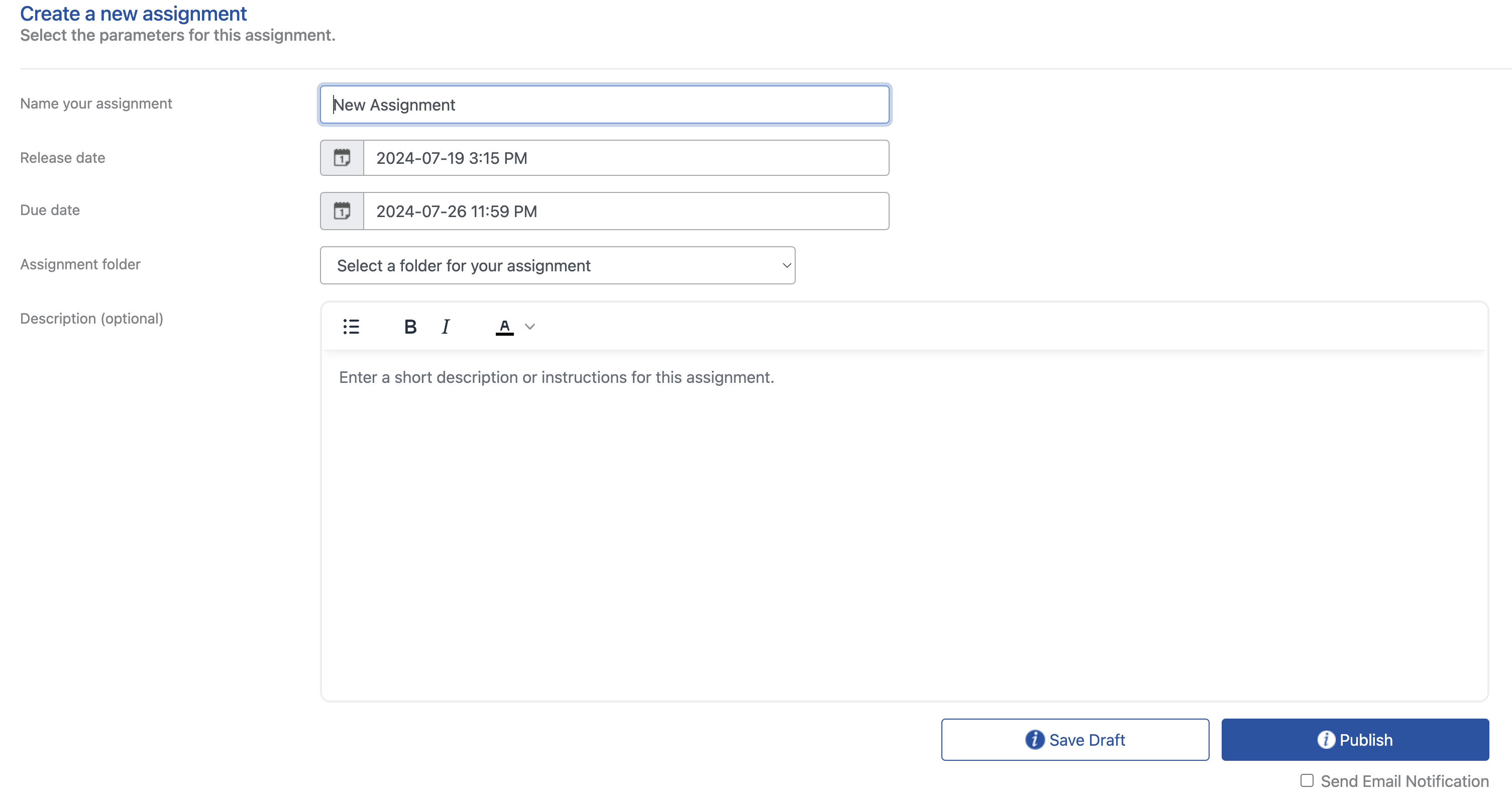
- In this final step, name the assignment, describe the work to be done to students, add the assignment to a folder, and assign a due date.
- Complete the assignment creation by selecting either Save Draft or Publish.
Format 2:
Both the video and steps below describe the assignment creation process for the immersive assignments.
From your course's Assignments page, select "Create New Assignment" button.

On the screen that appears, select the content for your assignment. This could be content from the VB database or your own content accessible to students with a URL.
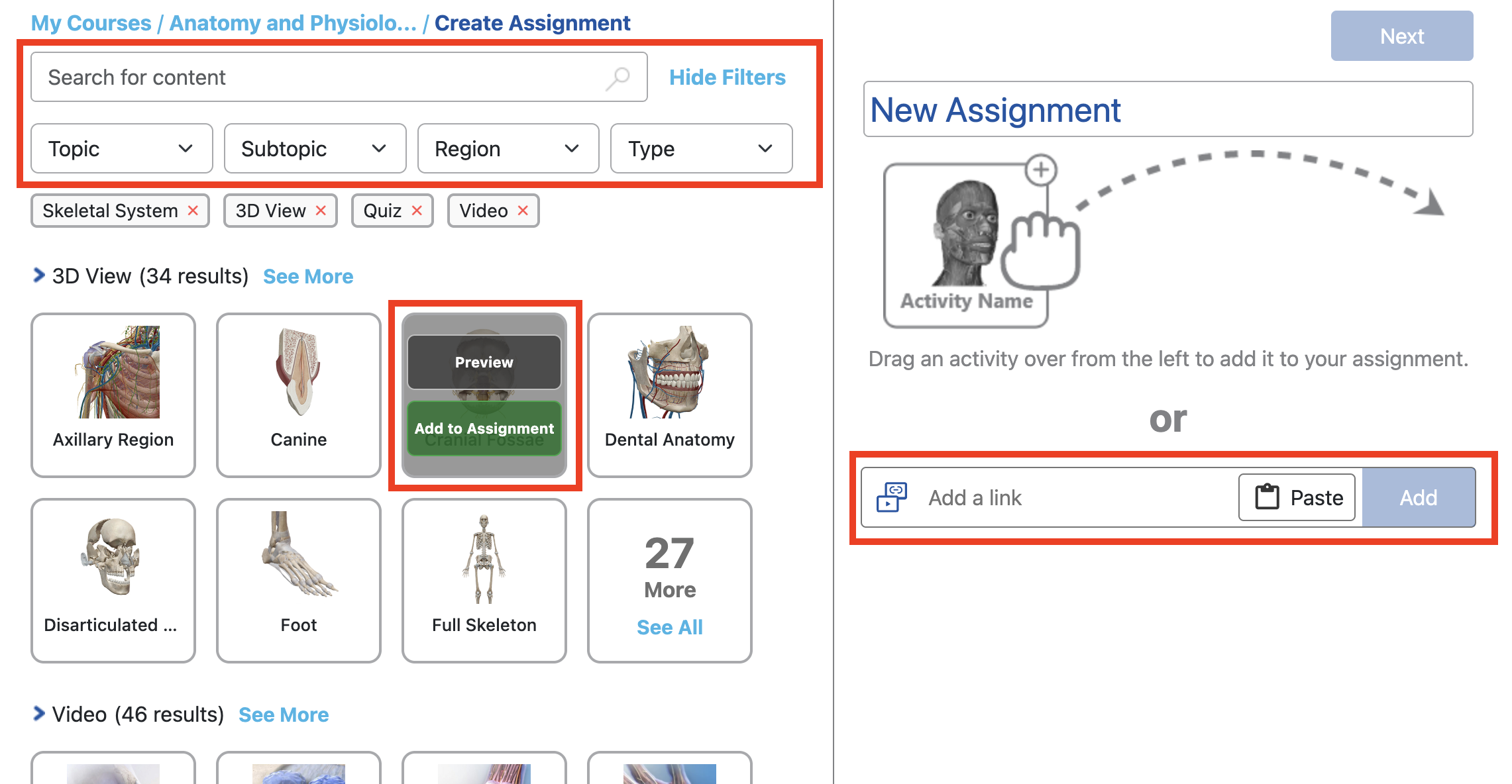
- To select VB content, use the search and filter option at the top. Mouse over the content to open a preview or to add the content to the New Assignment area on the right. You can also drag and drop content from the left side into the New Assignment area.
To use your own content, paste the link and select Add.
Name the whole assignment and this first activity. In the description area, include instructions for students for this specific activity.
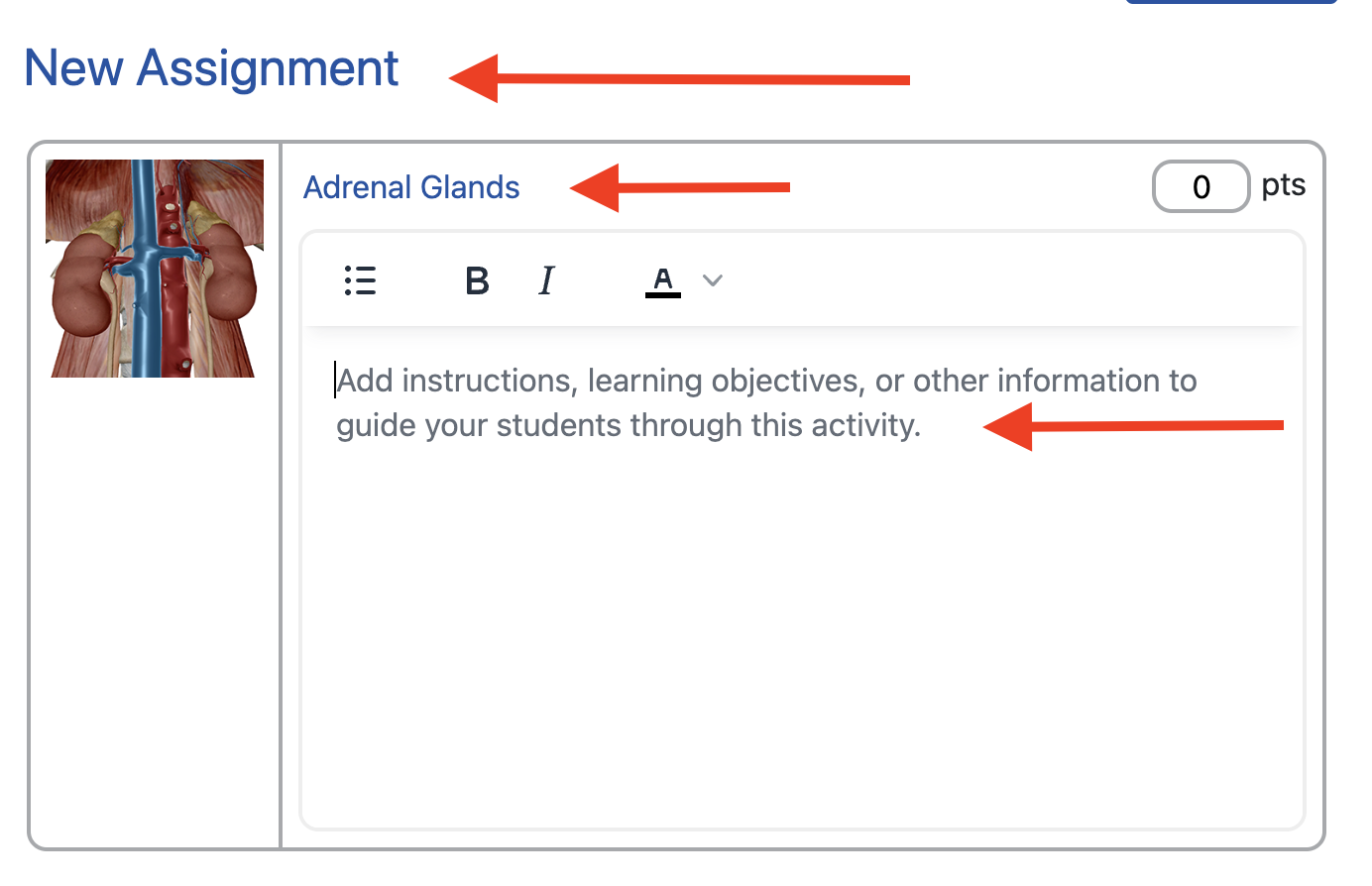
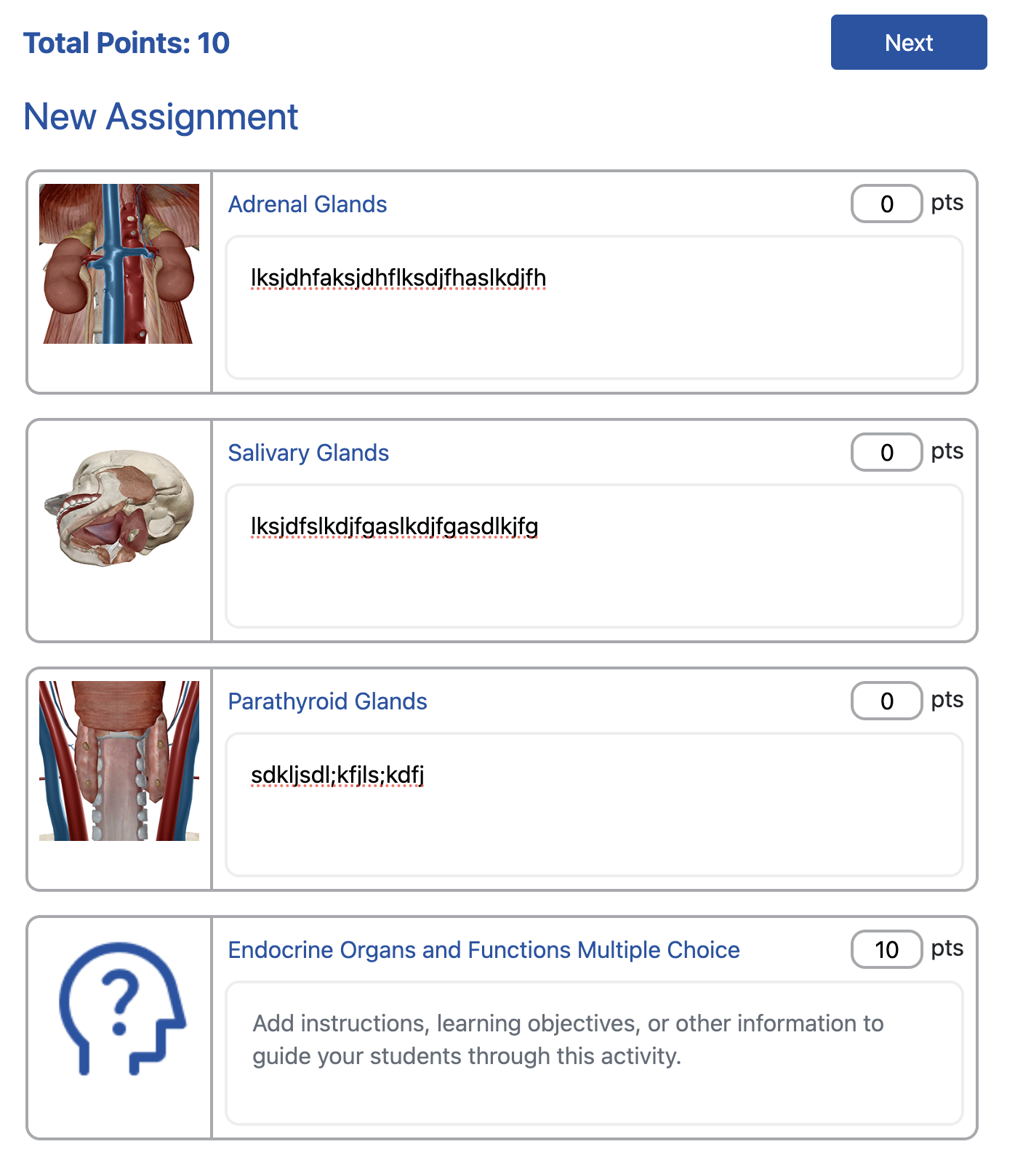
Add as many additional activities and quizzes as needed. Select a number of points students may receive for completing the activity. Select Next when done.
In this final step, name the assignment, describe the overall assignment to students, add the assignment to a folder, and assign a due date.
Complete the assignment creation by selecting either Save Draft or Publish.
FAQs
Can I update multiple assignment dates at a time?
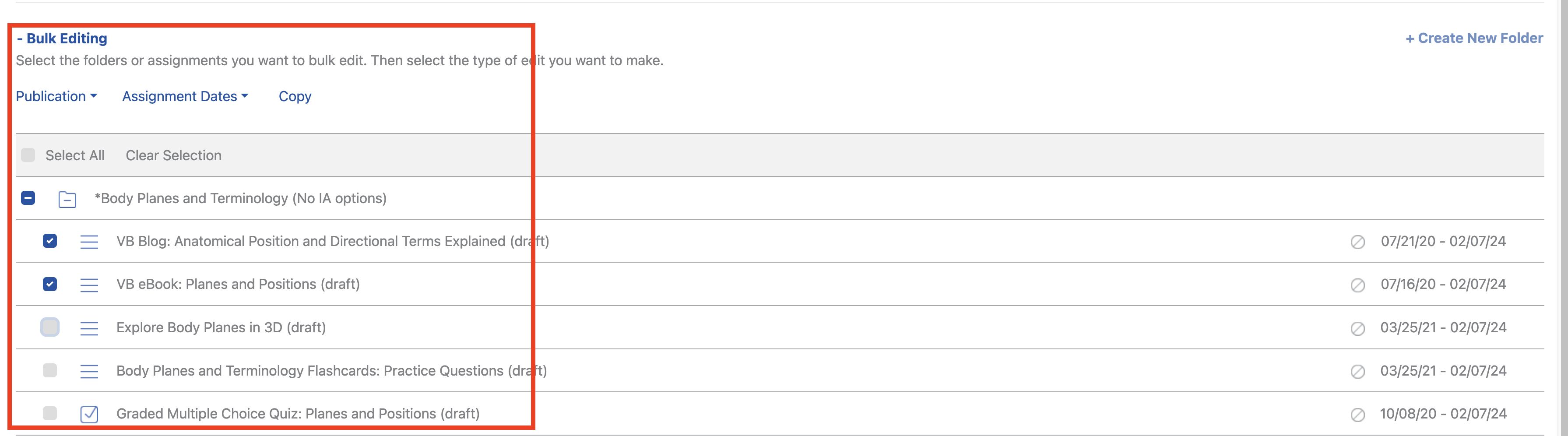
Yes. You can change due dates or the publication status for multiple assignments
At the top of a course's dashboard, above the list of the course's folders and assignments is a Bulk Editing feature. Use it to change the publication status or the release and due dates of multiple assignments.
Does Courseware have a file storage limit for instructors?
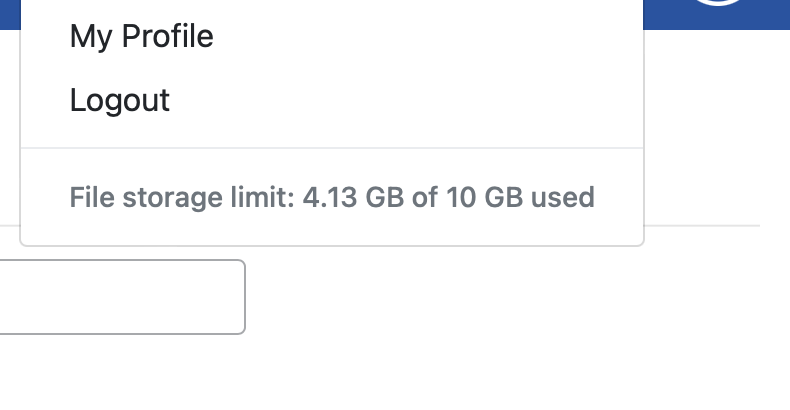
Instructor accounts have a file storage limit of 10 GB. Every time you upload a file or image to Courseware, you use some of this space. To check how much storage you have used, select the dropdown menu in the upper right-hand corner of Courseware. See the example below.
I cannot upload a file I want to use for an assignment.
If you receive an email from us informing you that we detected a potential virus in your file attachment and deleted it, please consider using a different file. You may want to check with your IT department for further information.
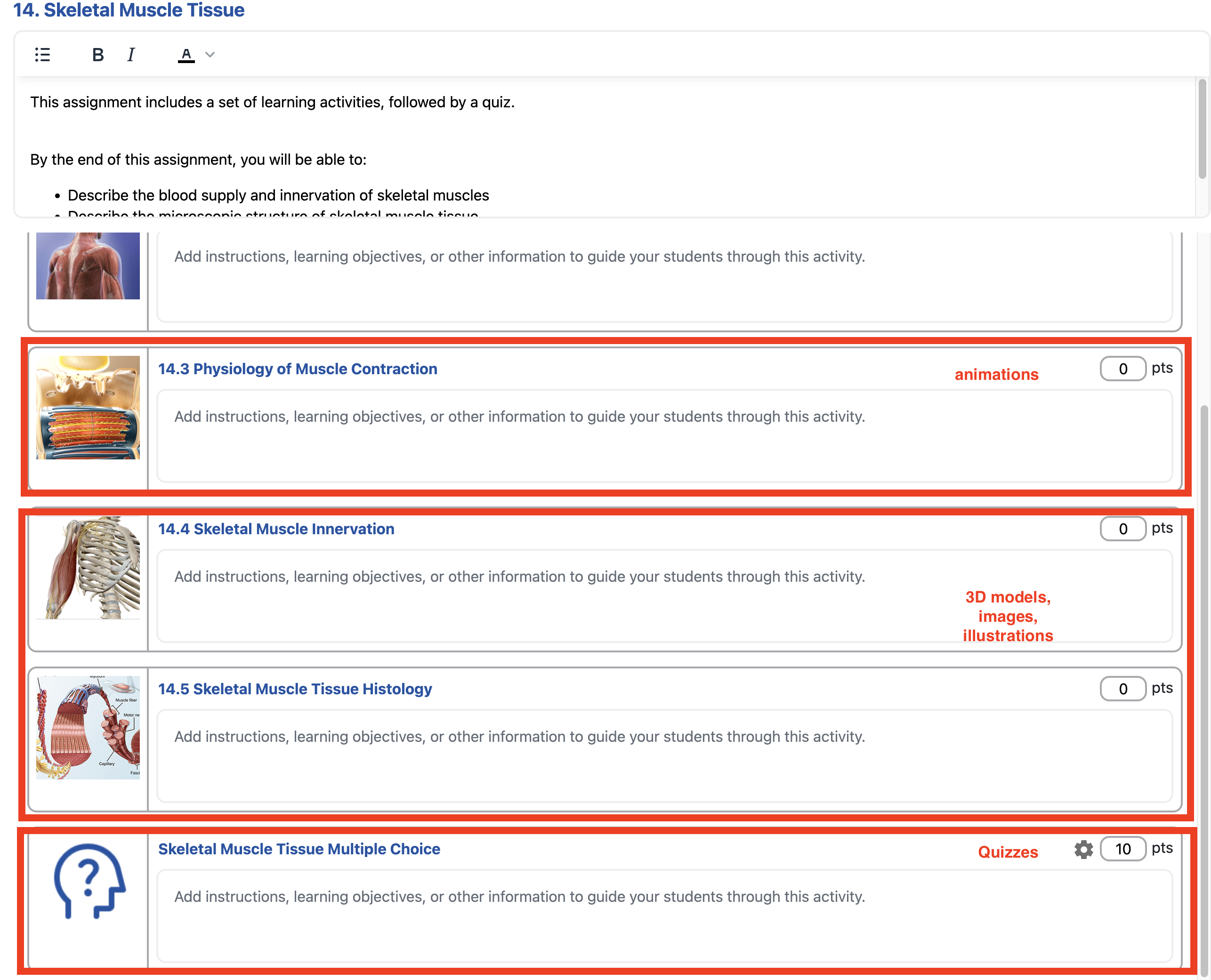
How do points in new assignment activities report to the grade book?
When creating and editing new assignments, there is the option to assign points to report to the grade book. Points report to the grade book as the student works through each activity:
- Animations: Once a student watches 90% of the animation, the point value reports to the grade book. There is no partial credit.
- 3D model activities, illustrations, images: Once a student launches the activity and moves through it the assigned points report to the grade book
- Quizzes: Once the quiz is completed, a grade calculates according to correct and incorrect answers and reports to the grade book. If multiple attempts are set, it is the best score that is recorded.
Additional information is in the grade book article.