
Visible Body Instructor Help
The article covers how to:
- View grade details (answers, time spent, attempts)
- Edit the number of allowed individual quiz attempts
- Edit individual quiz grades or deadlines (LTI 1 and 1.3 integrations use your LMS for this, not the Courseware Gradebook)
- Export grades
View student performance details
The Courseware Gradebook includes a row for every student enrolled in a course and a column for each graded assignment.
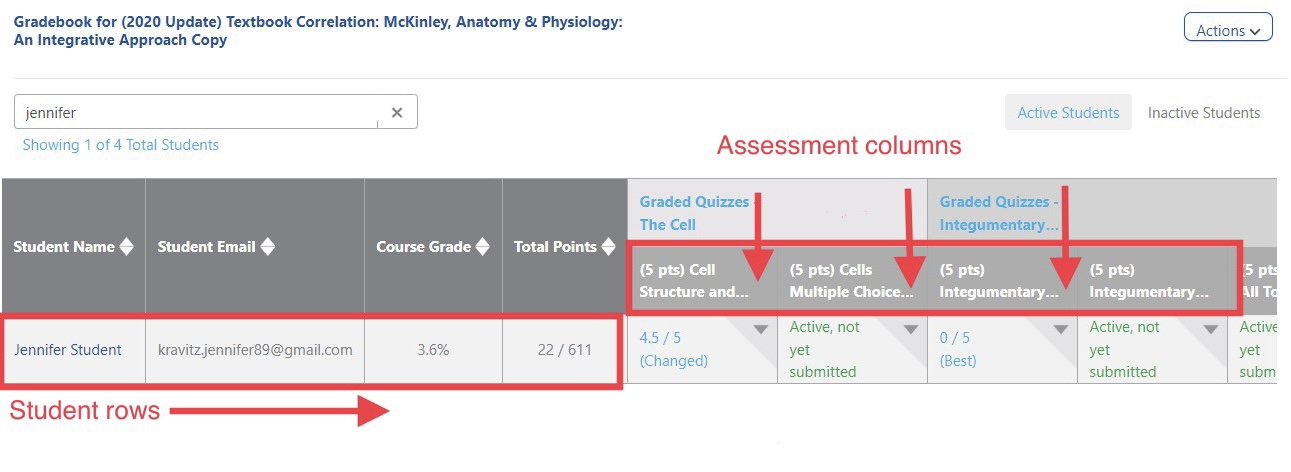
The details on how a student performed on any graded assignment is available by selecting the student’s grade for the assignment.
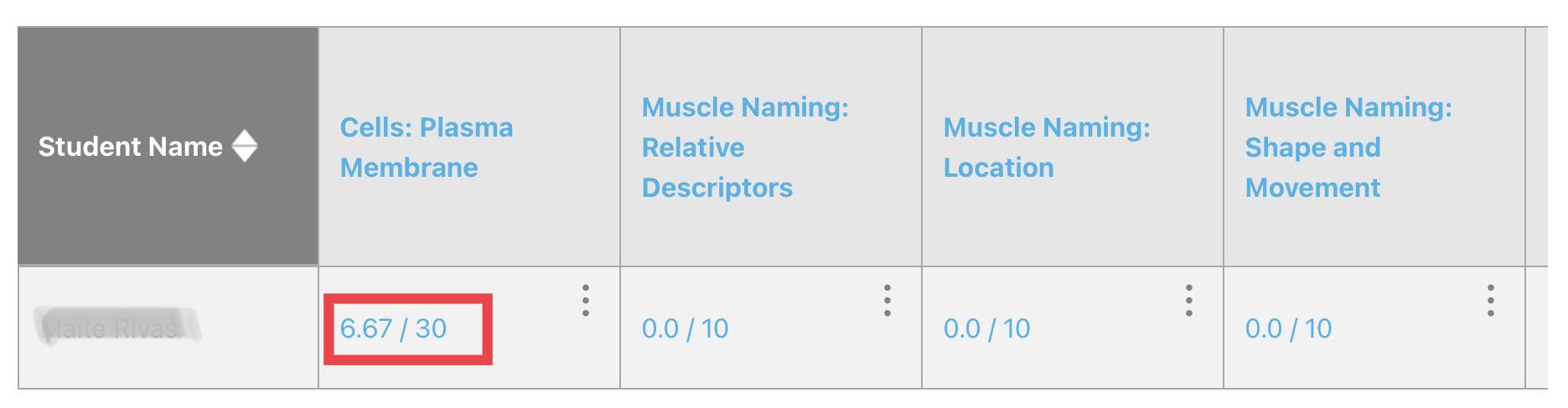
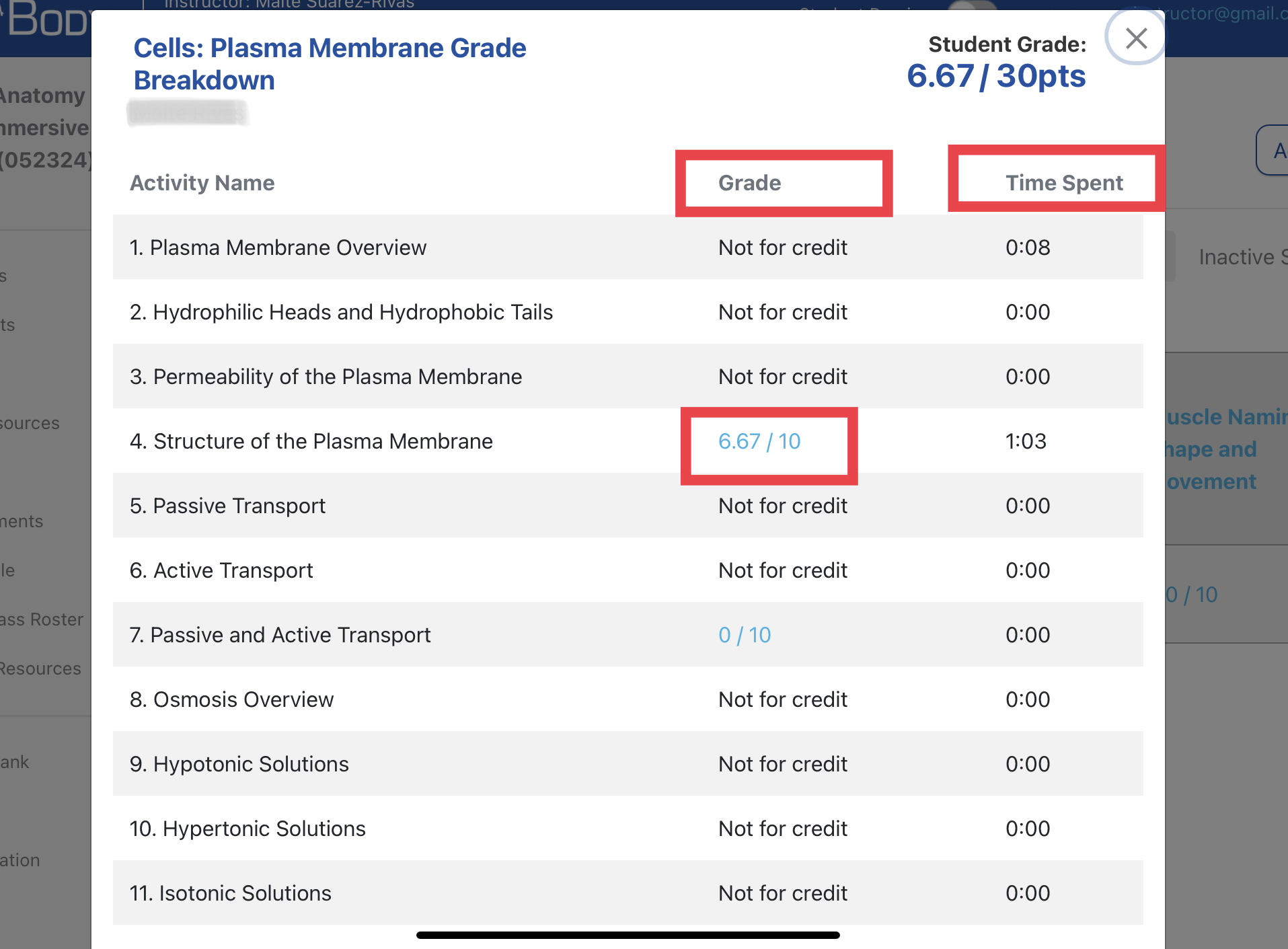
For immersive assignments, an initial pop-up will show the student’s grade on any activity with points, as well as time spent on the activity.
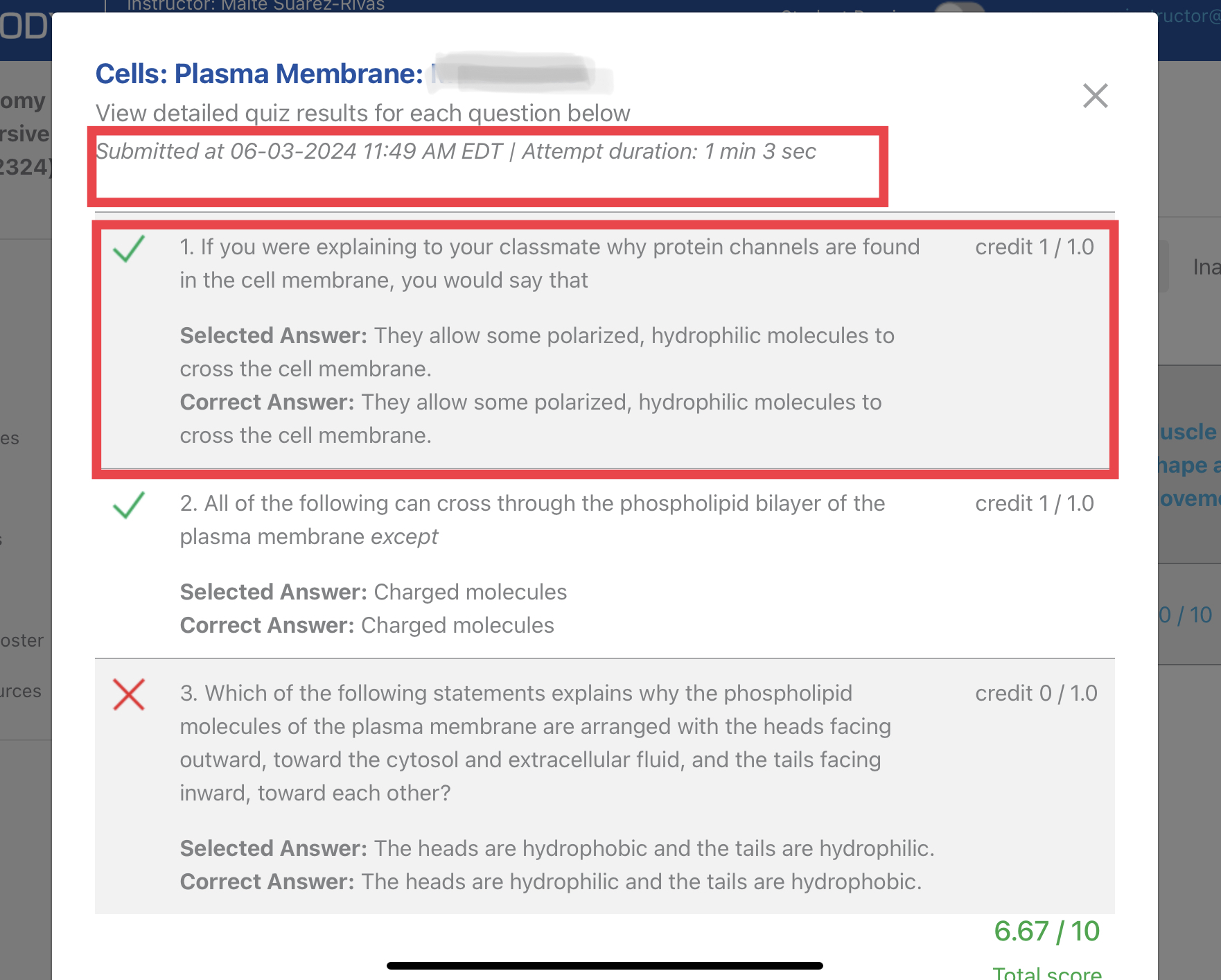
For traditional graded quizzes (and if you're in immersive assignments and select the score on the activity): a pop-up will appear to show how students answered each question, the time spent on the assessment, and the date and time the quiz was submitted.
Change a grade
These instructions are for schools using Courseware without an LMS integration. (LTI 1 and 1.3 integrations use your LMS for this, not the Courseware Gradebook.)
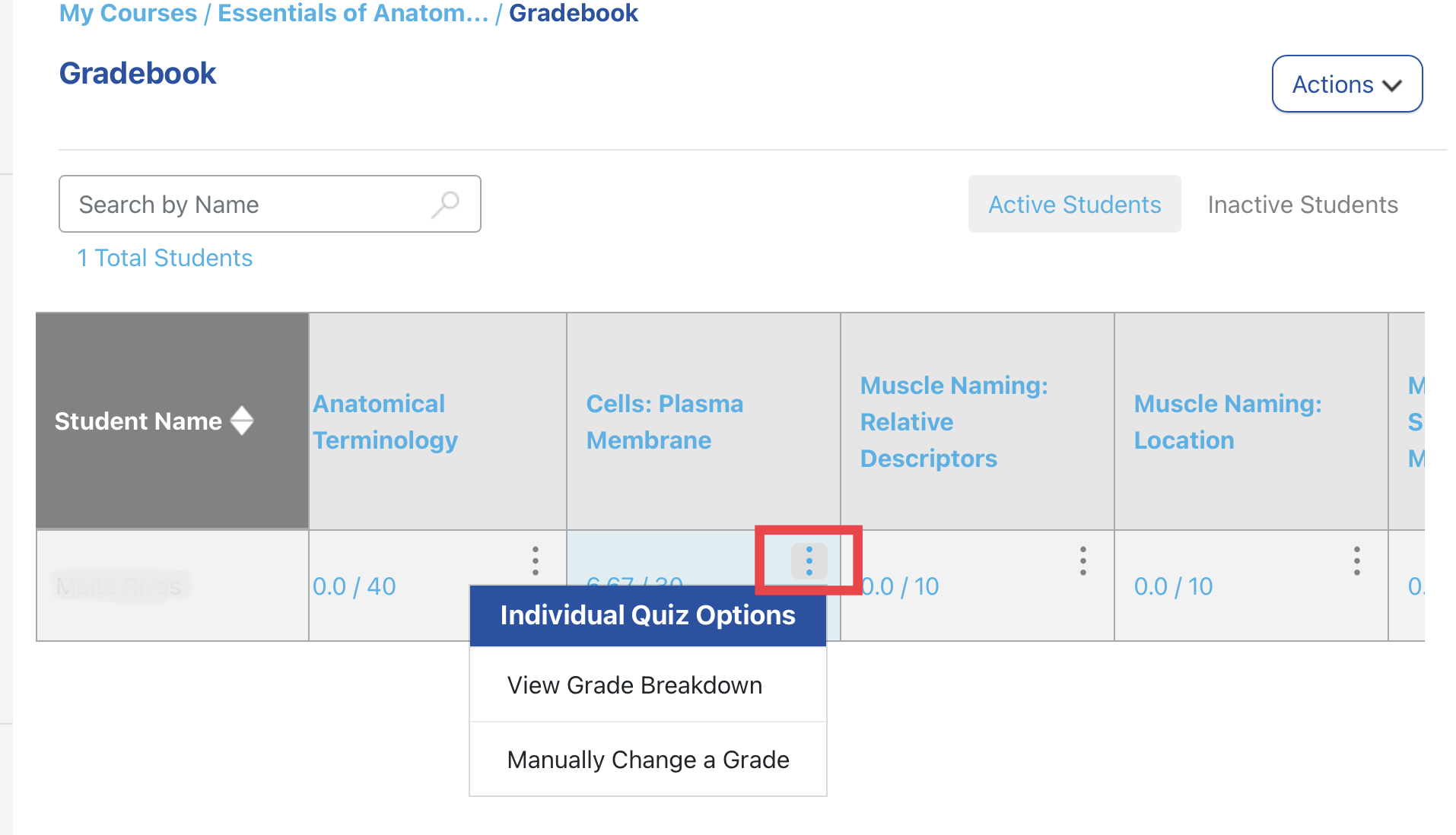
To manually change a student’s score on an assessment that appears in the Gradebook:
- Find the student, then the assignment to modify
- Open the drop down menu for that assignment
- Select “Manually Change a Grade”
- Select "edit" and change the grade
- Select “Save” to apply your changes
- An asterisk next to a grade in the Courseware Gradebook denotes that a grade has been manually changed
Extend a deadline or add more attempts on an assignment or quiz
These instructions are for extending deadlines and attempts for individual students. For bulk editing deadlines and the number of attempts for all students, view editing assignments.
(LTI 1 and 1.3 integrations use the Gradebook for adding attempts. Deadlines need to be extended in both the Courseware Gradebook and the LMS.)
Format 1 assignments and quizzes
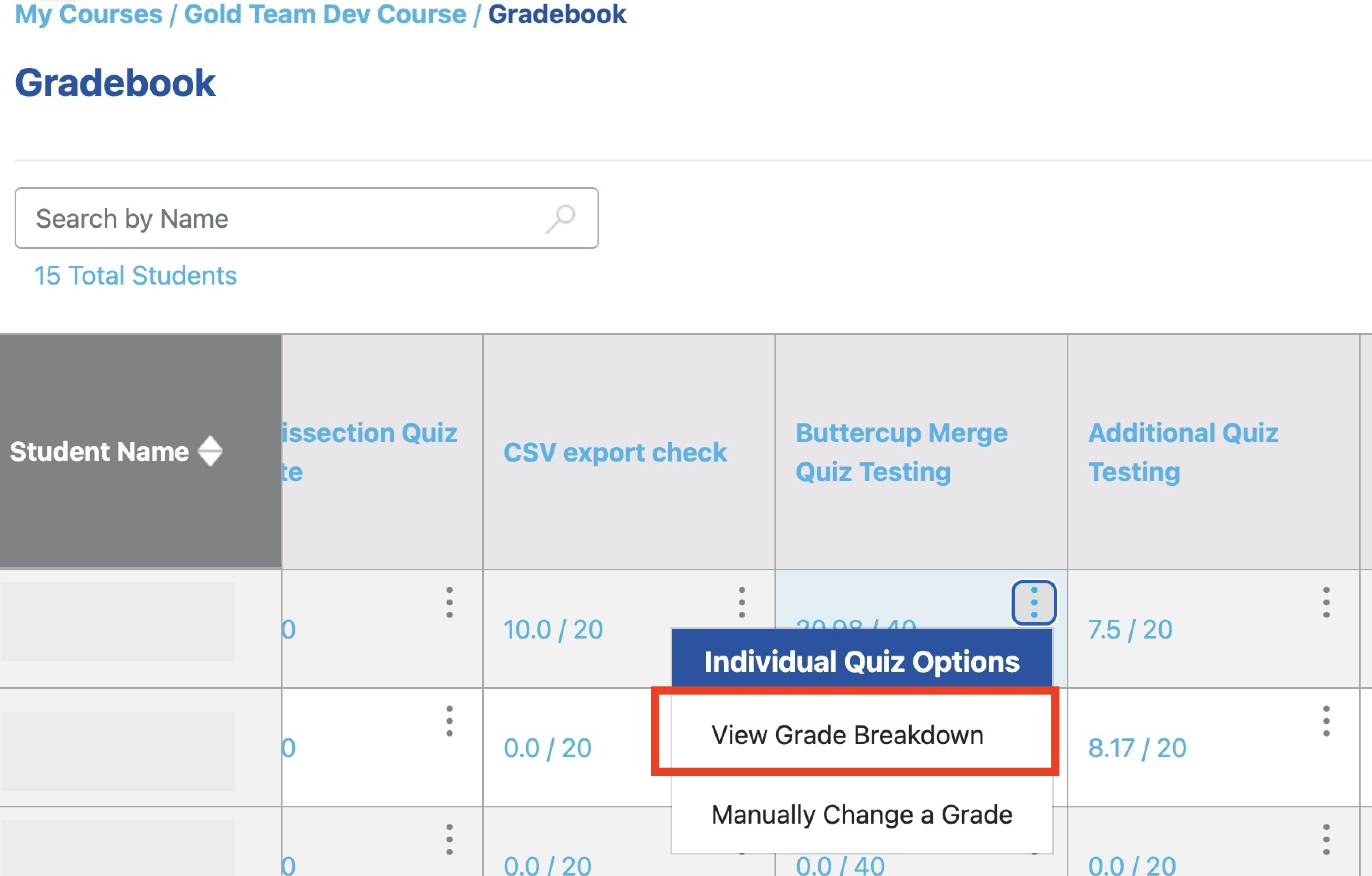
- Find the student, then the assignment to modify
- Open the drop down menu for that assignment
- Select “View Grade Breakdown”
- Select "Edit" and change the attempts and due dates
- Select “Save” to apply your changes
Format 2 quizzes
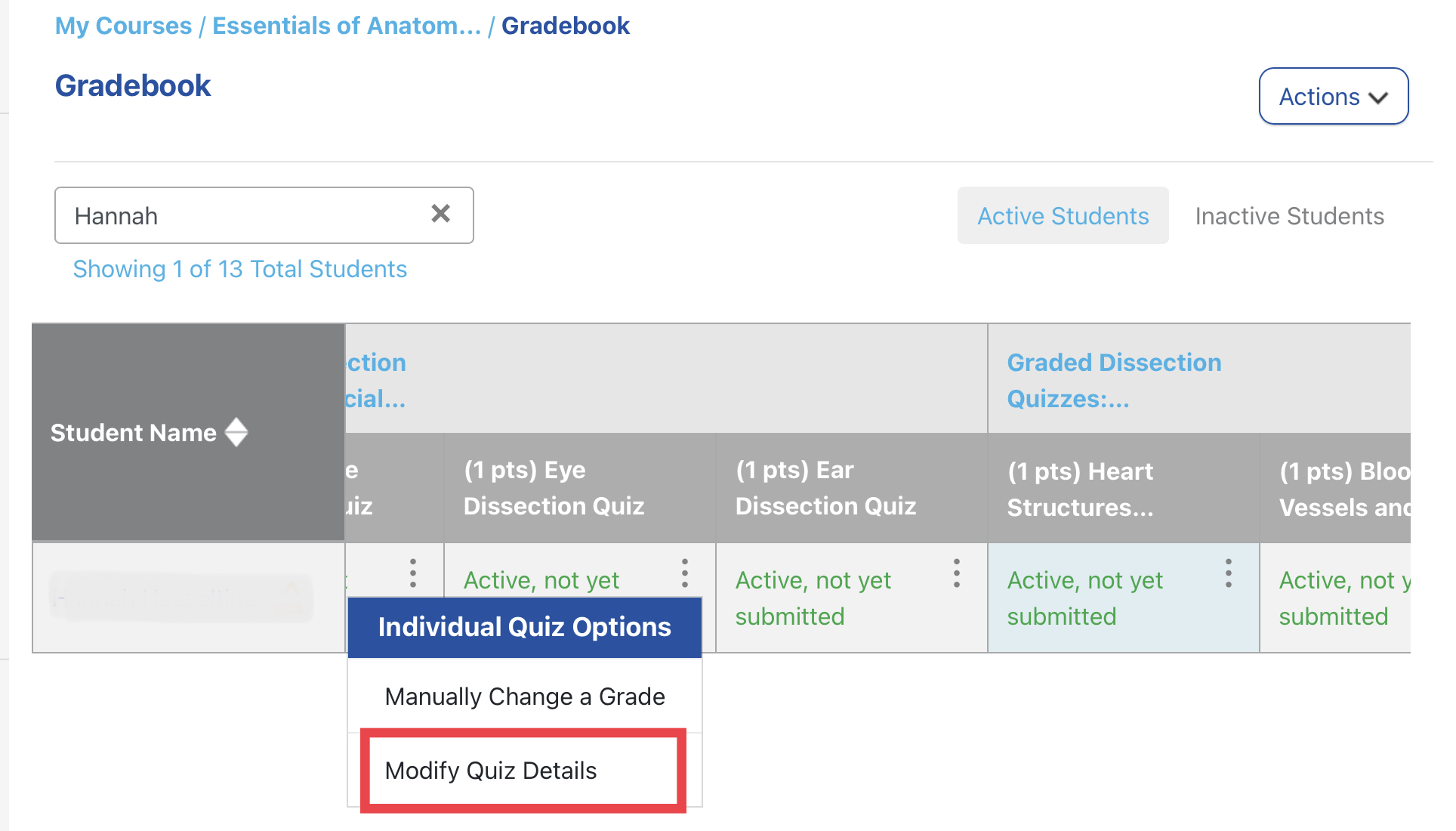
- Find the student, then the assignment to modify
- Open the drop down menu for that assignment
- Select “Modify Quiz Details”
- Change the attempts and due dates
- Select “Save” or the checkmark to apply your changes
Set a timed quiz exception
Go to the Courseware Roster page to set a timed quiz exception for a student. Timed quiz exceptions are set for all timed quizzes in a course.
Export the Gradebook for a course
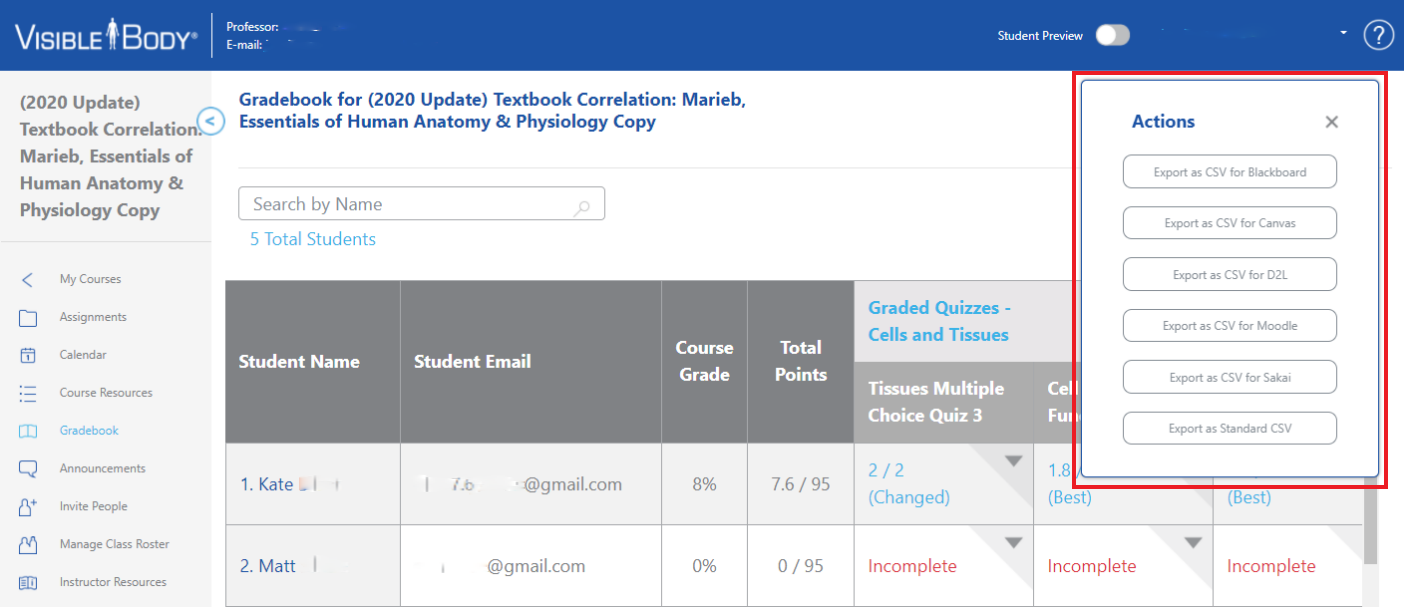
The Courseware Gradebook supports exporting the entire Gradebook for each course. There are file type exports for common Learning Management Systems (LMS) and a CSV file option.
To export the Gradebook for a course, access the main course dashboard:
Select “Actions” in the top right.

Make a selection for the file type.
Gradebook FAQs
How is a student’s course grade calculated?
The Gradebook calculates a student’s overall course grade by:
- Calculating the total number of points that a student was awarded based on the graded quizzes they’ve taken.
- Then, dividing the total points awarded by the total number of points available based on all the published graded quiz assignments.
Example:
Your course has 10 published quizzes. The total points for all these quizzes is 100. Based on the due dates, your student has completed five quizzes, worth 50 points.
The student's total score for the course in the Gradebook would be: The number of points earned out of 50 ÷ 100 points published
A student's overall course grade is always displayed as a percentage.