This article is for students using Courseware without integration with a learning management system. It explains how to create a Courseware account, make a purchase if needed, and get into a course to see and start assignments.
If your school is using an LMS, see this article.
Get a course invite link
Instructors who set up a course in Courseware in institutions that don't use Courseware with a learning management system (LMS) send invitations to enrolled students. That invitation is a course link that looks like this:
![https://courseware.visiblebody.com/courses/[blurred text for example]/join[blurred text for example]](images/360011505153.png)
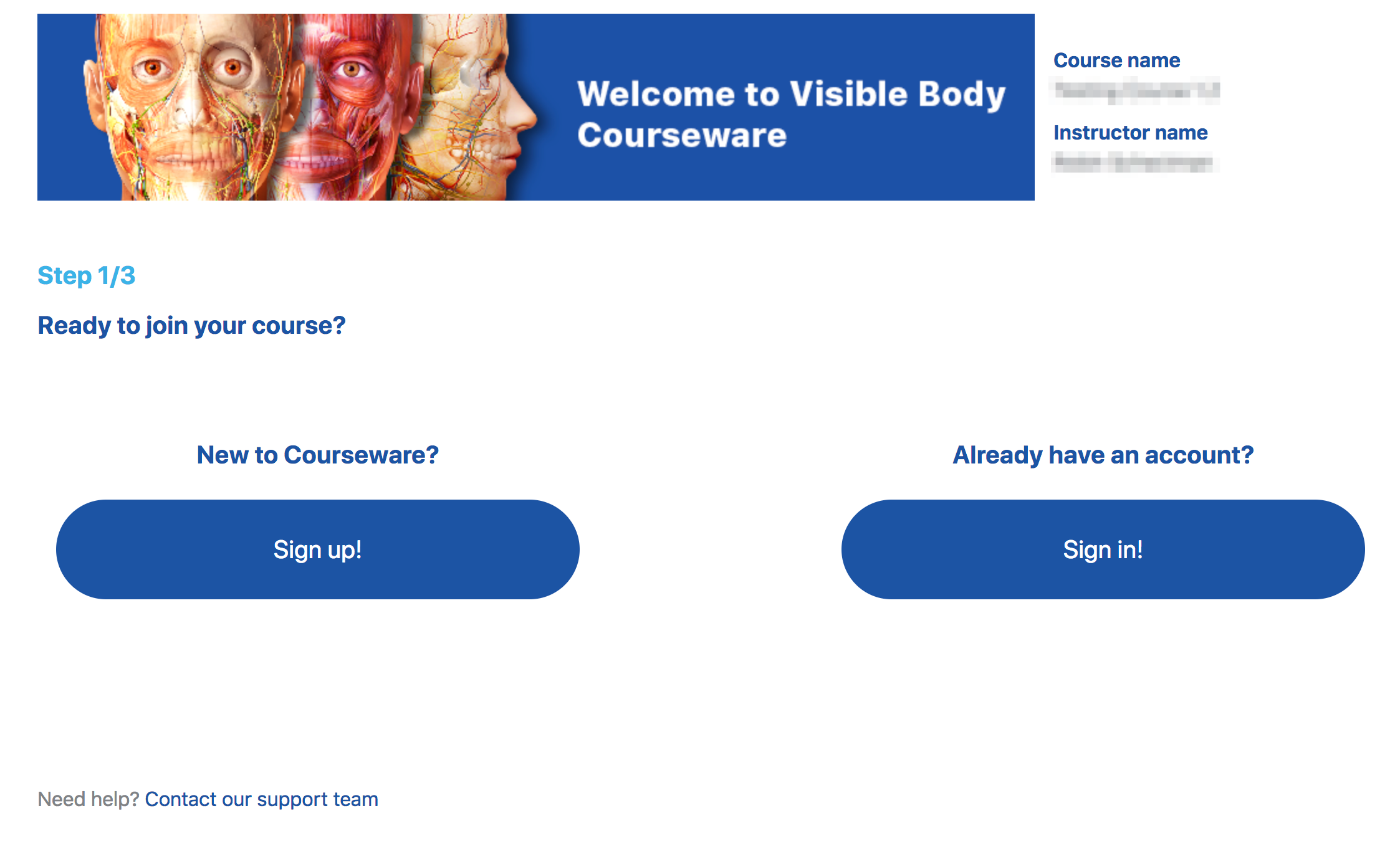
Join with an Existing Account
If you have a Courseware account, follow these two steps to join the course and gain access to the assignments:
- Use the link provided to you by your instructor to access Courseware.
-
On the welcome page, select "Sign in!"
Create an Account
If you do not have a Courseware account, follow the steps below to create an account and join your instructor’s course. If your school has a site license to Courseware, create your account while logged in to your school's proxy so that the Courseware website recognizes your school affiliation and skips the purchase step.
- Use the link provided to you by your instructor to access Courseware.
- On the welcome page, select "Sign up!"
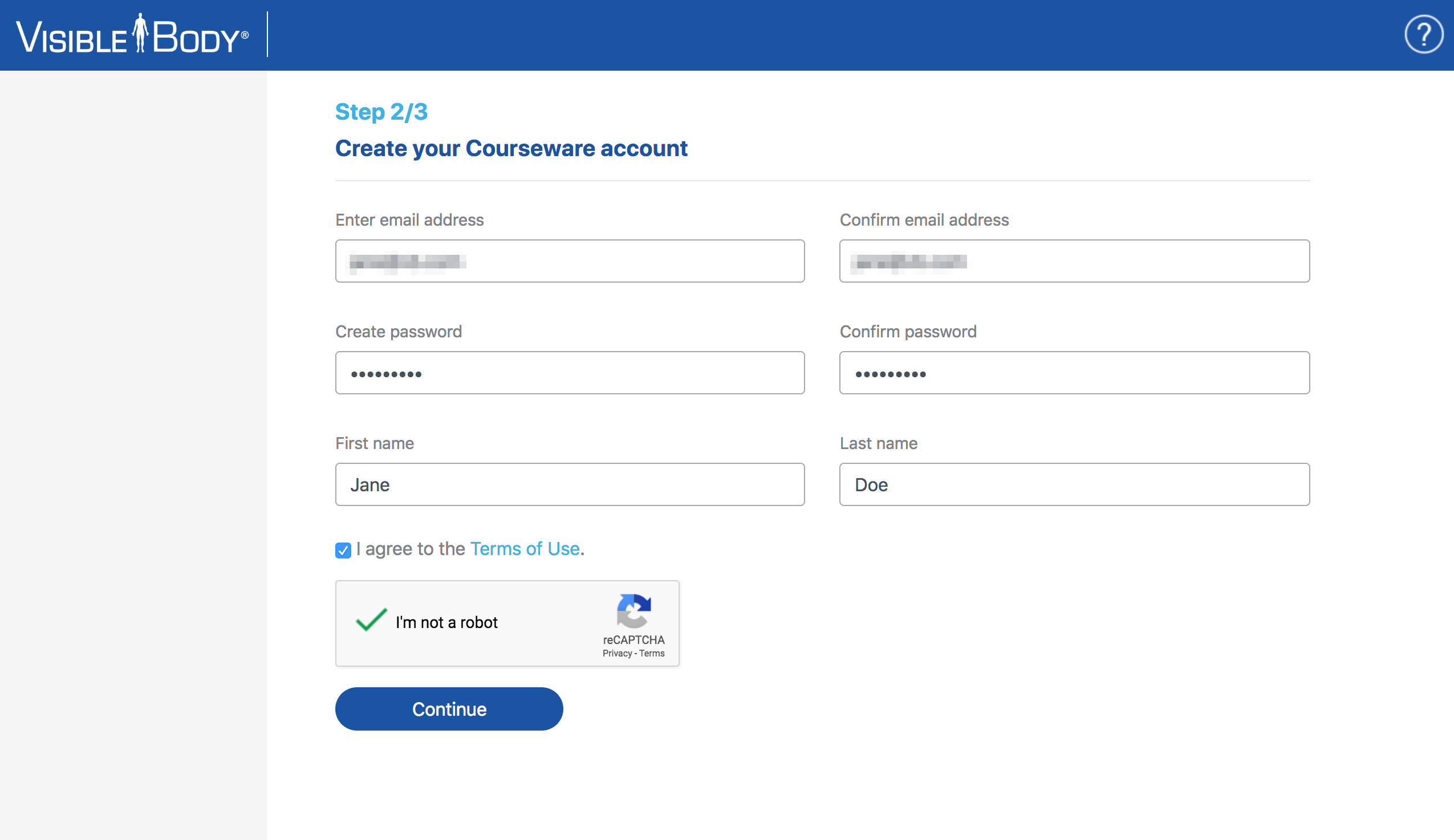
- Add the following information to create your account.
- Type your email address and confirm it.
- Create a password and confirm it.
- Add your name.
- Read the Terms of Use and use the checkbox to agree, then use the CAPTCHA and
select "Continue."
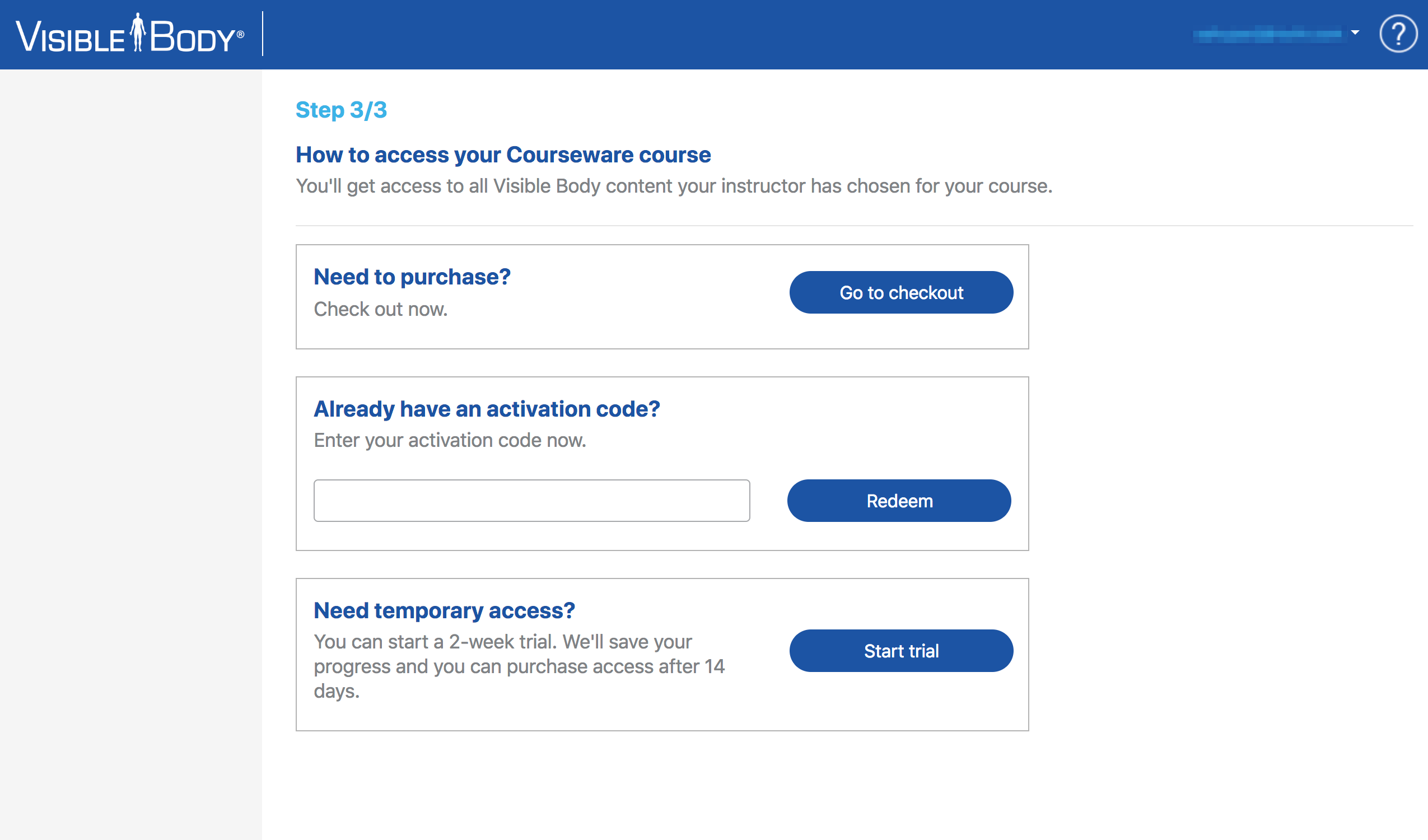
- Now, you can do one of the following:
- Purchase: Buy your full Courseware access right away.
- Enter your code: Enter an activation code to get full Courseware access right away. Depending on your arrangement with your school, your instructor will provide you with this code, or you may need to purchase it separately at the bookstore. Contact your instructor for more information.
- Start your trial: Start your 2-week free trial of Courseware.
Want to purchase right away?
- Select "Go to checkout."
- In the pop-up, enter your payment information and click the button at the bottom to buy. On the next screen in the pop-up select "Continue."
- After just a few seconds you should have full access to Courseware, your instructor's course, and the mobile app downloads.
Already have an activation code?
Simply enter your code and select "Redeem" to gain full access to Courseware. This will also automatically add you to your instructor's course.
Need temporary access?
If you’d like to start a free two-week trial of Courseware, select "Start Trial." You'll have access for a full two weeks, and we'll even save your work in your account when your trial expires. You'll have an option to purchase full access at any time.
NOTE: When your trial expires, you’ll see a pop-up asking to extend your trial:
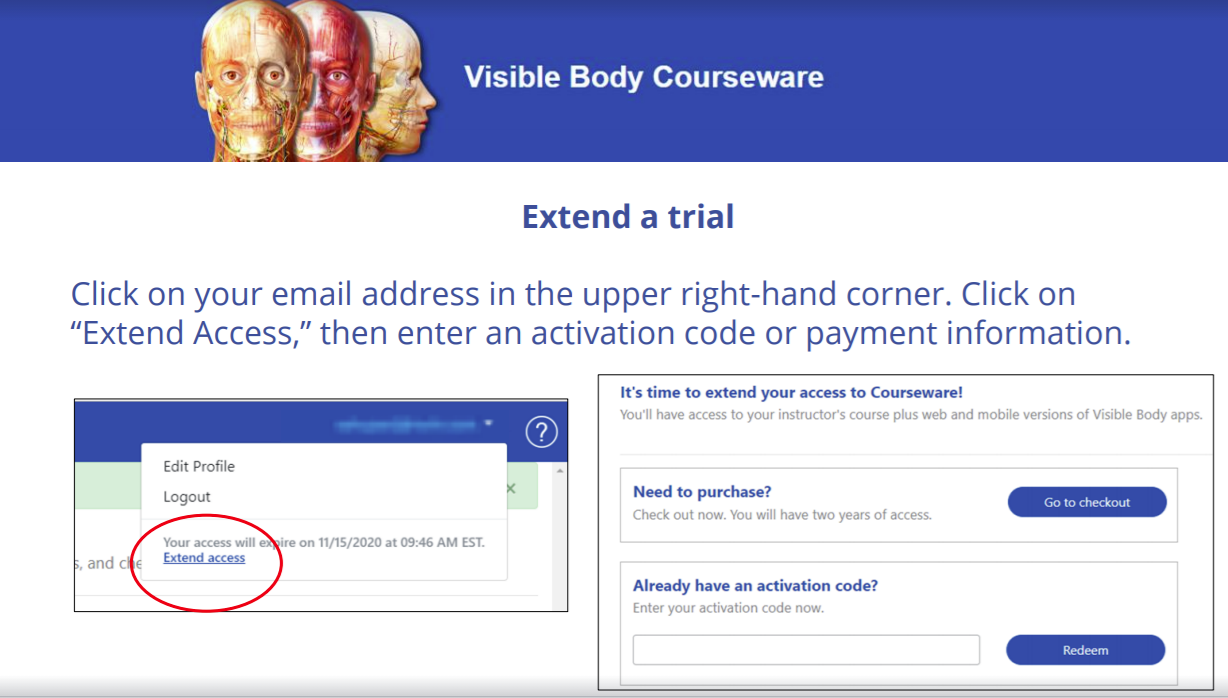
Choose one of these options to extend your access to Courseware:
- “Need to purchase?” Select “Go to checkout” and enter your credit card information.
- “Already have an activation code?” If you’re eligible to obtain a code:
- Request an access code from your instructor or purchase an access code from the bookstore, then
- Enter the code into the field “Enter your activation code now."
You’re good to go! Now that you have extended your Courseware account access, you can log into Courseware at courseware.visiblebody.com to access your course materials. Here’s more information about changing from a free trial to a paid subscription or extending a paid subscription.
For more FAQs or troubleshooting help, check out these articles:
- Courseware Troubleshooting for Students (FAQs)
- Problems joining your instructor's Course?
- Getting Started with Courseware (Students)
- Changing from a free trial to a paid subscription, or extending a paid subscription
You can also find lots of helpful information about using Courseware on our YouTube Channel and on the Visible Body Blog.
If you still have questions, you can Contact Support.