
Access your course
Follow these three steps to access your Courseware account through an LMS.
- Login to your LMS account and navigate to your course.
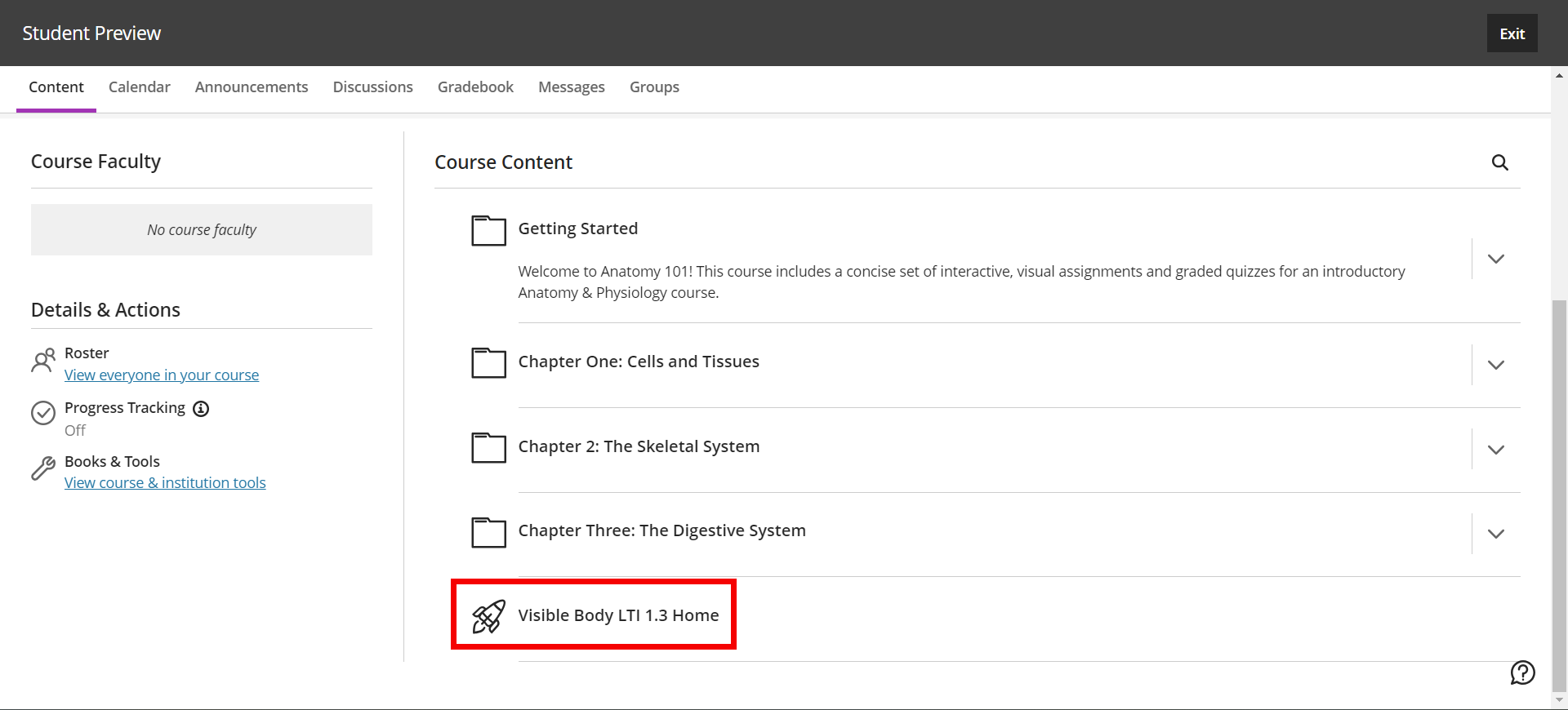
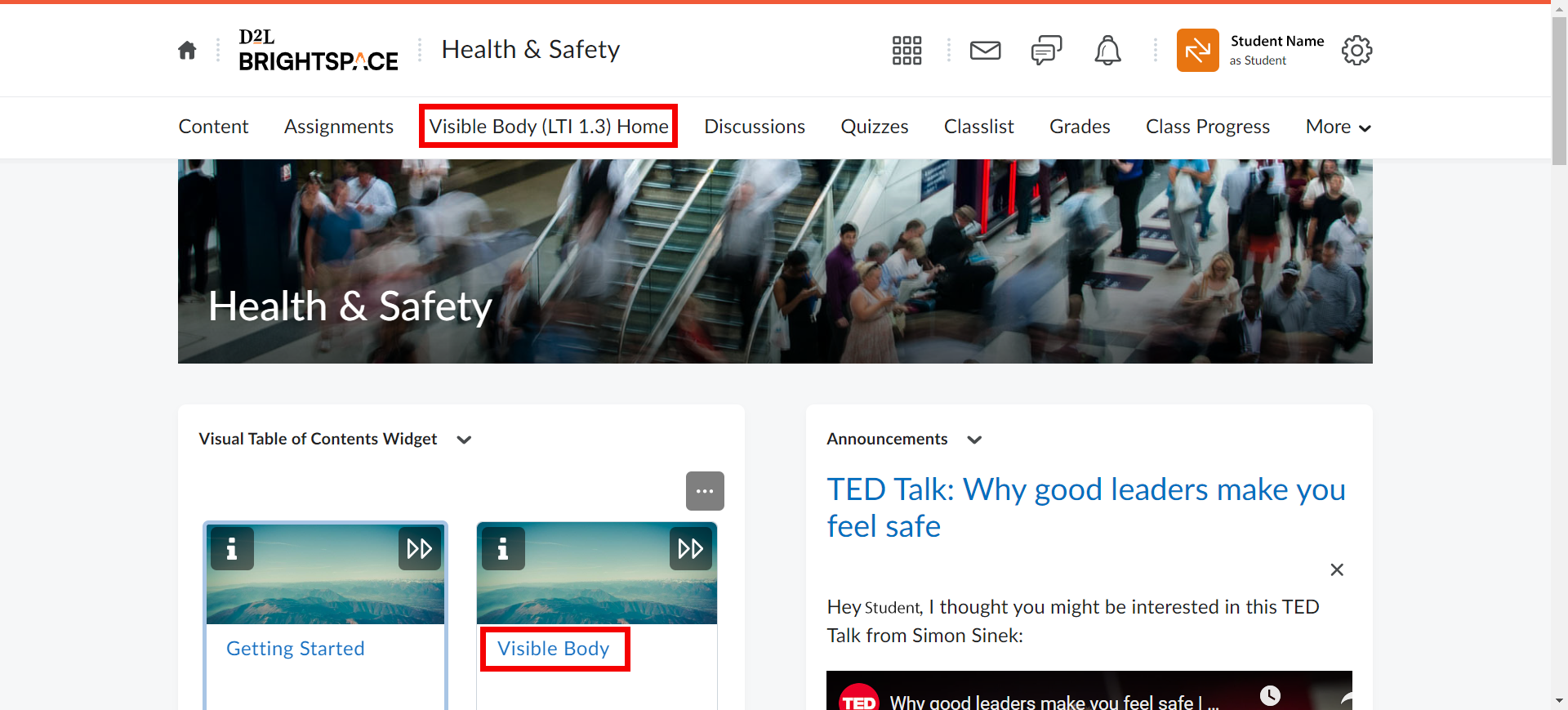
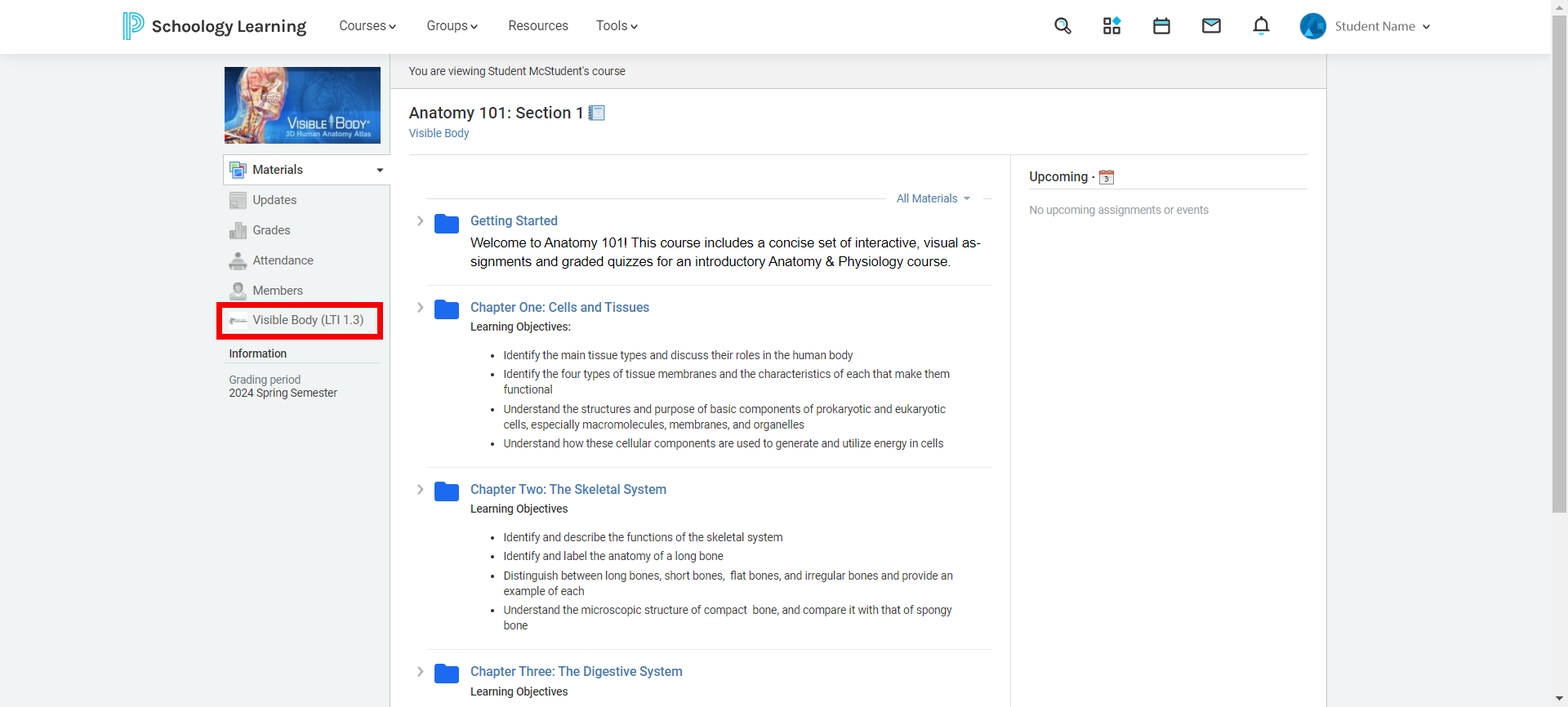
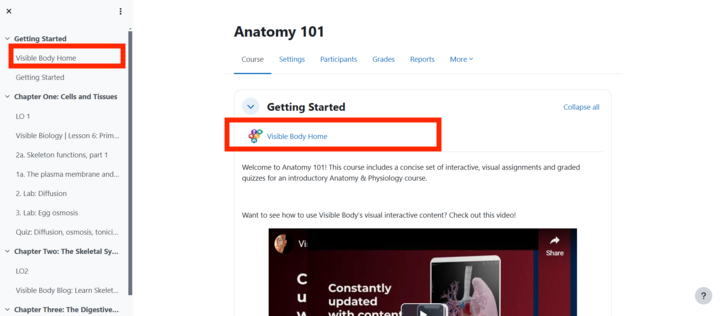
In the menu on the left, select Visible Body Courseware. This will launch Courseware inside your LMS.
Note: An error may occur if your instructor has:
- Not finished linking the Courseware to the LMS courses
- Used an incorrect Secret or Key to set up the single sign-on. Please contact your instructor if you see an error message.
Logging into Courseware
- Select "Sign up!" and create an account. If your school currently has a group subscription, you will be brought right to your course and you will not be prompted to purchase or use a code. If you've been instructed to purchase a subscription, see this article to learn about purchase options.
- Select "Sign in!" to log in with your existing account credentials, or sign in with Google by entering your Gmail account information. Once signed in, you will be enrolled in the correct Courseware course, and will not need to sign in again.
Here are some examples where you will find the link to VB Courseware in some commonly-used LMSes:
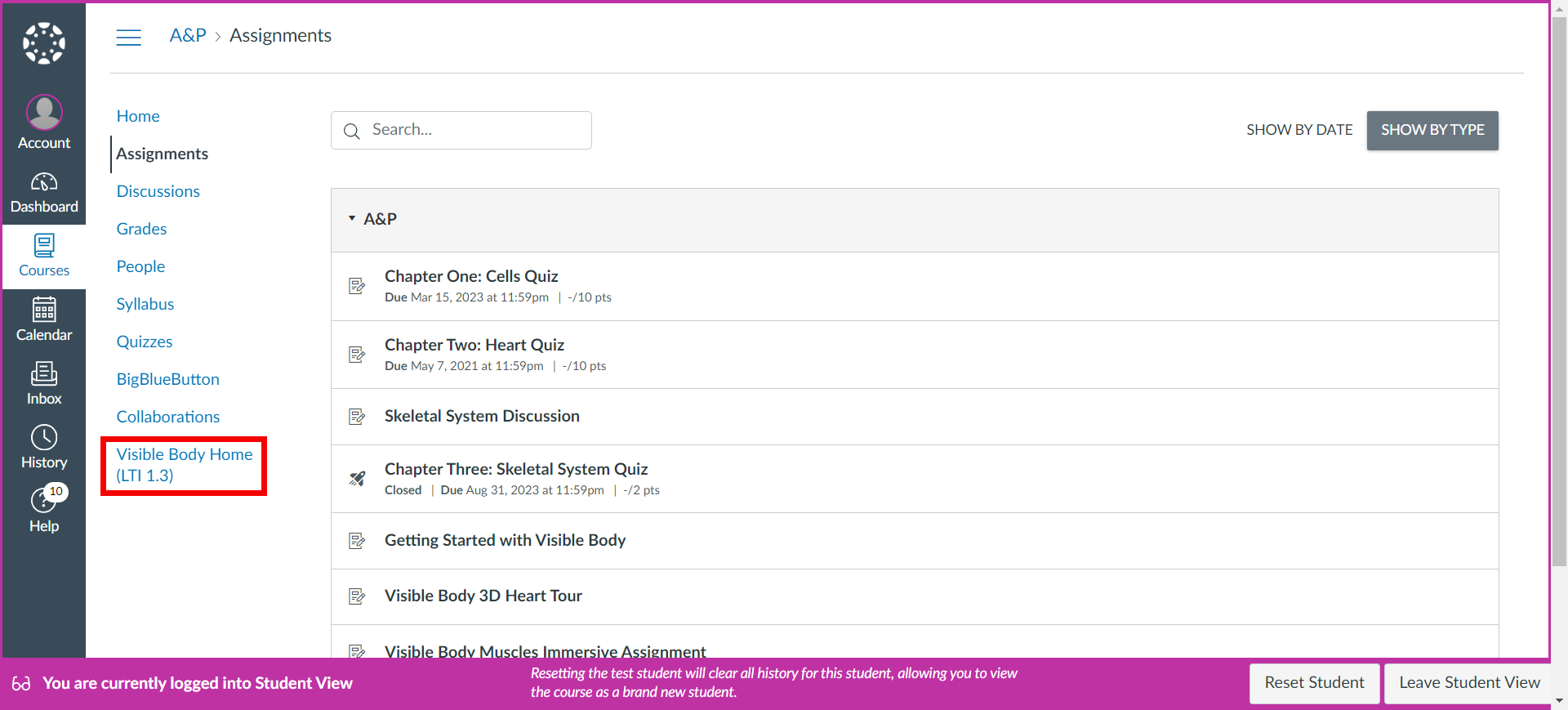
This video will walk you through the account access process for Canvas:
Troubleshooting for Safari users
If you are using Safari and see an error message, follow these steps:
- Select "Safari" from the top menu bar.
- In the dropdown, select "Preferences".
- In the settings window, select "Privacy" from the top bar.
- Uncheck the box for "Prevent cross-site tracking"
- Try linking your accounts again.
If you still see an error message, please Contact Support.