Change Available and View Until Dates for an Assignment
When scheduling an assignment, the Available and
View Until dates are set by default to the start and end of the
course. If needed, you can change either of these dates or the rule on which each
date is
based.
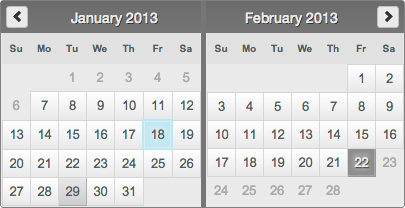
The current Available or
View Until date is highlighted in blue.
The assignment Due date is highlighted in dark
gray.
Today's date is highlighted in light gray.
If needed, click the arrows at the top of the calendar to see the next or
previous month.
The date is changed and a rule for the date is displayed.
If you have already set the assignment Due date, the
Available and View Until rules
are based on the number of days before or after the assignment is due.
Otherwise, these rules are based on the start or end of the course.
Optional: Edit the Available or View Until
rule.
Best Practice Use the rule that best describes your intention. Although
you can use different rules to specify the same date and time, it is the
rule, and not the resulting date and time, that is used if you need to
reschedule the assignment or copy it to other sections.
For example, in
one section 1 week after start of course at 10:30 AM might be the
same time as 30 minutes before Wednesday's class starts. But
those two rules could result in very different dates and times if the
assignment were copied to another section.
You can:
Change the number of units.
Change the unit of time — minutes, hours, days,
or weeks.
Change the event on which the rule is based.
Depending on how the
assignment Due date is calculated, rule events
include:
Available
View Until
after start of course
before assignment is due
after previous class ends
before class meeting starts
after class meeting starts
before end of course
after assignment is due
before next class starts
before class meeting ends
after class meeting ends
Available and
View Until rules can be set relative to class
meetings only if the Due date is also set
relative to a class meeting.
Type a time for the rule.
Note You can type a time only if the rule is
calculated as either days or
weeks relative to the assignment due date, the
start of the course, or the end of the course.
Two examples of Available and
View Until rules follow.
Available
3
weeks
before assignment is due
at 8:30 AM
View Until
2
days
before end of course
at 11:59 PM
Available
60
minutes
after Friday's class starts
View Until
0
minutes
before next class starts
Tip After you change the Available and
View Until rules for a scheduled assignment, other
assignments that you schedule during the current session use your most recently
specified Available and View Until
rules by default.
 beside either Available or
View Until.
beside either Available or
View Until.