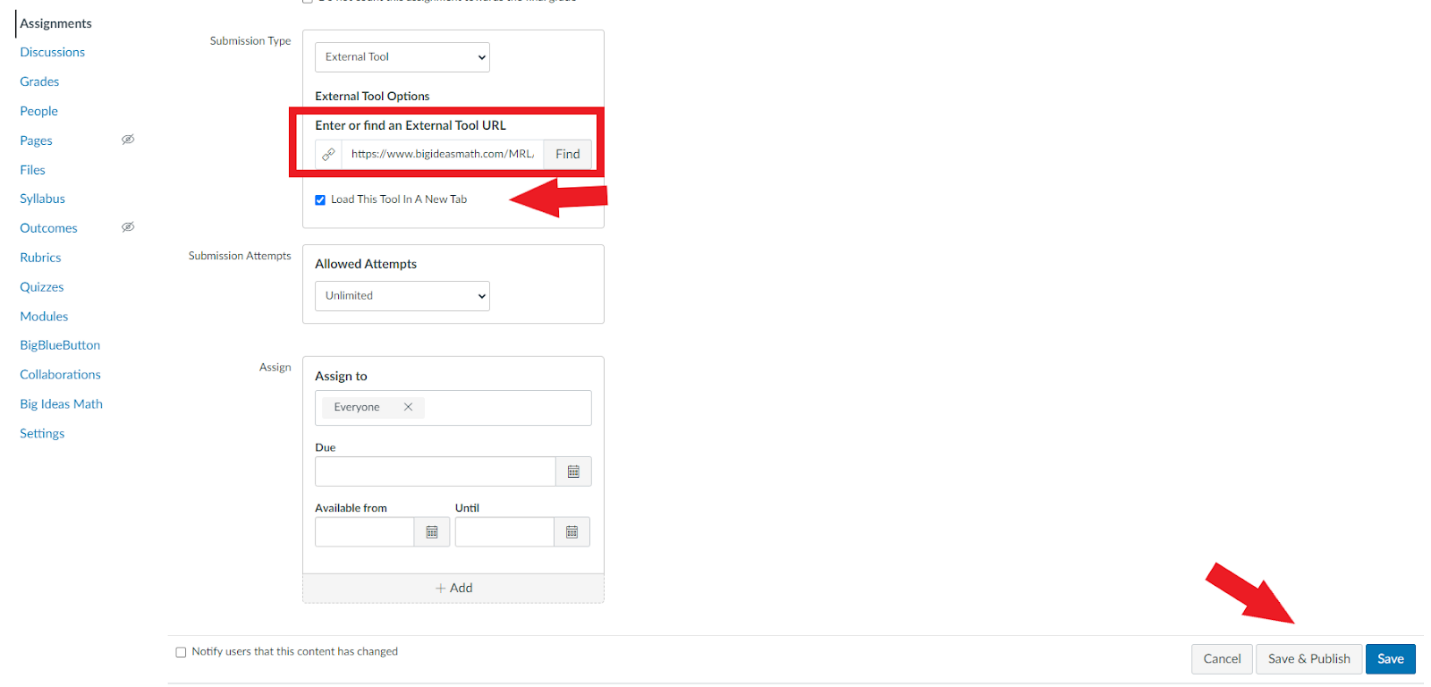
Within Canvas you can now create an assignment for multiple classrooms at the same time through the external tool.
If you are unfamiliar with how to make an assignment in Canvas, please see Add a Big Ideas Math Assignment to a Canvas Course.
If you cross-list in Canvas, you will still need to add the assignment to every section in Big Ideas Math on this page. If you attempt to assign to only 1 class in Big Ideas Math and change the assignees only on the Canvas side, then they will not be able to open it.
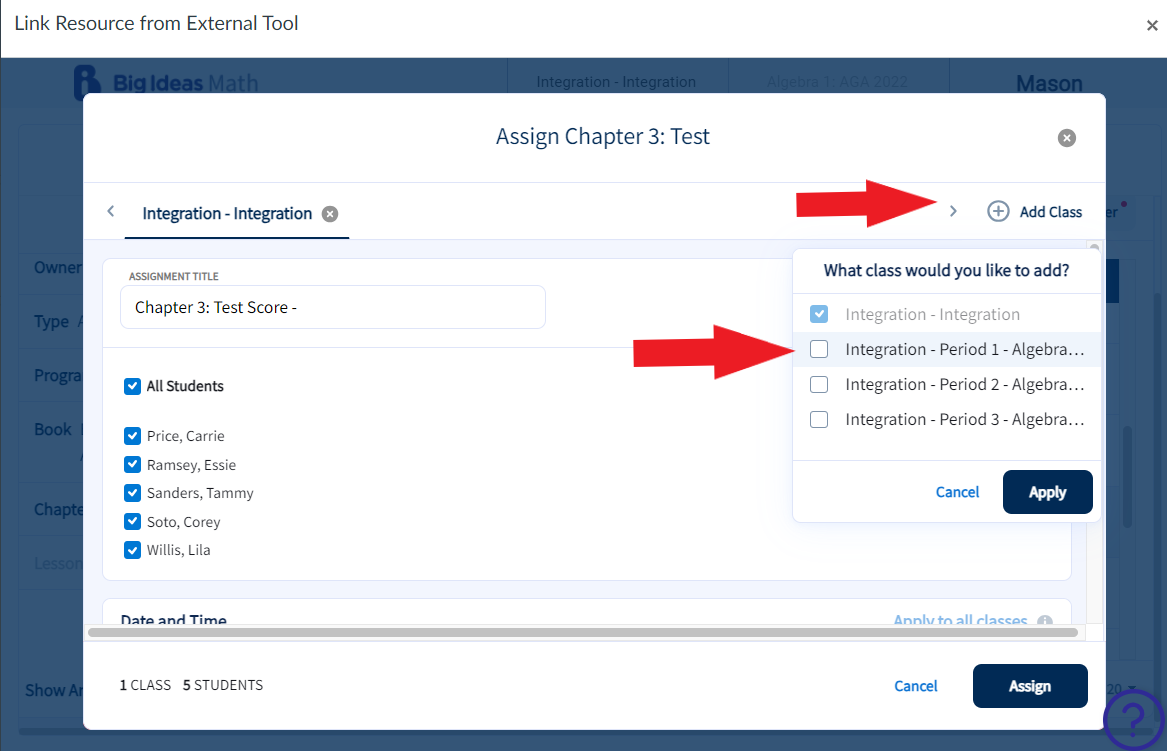
Follow the steps as you normally would when creating and adding an assignment through the Canvas External Tool until you get to this screen.
-
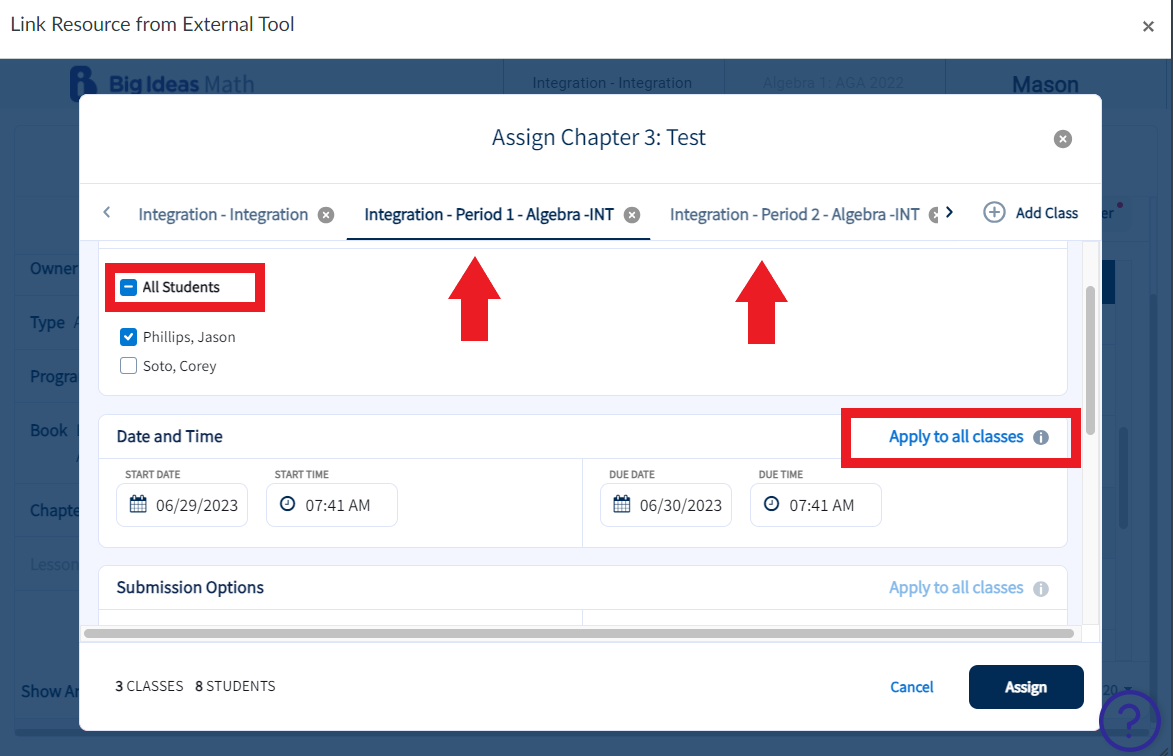
Once the classes have been selected you can navigate between the different
classes to manage the users and settings. Settings which can be applied to all
classes are Date and Time, Submissions Options, Tools and Questions Options.
Click the Assign button and this will now deep link that
assignment to those classes in Canvas. You'll be taken back to the External Tool
settings.
-
Then click either Save and Publish or
Save depending on if you are ready for students to
see the assignment.