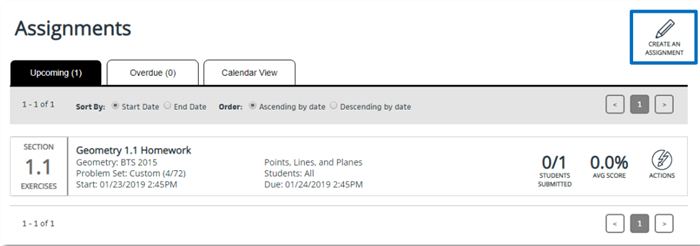
The Teacher may click on Create an Assignment in the location below:
On the Create an Assignment page below, the selected title will be broken out into chapter-sequential items on a timeline.
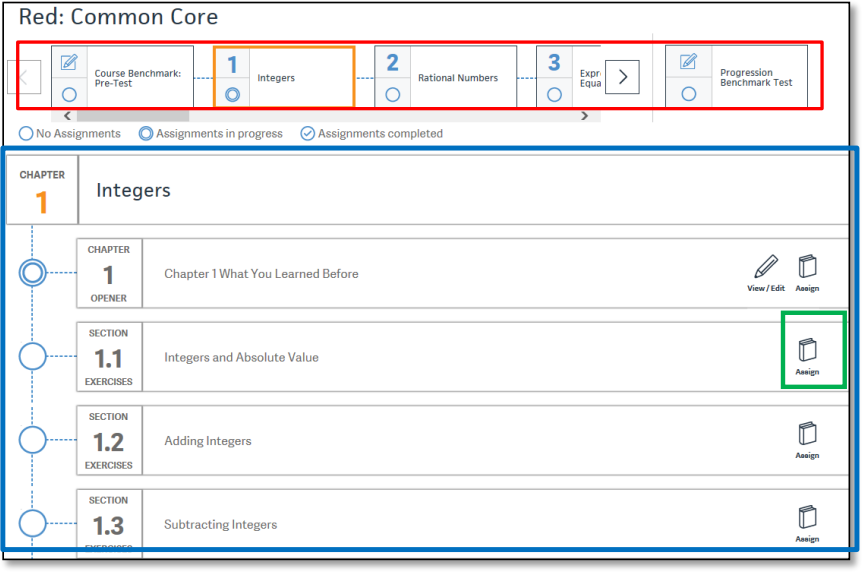
The teacher can click on an item in the timeline to show all sections, quizzes, and tests in that chapter. To create an assignment, the teacher can click on the Assign button next to one of those assignment types. Click Add an assignment on the next screen.
The screen below will display next.
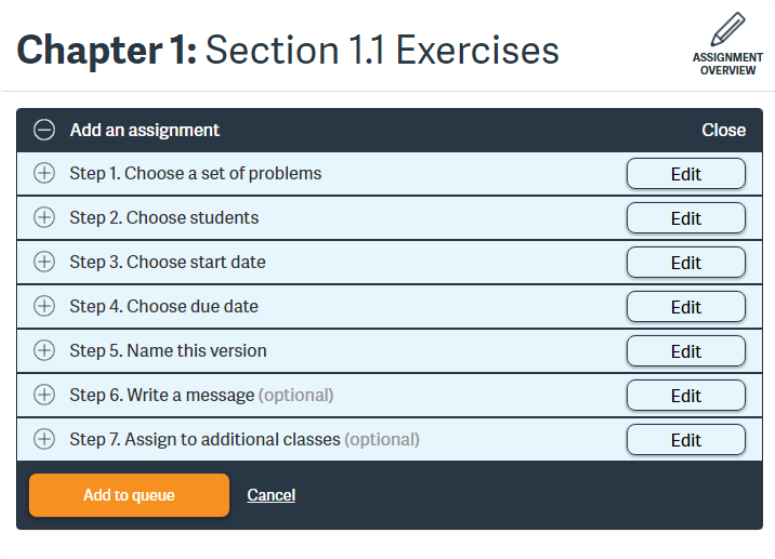
Step 1: Choose a set of problems
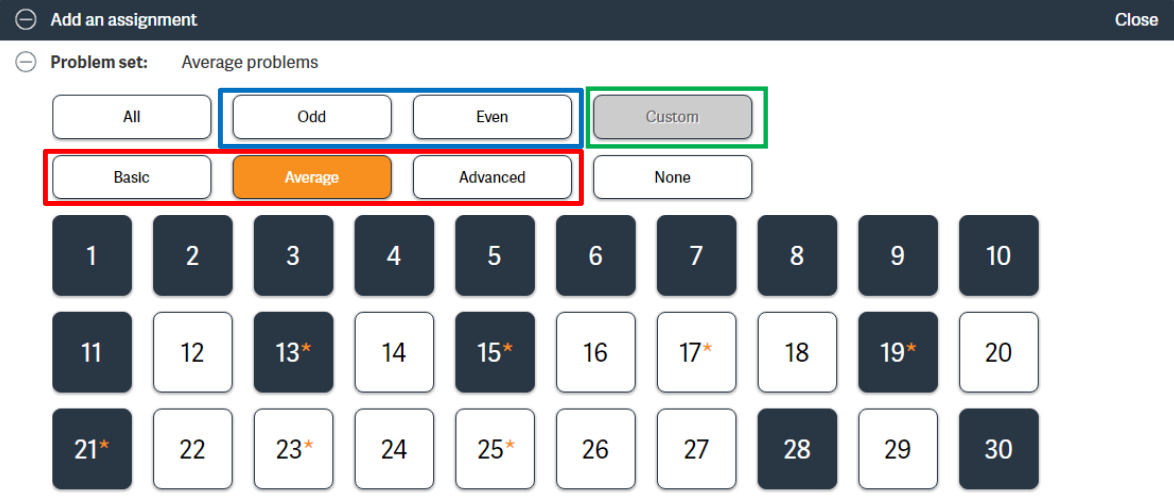
Teachers can quickly choose the questions they want to assign by question number or by level of difficulty. The level of difficulty comes from Laurie’s Assignment Guide and Homework Check in the Teaching Edition. Any selection can be customized by clicking on or off a question number. The * indicates that the Live Tutor is available for the specific questions.
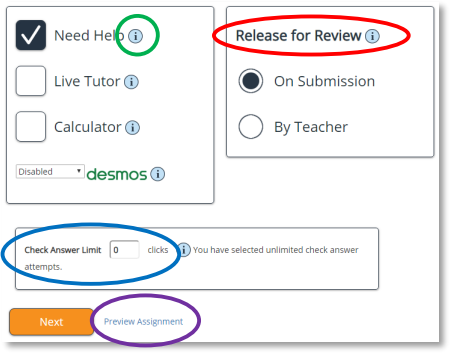
Teachers have the option of turning help options on or off by checking the boxes. Information buttons explain what each feature is. Teachers also have control of the students' access to the answers in the Review. The Release for Review feature provides the option to either release the answers to an assignment to students as soon as they submit it, or allow the teacher to release it at a later time. The Check Answer Limit allows teachers to set the number of times a student can check their answer. Teachers can Preview Assignments before selecting students or at any point before the assignment creation is completed.
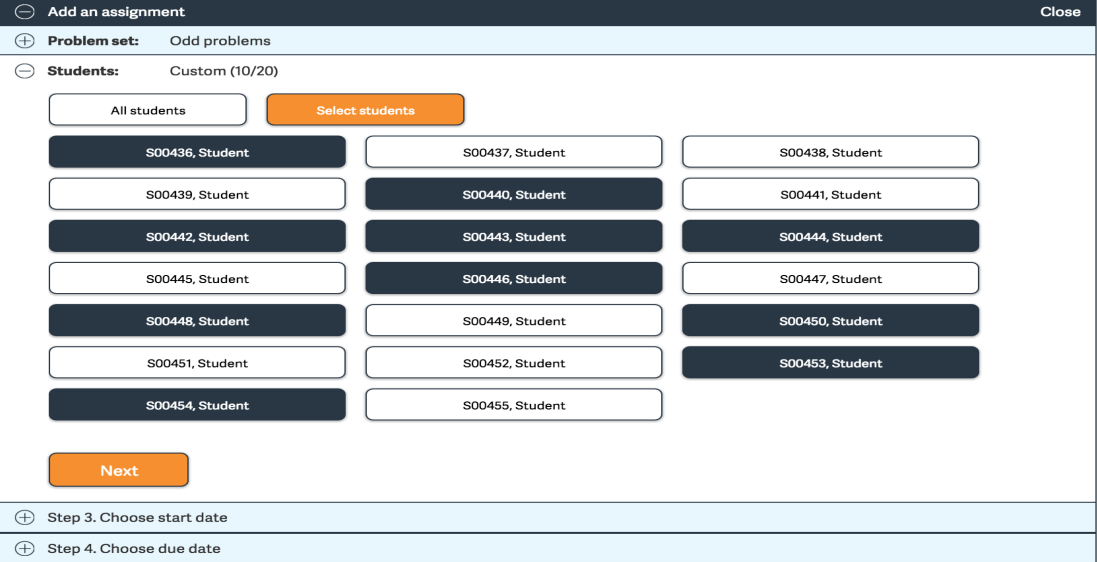
Step 2: Choose Students
Teachers can select all students or select them individually. Individual selection is used when teachers want to assign multiple versions of the assignment.
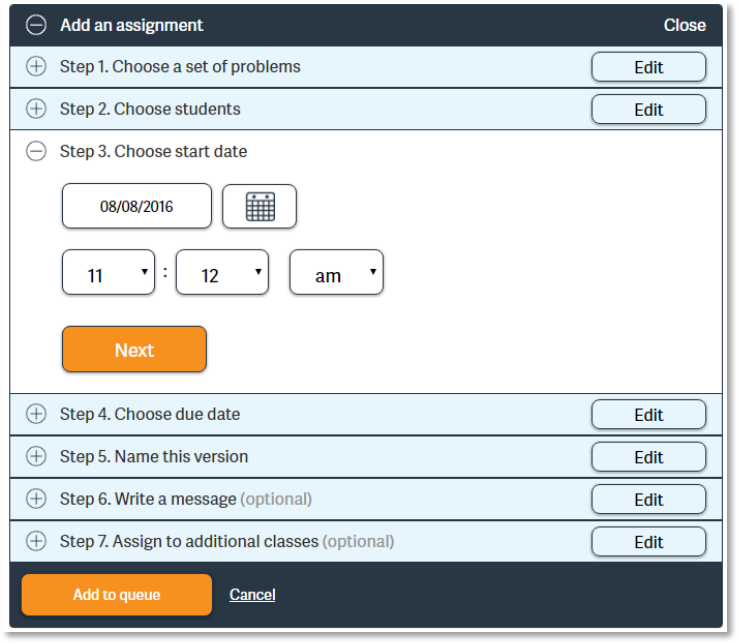
Step 3 & Step 4: Choose start and due dates
Step 5: Create a name for the version
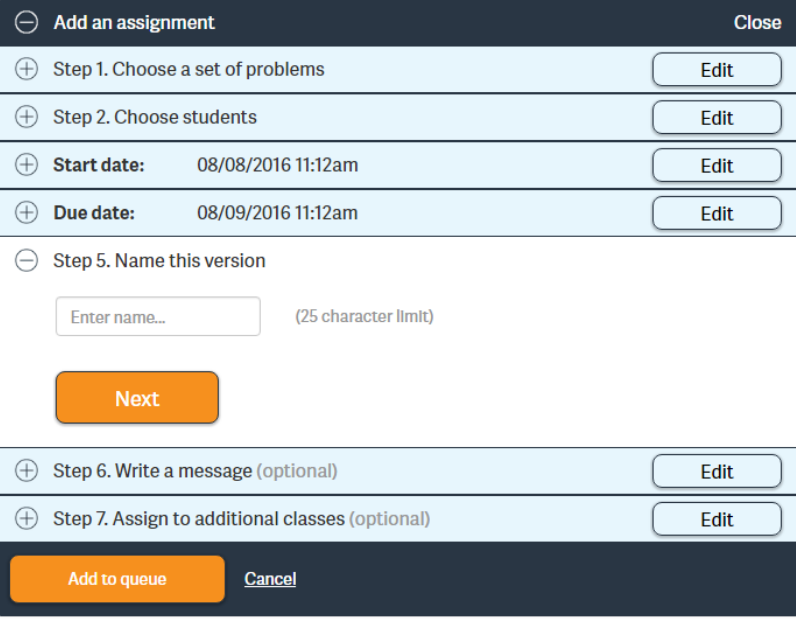
Step 6: Write a message to your students
This step is optional.
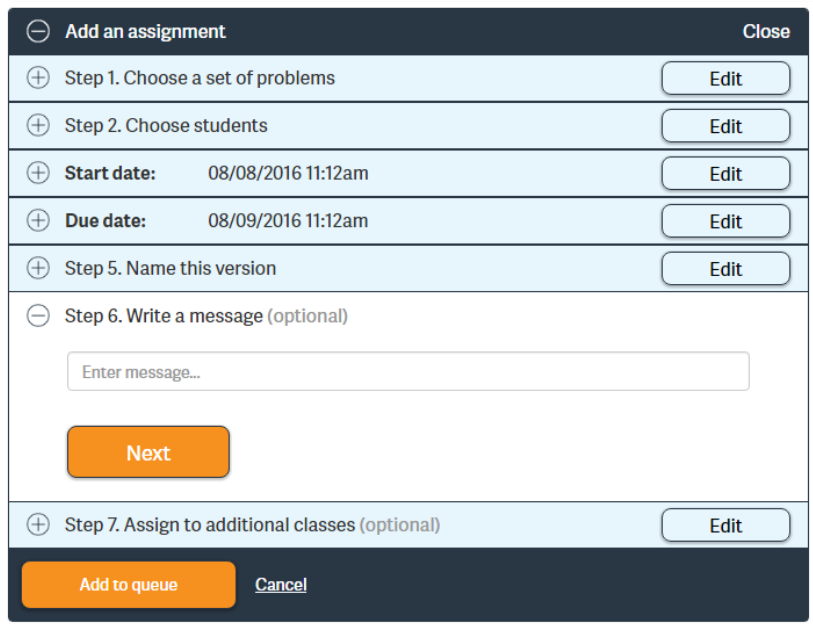
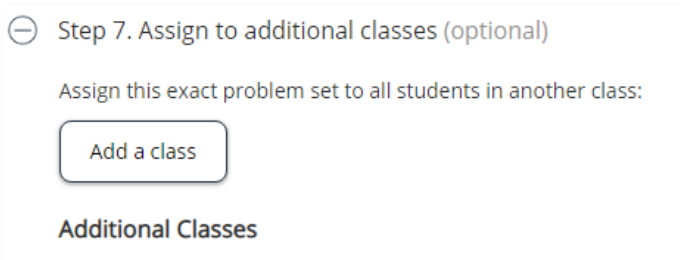
Step 7: Copy the assignment and give to additional classes.
This step is also optional.
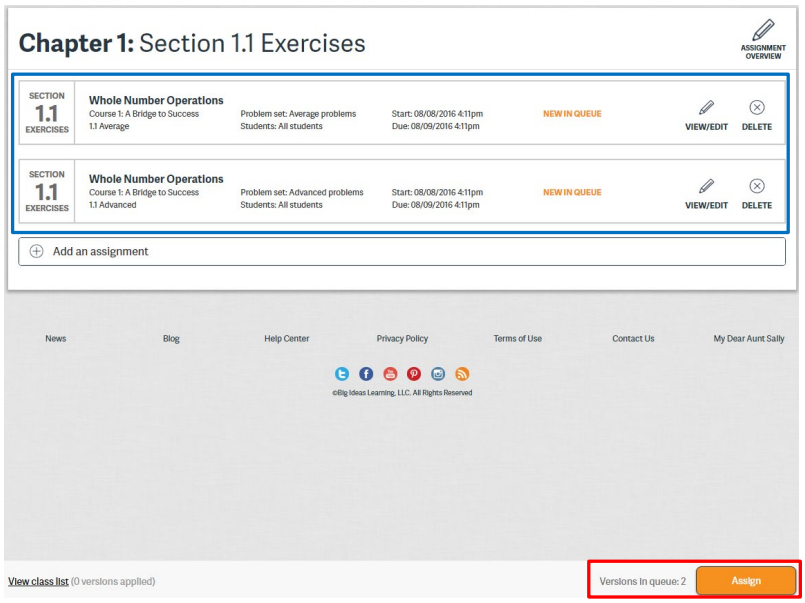
This process can be repeated to create multiple versions of an assignment. Teachers can add multiple versions of the assignment into the queue and then assign all versions at once. Saving an assignment will put that assignment into a queue. Nothing will be assigned until the item or items in the queue have been assigned by clicking the orange Assign button at the bottom right of the screen.