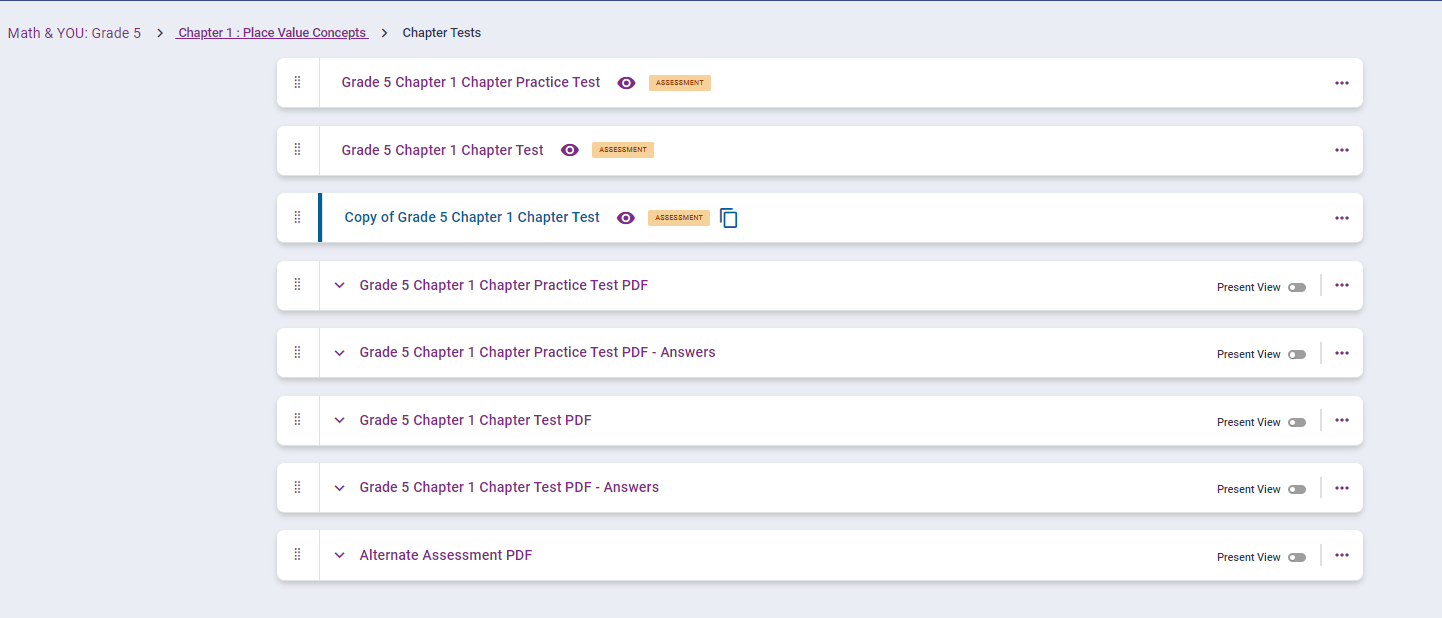
Teachers are able to create and edit assessments within the Plan View of the Course Content. The following steps will cover how to create and edit assessments with the Math & YOU curriculum.
-
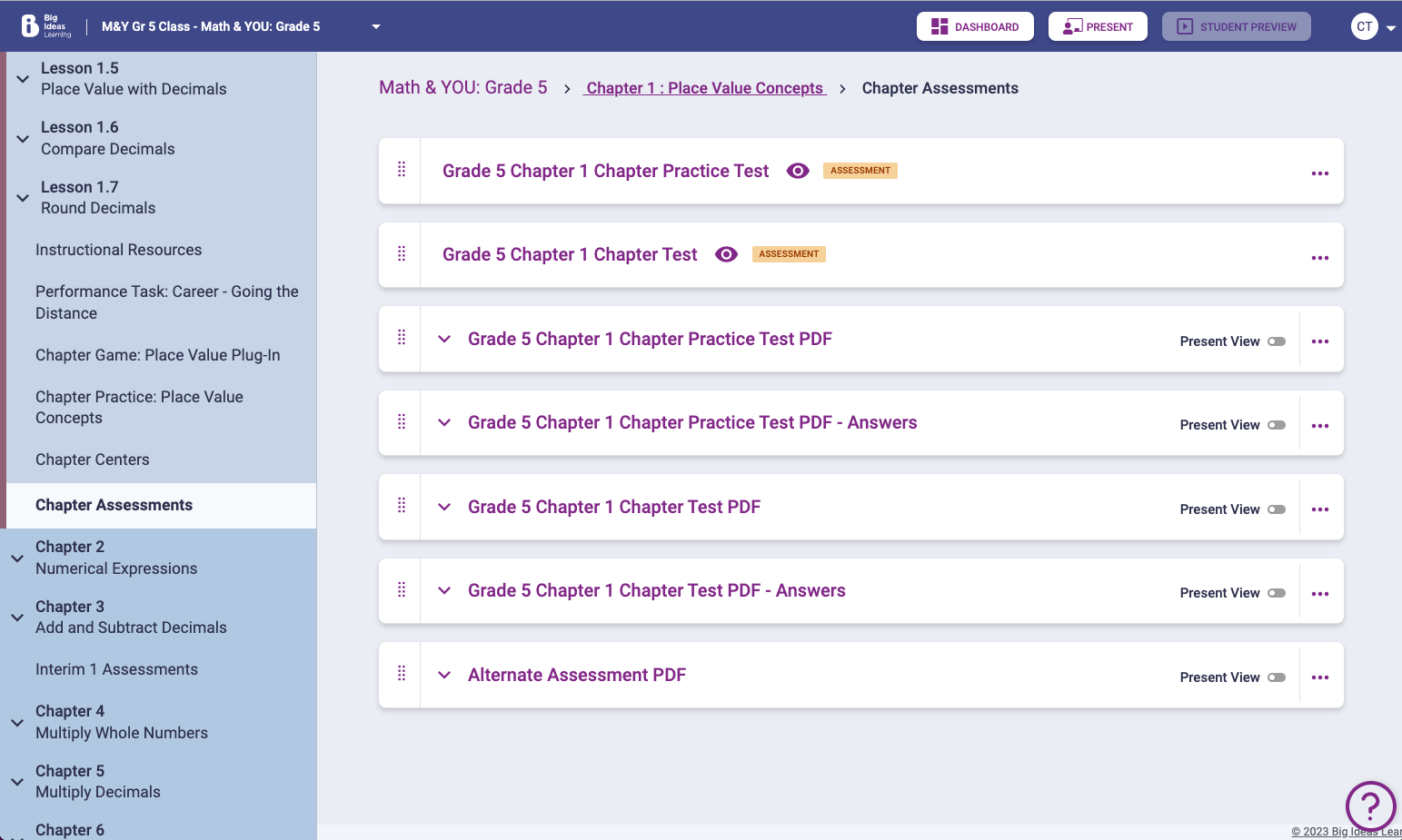
Teachers will access their learning path by selecting
Plan within their Courses Menu. To access the
assessment that a teacher would want to edit, they will need to select which
chapter within the Learning Path.
-
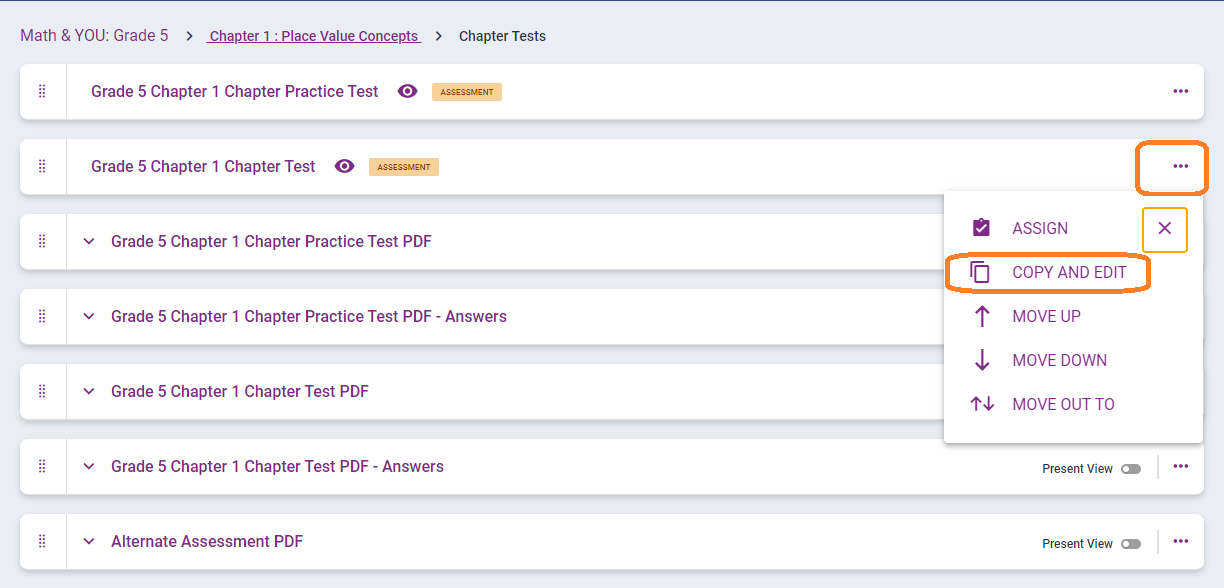
Once an assessment has been selected, the teacher will select the three-dot
overflow menu and select Copy and Edit. This will create
a copy of the assessment that will automatically open the page to the next
step.
-
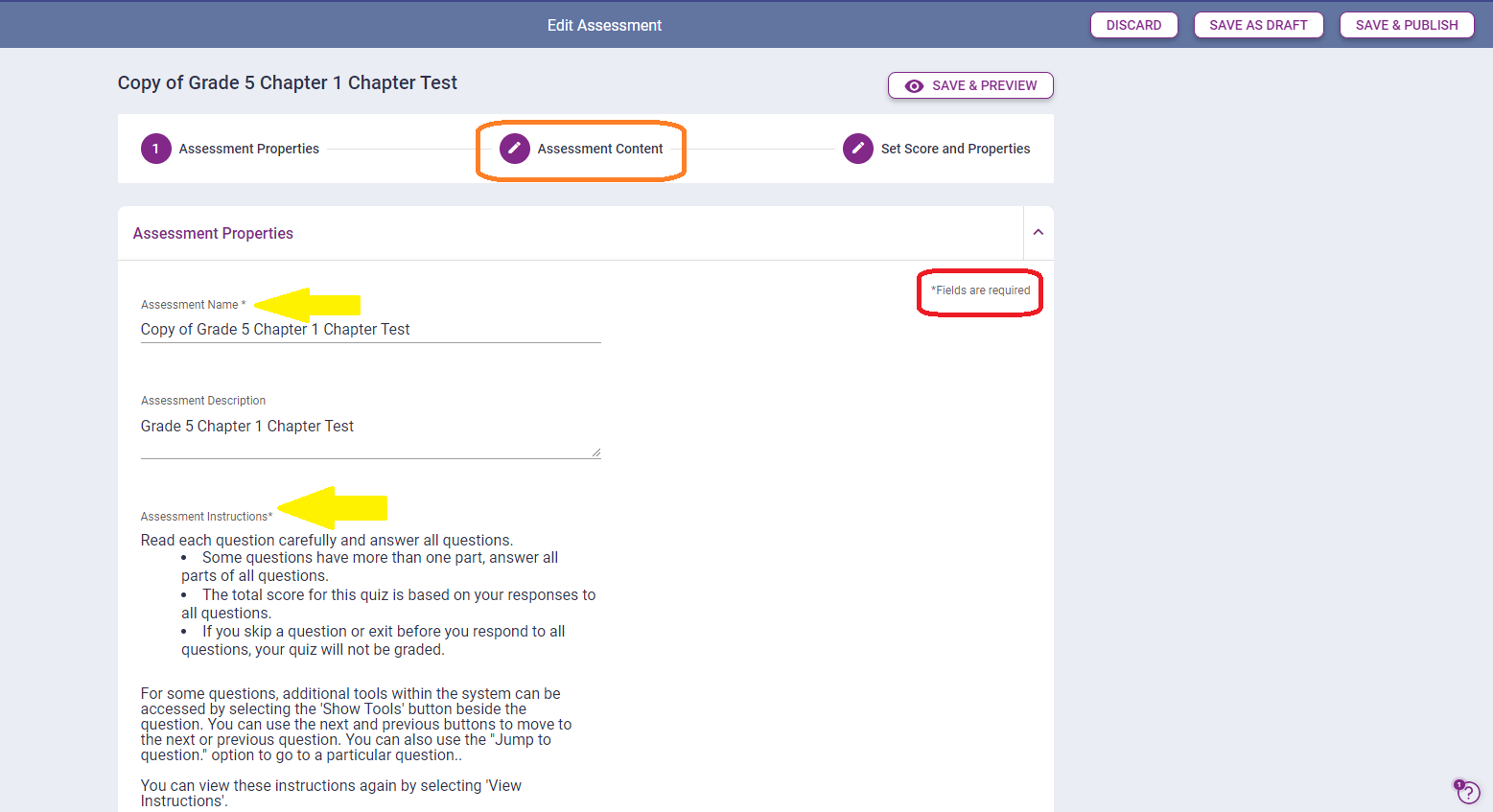
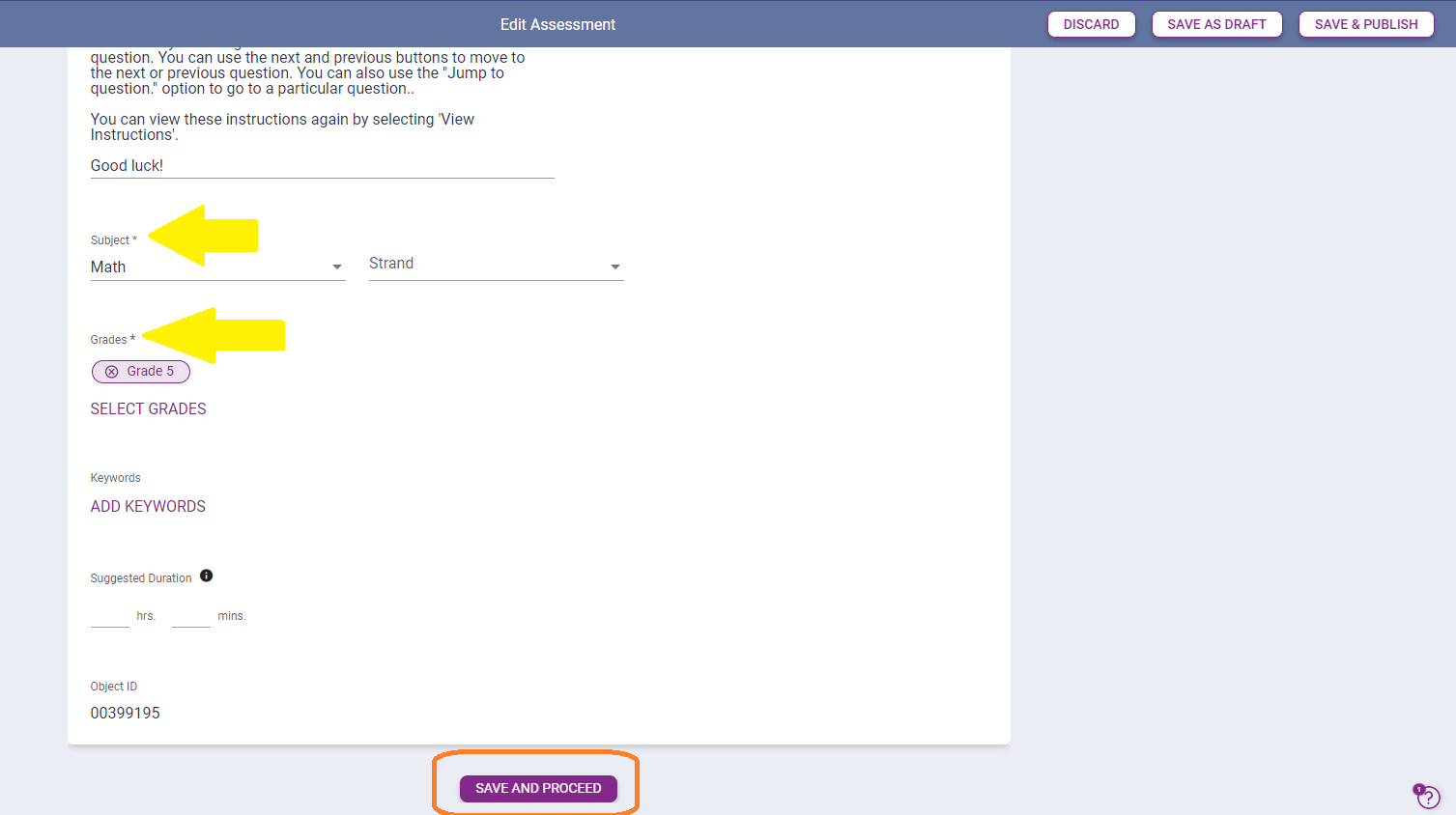
When the copy of the assessment automatically opens, teachers can edit
assessment properties including names, instructions, covered grades and more. To
continue to the next step, teachers may select either Assessment
Content (at the top of the page) or Save and
Proceed (found at the bottom of the page).
-
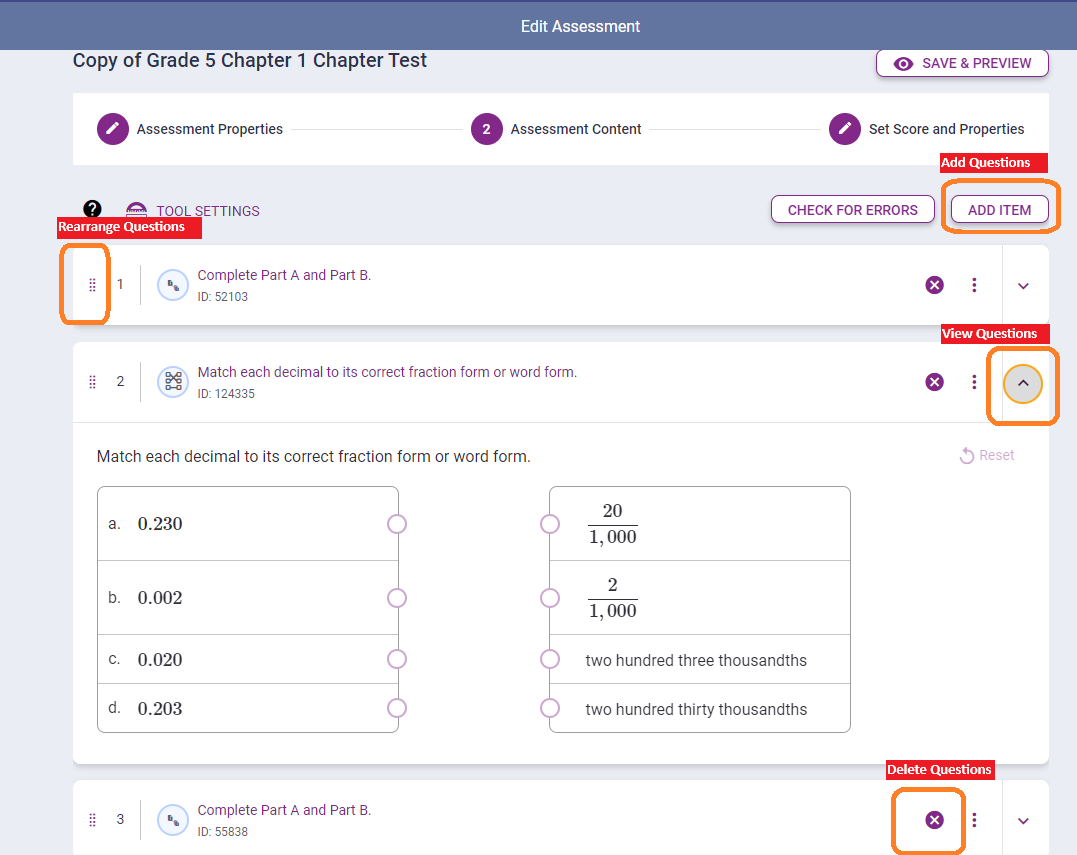
In this step, teachers can view, add, rearrange, and remove items from the
assessment.
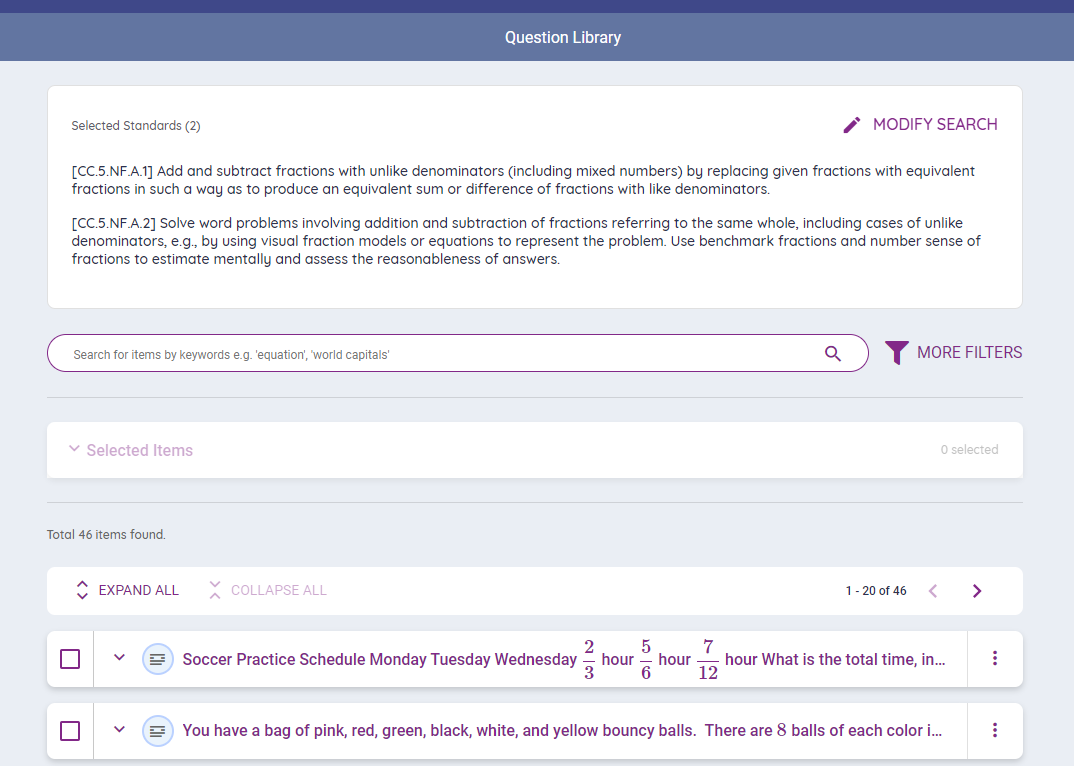
 Adding Questions: In the ADD ITEM view, teachers start by choosing the set of standards and grade that they are working with and then clicking LOAD STANDARDS.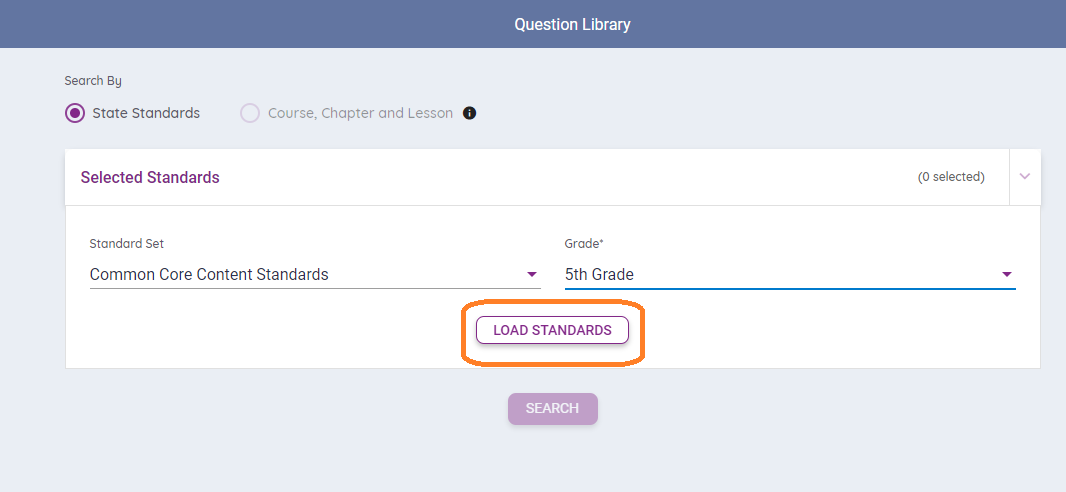
Teachers will then choose the standard(s) that they want to have questions pulled from by selecting the checkbox(es) and selecting SEARCH.
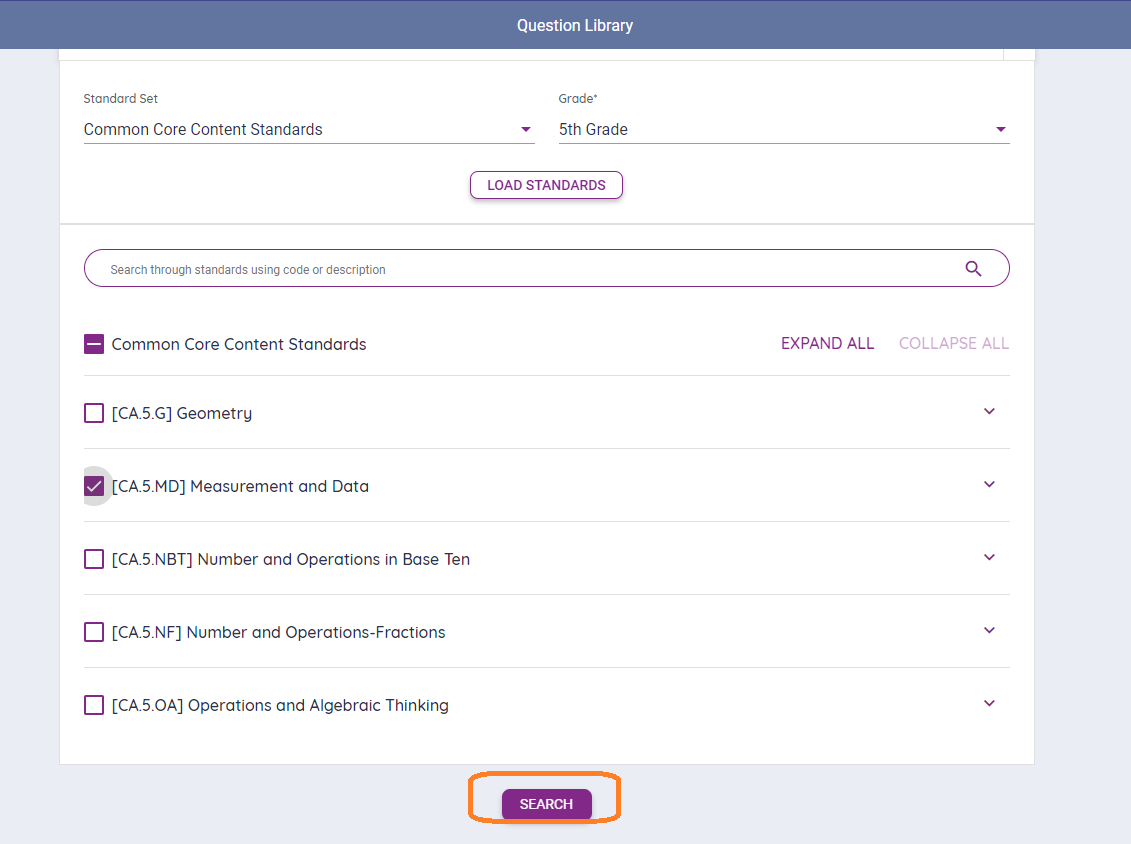
Similar to previewing and editing the existing assessment, the question bank allows for teachers to expand and view, and select questions to be added to their assessments. Multiple questions can be selected at one time and will be added in bulk to the assessment. Teachers are also able to adjust their search by selecting MORE FILTERS, where they can narrow down items by grade, difficulty level, and other characteristics.
-
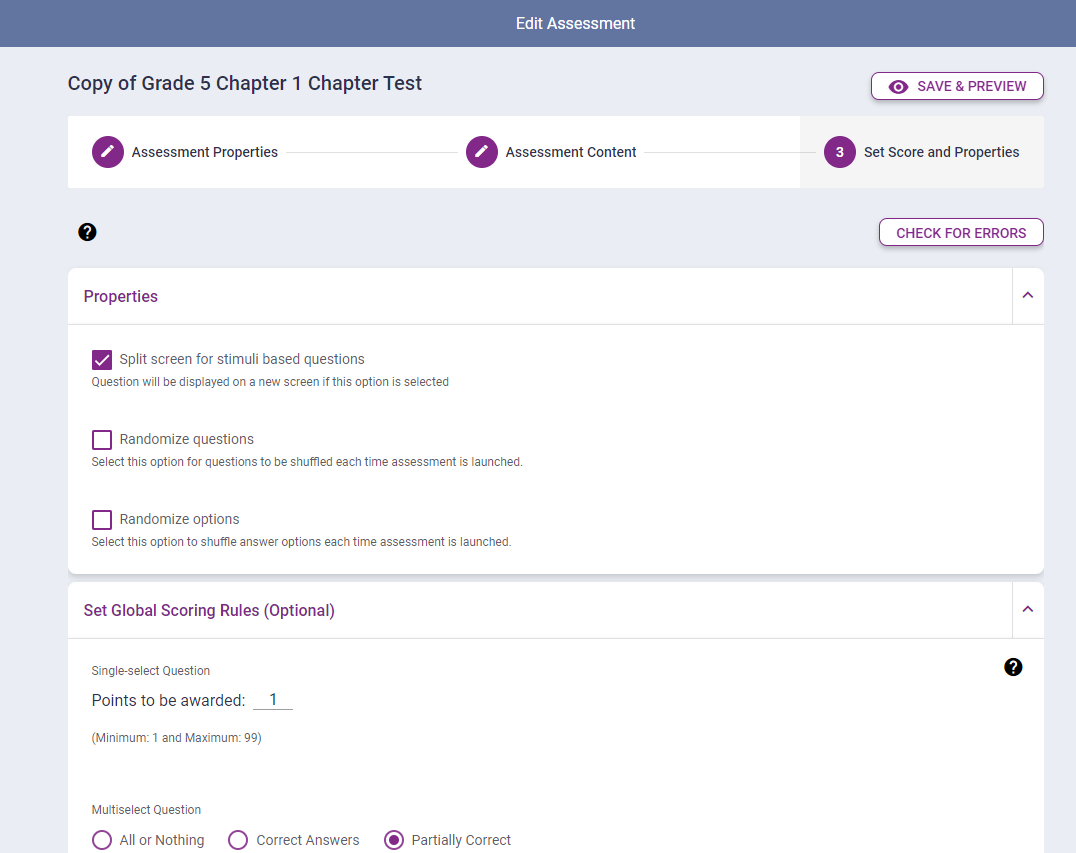
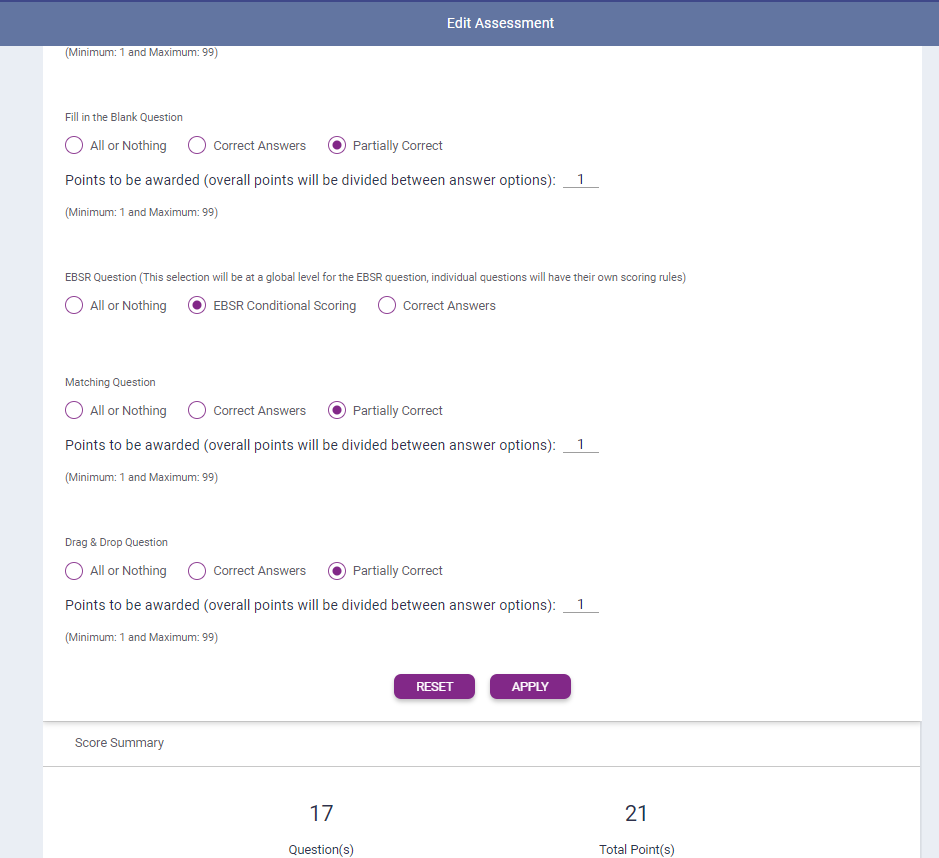
Once a teacher has finished adding and removing exercises, they will be able to
customize options for how the assessment is presented and scored, including
changing point values for each exercise.
-
To finish, teachers will select SAVE AS DRAFT to save
their customized assessment as a draft that can't be assigned, or
SAVE & PUBLISH to save the assessment in a form
that makes it available to assign.
As always, students won't be able to see the assessment unless it is assigned. When the assessment is saved, it will appear within the PLAN view below the original assessment that it was copied from.