
Sign up from the website
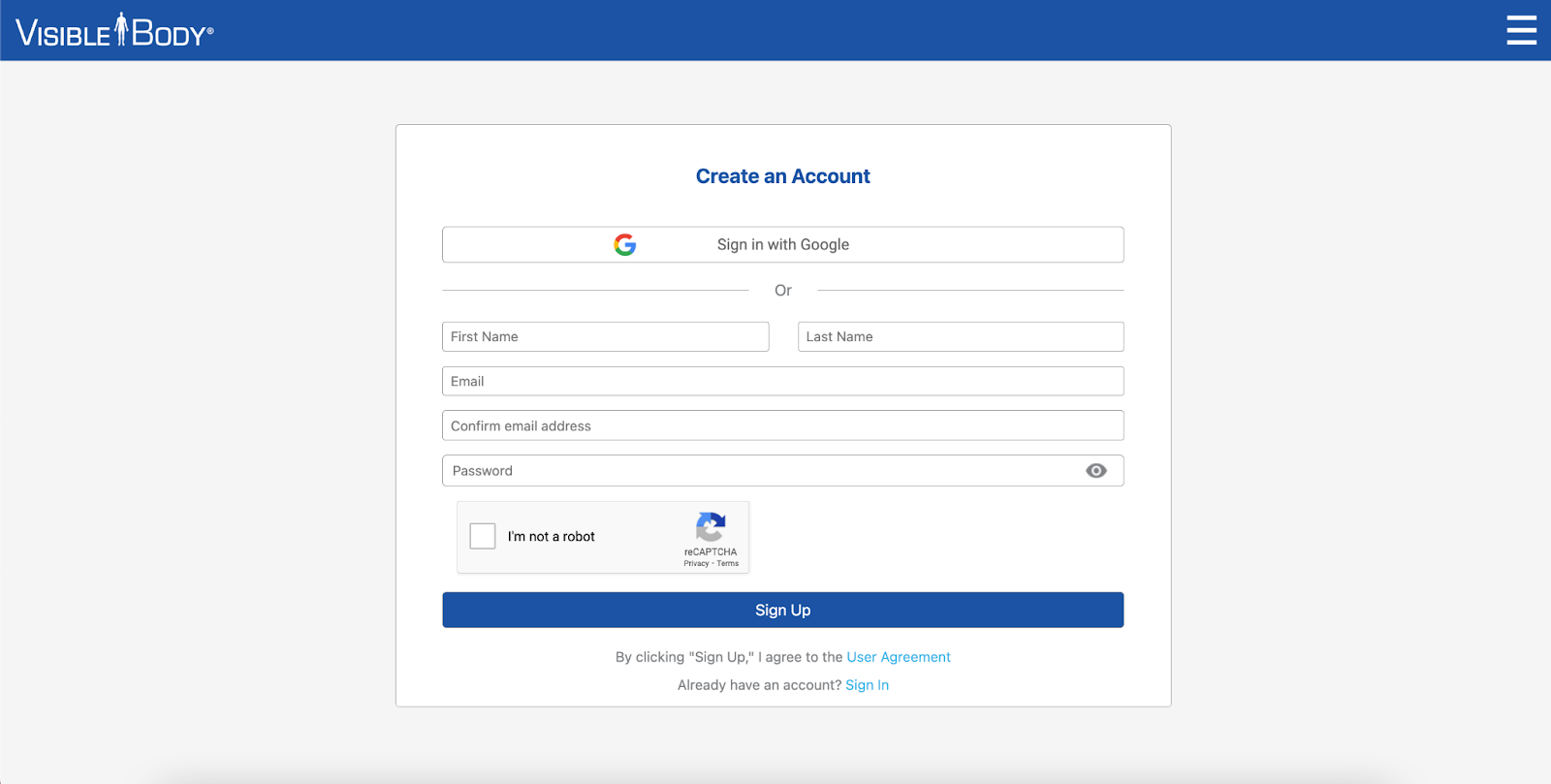
Follow the steps below to create a Visible Body account and subscribe to Visible Body Suite using your Google account or your email and a new password.
- Navigate to visiblebody.com
- Select “Get Started”
- Choose your plan
- Create an account
- Enter payment information. A receipt will be sent to your email.
Sign up on mobile store
Follow the steps below to download Visible Body Suite from the App Store or Google Play Store. Then create an account and subscribe using your Google account or your email and password.
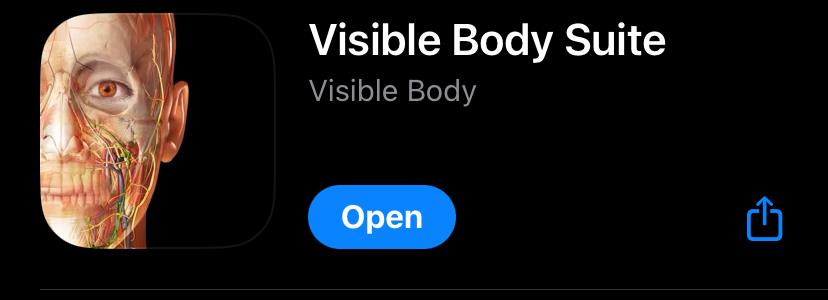
- Navigate to the App Store or Google Play Store and search for “Visible Body Suite”
- Download and open the App.
- Once inside, select "Sign up" and follow the steps to create your account
Profile management
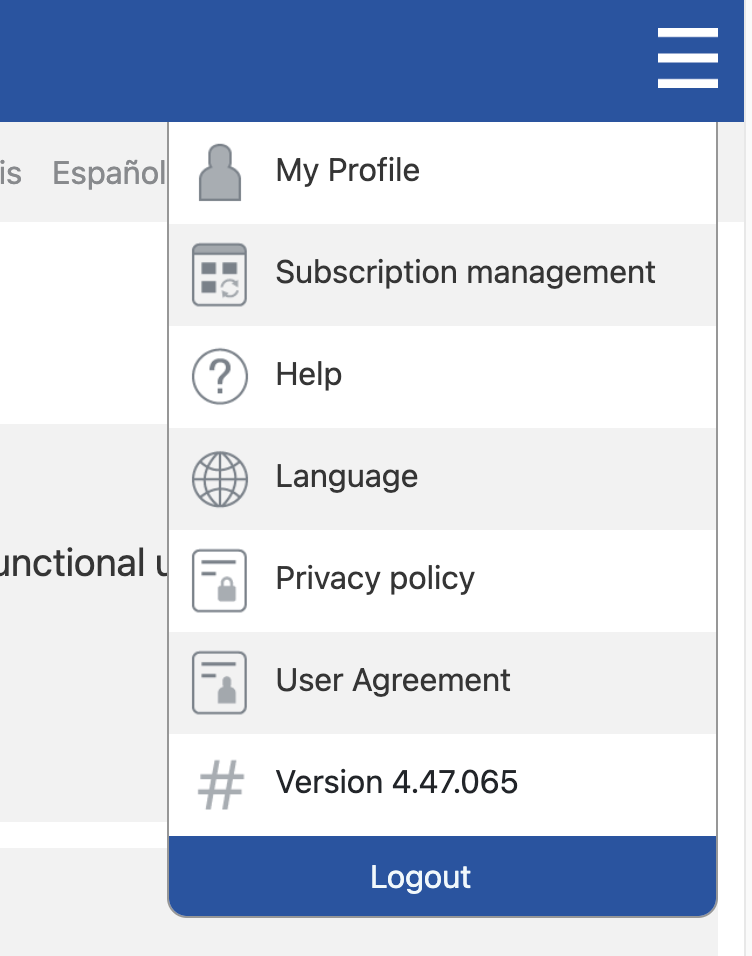
The “My Profile” option inside your account allows you to edit your name, password, or the email address used to sign in. You can manage your profile information from within the mobile app or on the web.
On the web:
- Select “My Profile” from the dropdown menu
- Update your information and confirm the changes with your password
On mobile:
- Sign into your account and select "Settings" from the bottom menu. Then select “Profile".
- Update your information and confirm the changes with your password.
- If you're using a Google account, create a password here before updating your information. Refresh the page and “Edit”.
Note: To start using Google to sign in, change your email to a Gmail address. Then confirm the changes and start using “Sign in with Google” when you access Visible Body Suite .
Manage my Subscription
Web version
Visible Body Suite is an auto-renewing product. If you want to cancel or reactivate your subscription, you can change your access by selecting "Subscription Management" in the dropdown menu on the Visible Body Suite homepage.
Follow these steps:
- Sign in to Visible Body Suite
- In the dropdown menu select, “Subscription Management”
- A link to manage your subscription will be sent to your email used at the time of purchasing
- Follow the link and use the blue “Manage” dropdown to access your account options
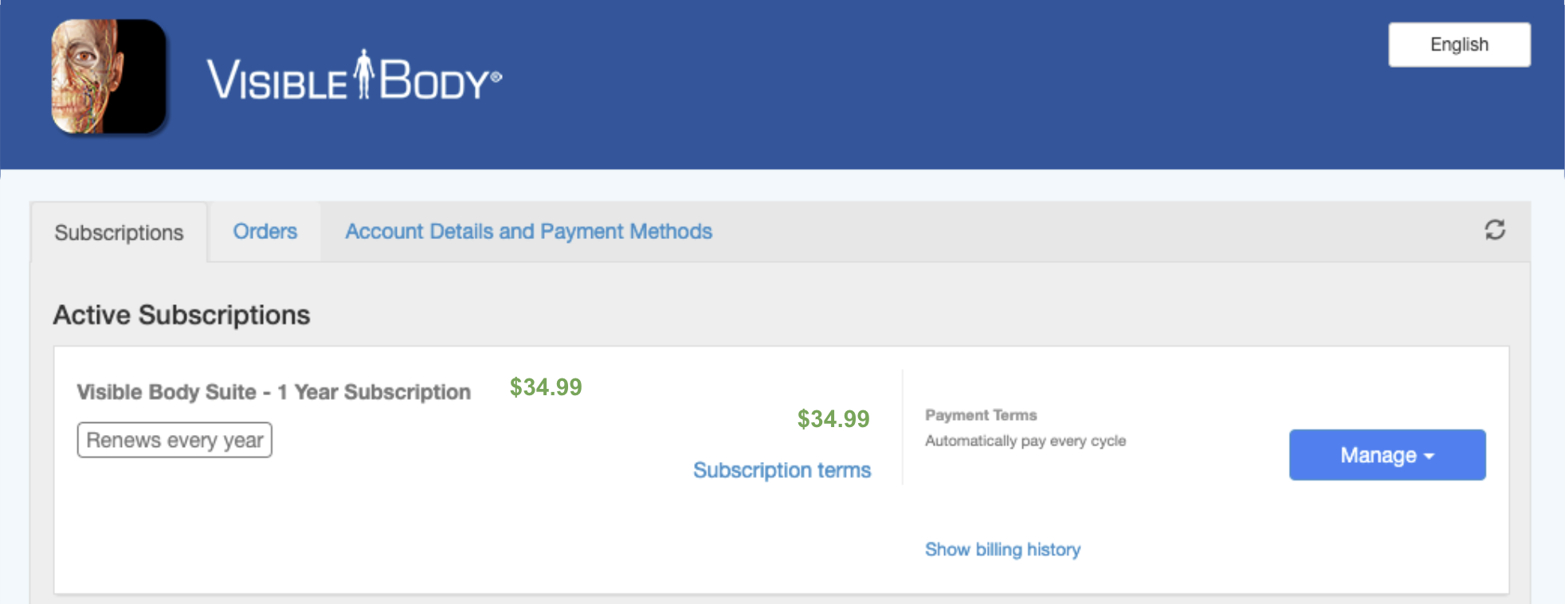
You are able to re-activate your subscription at anytime using these steps.
The cancellation email you receive will note the final date of your subscription. This date is also visible in the dropdown menu when you are logged into Visible Body Suite. A canceled subscription does not immediately cancel your access to Visible Body Suite. Your account will remain until the end of the subscription period you initially purchased.
Visible Body does not offer partial refunds on purchases.
If you still have questions, check our troubleshooting article or submit a ticket.
Mobile version
Visible Body Suite is an auto-renewing product. If you do not want your subscription to auto-renew, you can manage your account through the App Store for iOS or Google Play Store for Android.
Follow these steps:
For Apple Store:
Open Settings.
Select your Apple ID.
Select Subscription.
Select Visible Body Suite.
Select Cancel Subscription at the bottom of the page.
For Google Play:
Open the Google Play app.
At the top right, select the profile icon.
Select Payments & subscriptions and then select Subscriptions.
Select the subscription you want to cancel.
Select Cancel subscription.
Note:
You can re-activate your subscription by logging into your Visible Body account in the app and following the prompted instructions.
A canceled subscription does not immediately cancel your access to VB Suite. Your account will remain active until the end of the subscription period you initially purchased.
The Apple Store and Google Play Store do not offer partial refunds on purchases.
If you still have questions, please submit a ticket.