
WebAssign Instructor Help
Before adding links to WebAssign activities, make sure your WebAssign course is set up the way you want it.
- Add and organize the assigned activities and course materials for your WebAssign course.
- Configure assignment settings such as grading, attempts, feedback, time limits, due dates, point values, and grade categories.
Links created in this way are sometimes called deep links because they are not just web links but allow data to be exchanged between LTI Advantage LMS and WebAssign.
Open your LTI Advantage LMS course.
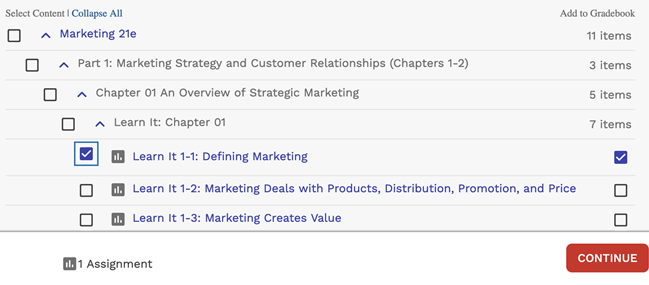
Click Select Content and select activities to include in your class.
Graded activities that have already been added are marked
 . To avoid duplicate activity links and gradebook columns, do not import the same activity twice.
If needed, change gradebook syncing for specific activities.
By default, when you include a graded activity it is added to the LTI Advantage LMS gradebook.
To remove an activity from the gradebook, clear Add to Gradebook.
To sync an activity to the gradebook without creating an activity link, first select Add to Gradebook and then clear the Add to Course checkbox on the left.
If needed, you can reorganize the links in LTI Advantage LMS.