
Assignment types
- Reading assignment
A section of the book for students to read.
- Concept check
A quick activity that checks if students have completed assigned readings.
- Quiz
A longer activity that assesses students' understanding of an entire chapter.
The following procedure is for LTI Advantage integrations. If the Cengage link in your course navigation works, see LTI1.0.
Open your Canvas course.
Click Modules in the course navigation.
Locate or create the module that will contain your course link.
The Cengage tool might not be available in both of the following locations depending on your Canvas admin's settings.
To create a course link in a new module:
Click
 next to +Module.
Click the Cengage tool.
To add a course link to an existing module:
Locate the module and click
 .
.Set the dropdown to External Tool.
Click the Cengage LTI Advantage tool.
Look for
 to confirm that the tool is LTI Advantage.
If prompted, sign in to your Cengage instructor account to link your Canvas and Cengage accounts.
If you don't have a Cengage instructor account, click Create Account.
This window might not be shown if your browser does not allow pop-ups for the Canvas domain.
On the Integrate with Cengage page, click Select Cengage Infuse.
On the Select Title page, select the textbook to use in your class.
- To search the available content, type a search term.
- To filter the list by license type, click License Type and select Student Purchase Required or Inclusive Access.
Click Link to Course next to your textbook.
Click Continue.
Complete the details for your Canvas course.
Field
Notes
Course Name
Start date
Set the start date to the first day of class. It is the first day students can access your course and the beginning of your students' temporary access period. It cannot be changed after students access the course.
End date
To allow your students to view their grades and complete late work, consider setting this 1 week after the last day of class.
Click Continue.
Select content to include in your course and Canvas gradebook.
You can return to add more content at any point during your course.
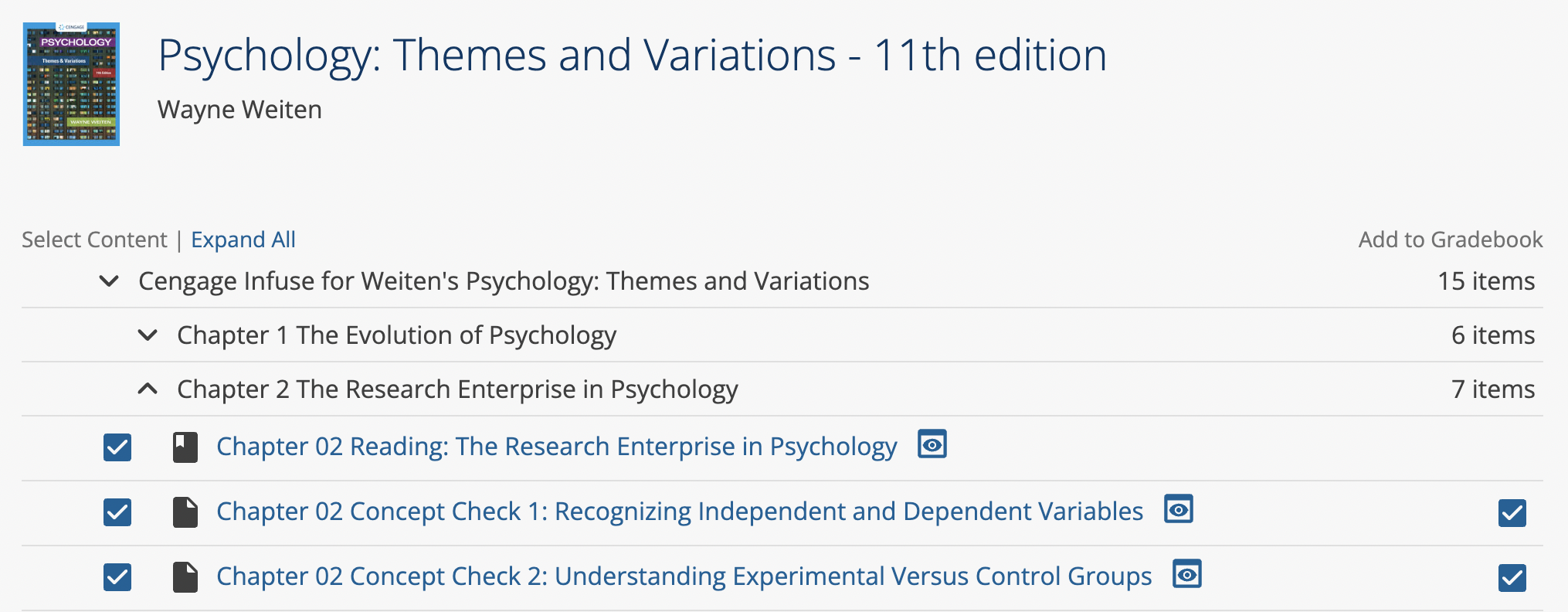
To preview an assignment, click
 .
.The assignment opens in a new tab.
Click Continue.
Set how many attempts students have for each type of Cengage Infuse assignment.
Click Save.