
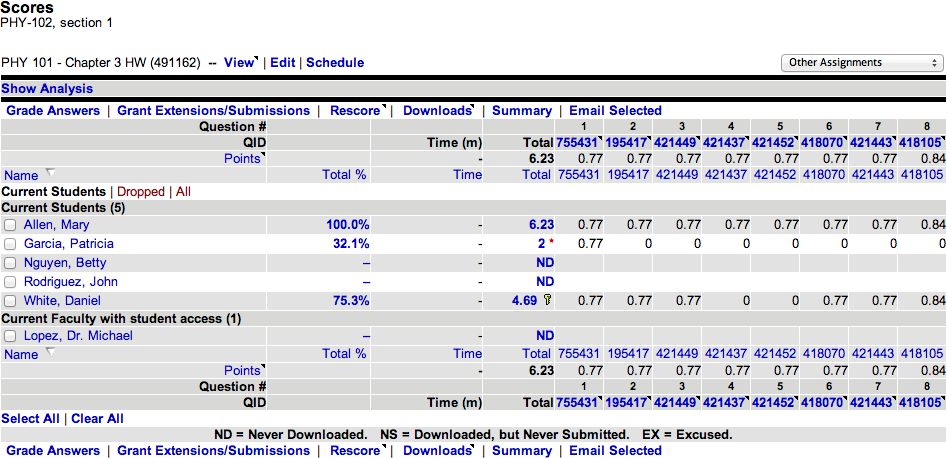
- The questions on your assignment are listed across the top of the table as column headings.
- Your students are listed on the left side of the table as row headings.
- Each student's score for a question is displayed in the question's column in the student's row.
- A red asterisk (*) beside a score indicates the score has been changed by the instructor.
- An answer key icon (
 ) beside a score indicates the student has seen the answer key for the whole assignment per your assignment settings.
Other row, column, and section headings are described in the following table.
Points | The total points that can be earned for each question. In the Total column, this is the sum of all possible points for all questions on the assignment. |
Time | The estimated amount of time each student spent online working on the assignment. |
Actions
You can perform a number of activities from the Scores page.
See other students | At the top of the student list, click Dropped, Current, or All. | |
Preview a question | Click the question ID in the QID row. | |
See one student's answers for the assignment | Click the student's name. | |
See all student answers for the assignment | Click Summary. | |
See statistical analysis of class scores | Click Show Analysis. | |
See point distributions for an assignment | Click Points. A histogram shows you the point distribution for your students. | |
Grade your students' work on short answer, essay, file-upload, and Show My Work questions | Click Grade Answers. | |
Rescore the assignment | Click Rescore. |
Analysis
The analysis section provides data that can be used to monitor the overall performance of the class. You can show or hide the analysis, and the analysis data can be displayed as either scores or percentages.

- The questions on your assignment are listed across the top of the table as column headings.
- Each statistical calculation is listed on the left side of the table as a row heading.
Other row and column headings are described in the following table.
Time | The estimated amount of time students spent online working on all questions. |
Total | Summary score values for all questions. |
scores analyzed | The number of submitted questions with scores that were included in the calculations for mean, median, standard deviation, and min/max values. |
mean | The arithmetic mean of question scores for submitted questions. |
median | The median score or time to complete submitted questions. |
standard deviation | The standard deviation of scores or times for submitted questions. Lower standard deviations mean the values are tightly clustered; higher standard deviations mean the values are more widely scattered. |
min/max | The lowest and highest scores or times to complete submitted questions. |
- To show this section, click Show Analysis.
- To hide this section, click Hide Analysis.
- To view data as percentages, click Percent.
- To view data using the raw scores, click Raw.