

Spark ELT LMS Admin Help
Spark uses LTI 1.3 and LTI Advantage to allow instructors and students to access the platform via their Schoology course, without having to create a separate username and password.
Install the Spark App in Schoology
Navigate to the Schoology Admin page and click the 4-square button on the top-right menu.
Click App Center.
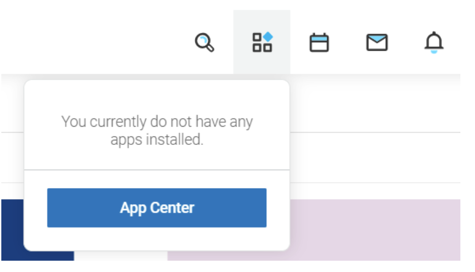
Scroll to the NGL Spark app and click Install LTI 1.3 App › I agree to the terms › Continue.
Select Add to Organization.
In the Organization Apps page, scroll to NGL Spark and click Install/Remove.
Select where you want to install the NGL Spark app. You can choose from:
- All Users
- All Courses
- All Groups
If instructors at your institution have permission to add apps to their courses, we recommend leaving all the boxes unchecked.
If instructors at your institutions do not have permission to add apps, or if you want to add this app to all the courses, you can customize that here.
Click Submit.
Navigate to the Organization Apps page and select Configure next to NGL Spark.
Copy the Deployment ID on this page. You will need this number later to complete the registration.
Complete the Registration
Go to the registration email you received from National Geographic Learning.
Click Complete Registration located within the email.
You will be taken to the National Geographic Learning LTI 1.3 Registration page.
Enter the following information:
Field
Value
Deployment ID
The Deployment ID number you copied from Step 8 above.
Tolken Endpoint
https://[your Schoology site URL]/login/oauth2/tokenExample of your Schoology site URL:
app.schoology.com/login?school=xxxxxxx.- Copy that URL.
- Paste it in place of
[your Schoology site URL]above.
Click Complete Registration.