
MindTap Instructor Help
The following procedure is for LTI Advantage integrations. If the Cengage link in your course navigation works, see LTI 1.0.
Open your Blackboard course.
Click Modules in the course navigation.
Locate or create the module that will contain your activity links.
The Cengage tool might not be available in both of the following locations depending on your Canvas admin's settings.
To add activity links in a new module:
Click
 next to +Module.
Click the Cengage tool.
To add activity links to an existing module:
Locate the module and click
 .
.Set the dropdown to External Tool.
Click the Cengage LTI Advantage tool.
Look for
 to confirm that the tool is LTI Advantage.
Alternatively, click Assignments in the course navigation and click
to add activity links to the Assignments page.
Click Select Content and select activities to include in your class.
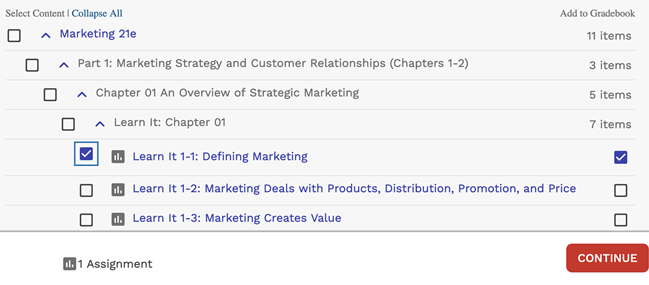
Graded activities that have already been added are marked
 . To avoid duplicate activity links and gradebook columns, do not import the same activity twice.
Due dates set in your MindTap course are synced to Blackboard.
Date changes in your MindTap course overwrite dates set in your Blackboard course. For consistency, make sure your MindTap and Blackboard courses are set to the same time zone.
If needed, change gradebook syncing for specific activities.
By default, when you include a graded activity it is added to the Blackboard gradebook.
To remove an activity from the gradebook, clear Add to Gradebook.
To sync an activity to the gradebook without creating an activity link, first select Add to Gradebook and then clear the Add to Course checkbox on the left.
Scores sync automatically when assignment attempts are submitted in MindTap and when you enter or edit scores in your MindTap gradebook.
Click Continue.
If needed, click Add Item.
The selected activity links are added to the module.
If needed, you can reorganize the links in Canvas.