
SAM In MindTap Instructor Help
Open your Schoology course.
If prompted, sign in to your Cengage instructor account to link your Schoology and Cengage accounts.
If you don't have a Cengage instructor account, click Create Account.
On the Integrate with Cengage page, click Select Platform.
On the Select Title page, select the textbook or product to use in your class.
- To search the available content, type a search term.
- To see only MindTap results, click Platform and select.
- To filter the list by license type, click License Type and select Student Purchase Required or Inclusive Access.
Select a product.
Click Continue.
On the Course Option page, select Link to a course that was already created.
Your unlinked courses with no student enrollments for the selected title are listed.
Select the course you want to link.
Click Continue.
Create a course link or select learning activities to link from Schoology.
To create direct links to learning activities:
You can also create a course link with this option.
Click Select Content.
Select activities to include in your class.
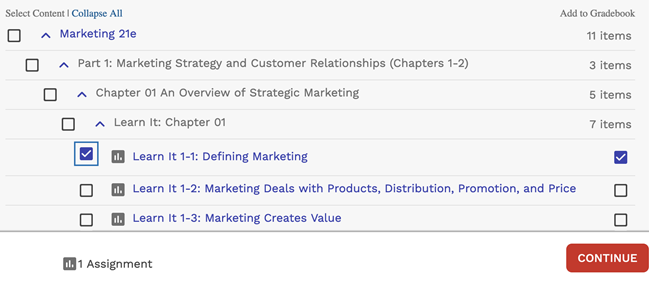
Graded activities that have already been added are marked
 . To avoid duplicate activity links and gradebook columns, do not import the same activity twice.
Due dates set in your MindTap course do not sync to your Schoology course.
If needed, change gradebook syncing for specific activities.
By default, when you include a graded activity it is added to the Schoology gradebook.
To remove an activity from the gradebook, clear Add to Gradebook.
To sync an activity to the gradebook without creating an activity link, first select Add to Gradebook and then clear the Add to Course checkbox on the left.
Scores sync automatically when assignment attempts are submitted in MindTap and when you enter or edit scores in your MindTap gradebook.
To create a course link only:
Click Add Course Link.
Click the link to your MindTap course and verify that it's set up how you want.
If prompted, read and accept the service agreement.