
SAM Instructor Help
To copy another instructor's course, ask the instructor for the course key.
In the SAM course, the course instructor can click ? › SAM LMS Integration CourseKeys to see the course key.
Open your Brightspace course.
Open the Course Builder tool.
In the Content tab, click Related Tools › Course Builder.
If you have not already done so, create a module in your course.
Drag
 from Build Outline to the course outline.
Alternatively, click
and select the module location.Enter a name for your module, such as SAM.
Optional Enter a note for your students.
Optional If the SAM component of your course has a different start or end date from your course in Brightspace, enter those dates in Restrictions.
Click Create.
Drag
 from Add Content to your module.
Alternatively, click
and select your module.If prompted, sign in to your Cengage instructor account to link your Brightspace and Cengage accounts.
If you don't have a Cengage instructor account, click Create Account.
On the Integrate with Cengage page, click Select Platform.
On the Select Title page, select the textbook or product to use in your class.
- To search the available content, type a search term.
- To see only SAM results, click Platform and select SAM.
- To filter the list by license type, click License Type and select Student Purchase Required or Inclusive Access.
Select a product.
Click Continue.
On the License Type page, select the payment method applicable to your class.
Very often, only one license type is available.
Click Continue.
On the Course Option page, select a copy option.
To copy your own course:
Select Copy an existing course.
Your courses for the selected title are listed.
Select the course you want to copy.
Click Continue.
To copy another teacher's course:
Select Copy another instructor's course with a course key.
Enter the course key and click Verify.
Click Continue.
On the Course Details page, specify the course name, dates, and other information for your SAM course.
Field
Notes
Course Name
Include the academic term in the course name.
Time Zone
Assignment dates and times are based on the time zone you select.
Course start date
Set the start date to the first day of class. It is the first day students can access your course and the beginning of your students' temporary access period. It cannot be changed after students access the course.
Course end date
To allow your students to view their grades and complete late work, consider setting this 1 week after the last day of class.
Click Finish.
Create a course link or select learning activities to link from Brightspace.
To create direct links to learning activities:
You can also create a course link with this option.
Click Select Content.
Select activities to include in your class.
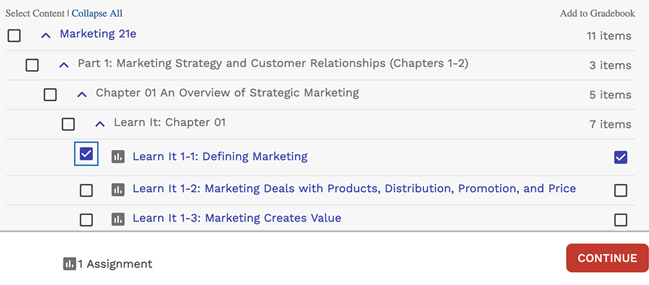
Graded activities that have already been added are marked
 . To avoid duplicate activity links and gradebook columns, do not import the same activity twice.
If needed, change gradebook syncing for specific activities.
By default, when you include a graded activity it is added to the Brightspace gradebook.
To remove an activity from the gradebook, clear Add to Gradebook.
To sync an activity to the gradebook without creating an activity link, first select Add to Gradebook and then clear the Add to Course checkbox on the left.
To create a course link only:
Click Add Course Link.
Click Continue.
If prompted, click Continue to add a link to your SAM course in your Brightspace course.
Click the Content tab.
Click the link to your SAM course and verify that it's set up how you want.
If prompted, read and accept the service agreement.