
WebAssign Instructor Help
- Sign In / Account
Click Questions › My Questions to list your questions, and click edit to open your changed question in the Question Editor.
In the Question Editor, click This question has been scheduled to view a list of your scheduled assignments that use the question.
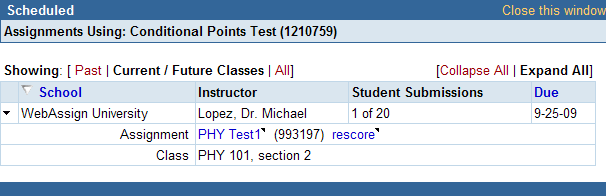
Click Expand All or click
 to expand entries in the list.
For each assignment you need to rescore, click rescore and complete the following steps.
Under Question, select the check boxes for the questions you need to rescore.
Under Rescore Type, select the scoring method you want to use:
- Last Submission rescores using the final submission for each question
- Best Submission rescores using the best submission for each question part
Under Students, select Current to rescore only for students who have not dropped the class, Dropped to rescore only for students who have dropped the class, or All to rescore for all students. If you want to rescore faculty assignments, select Include Faculty.
Under Rescore Other Sections, select either the current section, All Sections, or Select Sections. If you select Select Sections, select the check boxes for the sections you need to rescore.
Click Rescore. The rescoring progress is displayed.
Click Finished.