
WebAssign Instructor Help
- Sign In / Account
Open the Responses page to see your student's most recent answers for the assignment.
When viewing your student's assignment, click Previous Answers in a question heading to see each answer your student submitted for the question.
Previous Answers is not shown if your student has no previous answers for the question.
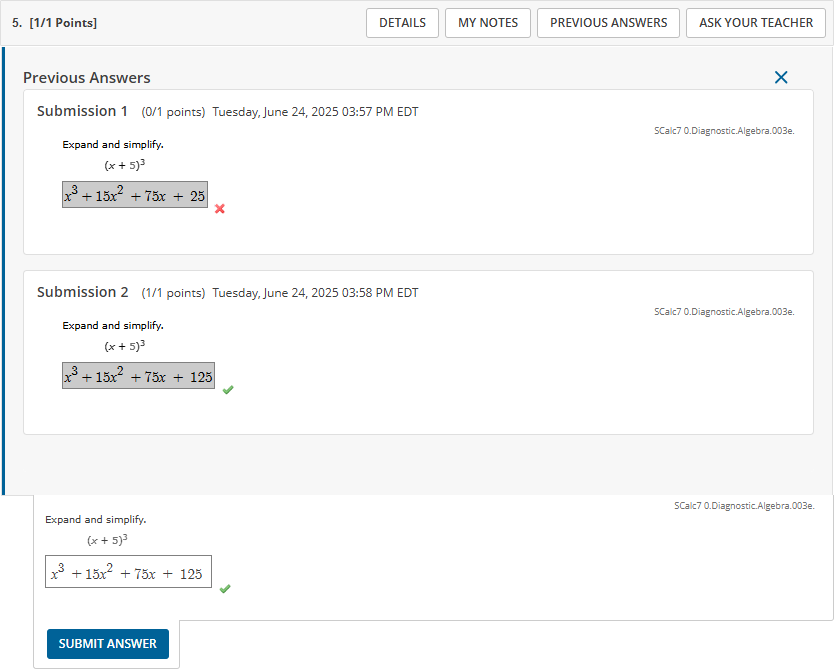
The student's previous answers display below the question heading.
Item | Description |
|---|---|
Submission Header | Each submission for the question displays a header with the sequence number of the submission and the points earned. The first submission is displayed at the top and the most recent submission at the bottom. |
Answers | The answers submitted for each question part are displayed for each submission. If an answer box was empty when the question was submitted, it displays (No Response). |
Marks | As an instructor, you are always shown marks for each answer box to indicate whether or not the answer was correct. Your students see marks only if they are displayed on the assignment. |
Question Feedback | If available, question feedback is displayed for each submission. |
Answer Keys | As an instructor, you are always shown the answer key. Your students see the answer key only for those submissions after which the answer key was displayed on the assignment. |
New Randomization | If shown, the New Randomization banner indicates that the question values changed after your student clicked New Randomization in the assignment. |
The following items are not displayed in the Previous Answers page. You can view these items (if available) in the assignment or Grades Loginfo page.
- Links to pop-up questions that do not count toward your student's score. This includes tutorial and practice questions and Practice Another Version.
- Links to eBooks or other learning resources.
- Detailed score information for each question part.
- Assignment scoring and submission rules.
- Worked solutions.
- IP address from which the answer was submitted.