
WebAssign Instructor Help
- Sign In / Account
Click Questions › Create.
The Question Editor opens.
In Name, type a name for the question.
In Mode, select Numerical.
In Question, type your question.
Use the answer placeholder string
<_>to specify where the answer box should be displayed.Set grading and display options for the answer box.
You can combine these declarations using a single
<EQN>tag by separating each declaration with a semicolon.For example:
<EQN $PROPERFRACTION=1; $size=20; ''>In Answer, specify the answer using the fraction function in the
<EQN>tag using the following syntax:fraction(numerator,denominator)For example:
<EQN $PROPERFRACTION=1; fraction(13,16)>The fraction function ensures that your answer key is correctly parsed as a fraction, not as the decimal quotient of the numerator and denominator.
Do not use commas, spaces, or other separators between digits.
Type a Solution.
The solution helps your students understand the steps they need to take to determine the correct answer to the question. Your assignment settings specify when to show the solution.
Click Test/Preview to test the appearance and behavior of the question. See Test Questions.
Click Redisplay to show certain kinds of errors in the Display section of the Question Editor. Make any needed changes to your question.
Click Show Additional Information and change the question's sharing permission or add descriptive information.
- By default, other instructors can use your question only if you provide them with the question ID, and only you can edit the question or find it in search results. To change the permission, see Share Questions With Other Instructors.
- If you make your question publicly available, you might want to provide descriptive information to help others search for it. See Add Search Metadata to Questions.
When your question displays and functions correctly, click Save.
WebAssign assigns it a unique question ID (QID), which is displayed in parentheses after the question name.
You can use your question in an assignment and see it in your My Questions list only after it is saved.
Example Numerical Question Requiring a Fraction or Decimal
The following table summarizes an actual question.
QID | |
Name | |
Mode | |
Question | |
Answer | |
Display to Students |  |
Example Numerical Question Requiring a Reduced Fraction or Integer
The following table summarizes an actual question.
QID | |
Name | |
Mode | |
Question | |
Answer | |
Display to Students | 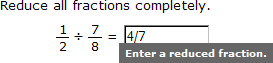 |
Example Fraction Question With Randomization
The following table summarizes an actual question.
QID | |
Name | |
Mode | |
Question | |
Answer | |
Display to Students |  |