Short-answer and essay questions are not automatically graded by WebAssign; they must be manually graded.
Click Questions › Create. The Question Editor opens.
In Name, type a name for the question.
In Mode, select Essay.
In Question, type your question. Use the answer placeholder string
<_>to specify where the answer box should be displayed.Optionally, set the
$rowsor$colsvariables at the beginning of Answer to change the size of the answer box.To do this:
Begin Answer with this:
Make the answer box
nrows high<eqn $rows=n; ''>Make the answer box
ncharacters wide<eqn $cols=n; ''>You can combine these declarations using a single
<eqn>tag by separating each declaration with a semicolon. For example:<eqn $rows=10; $cols=60; ''>The default size of the answer box is 6 rows by 65 characters. The size of the answer box does not constrain the length of the student's response, but it can suggest to students whether a brief or extended answer is expected.
In Answer, type a key that will help the grader determine whether or not the student's response is correct.
You might state the points that should be awarded for correctly addressing particular topics, or refer to a grading rubric. The key must be on a single line.
Type a Solution.
The solution helps your students understand the steps they need to take to determine the correct answer to the question. Your assignment settings specify when to show the solution.
Click Test/Preview to test the appearance and behavior of the question. See Test Questions.
Click Redisplay to show certain kinds of errors in the Display section of the Question Editor. Make any needed changes to your question.
Click Show Additional Information and change the question's sharing permission or add descriptive information.
- By default, other instructors can use your question only if you provide them with the question ID, and only you can edit the question or find it in search results. To change the permission, see Share Questions With Other Instructors.
- If you make your question publicly available, you might want to provide descriptive information to help others search for it. See Add Search Metadata to Questions.
When your question displays and functions correctly, click Save.
WebAssign assigns it a unique question ID (QID), which is displayed in parentheses after the question name.
You can use your question in an assignment and see it in your My Questions list only after it is saved.
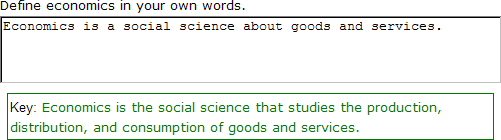
Example Short-answer or Essay Question The following table summarizes an actual question. QID 1070062 Name Template2 2.ESS.01. Mode Essay Question Define economics in your own words.<_> Answer <eqn $rows=3; $cols=60; ''>Economics is the social science that studies the production, distribution, and consumption of goods and services. Display to Students