

Spark ELT LMS Admin Help
Spark uses LTI 1.3 and LTI Advantage to allow instructors and students to access the platform via their Canvas course, without having to create a separate username and password.
Create an LTI Developer Key
In Canvas, click Admin.
Click Developer keys in the left-hand menu.
Click + Developer Key, then select +LTI Key from the dropdown menu.
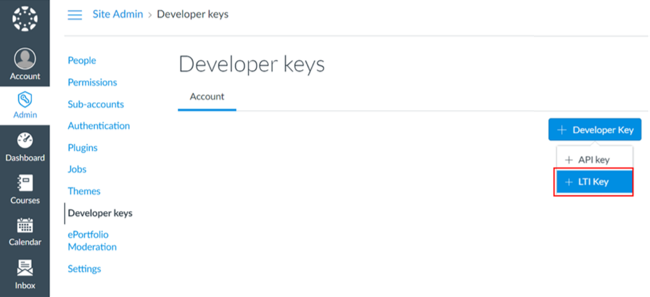
Enter the following Key Settings information:
Field
Value
Key Name
The name of the external tool ( Example: National Geographic Learning Spark platform).
Owner Email
Your email address.
Redirect URIs
https://learn.eltngl.com/lti/v13/launchMethod
Select Enter URL from the dropdown menu.
JSON URL
https://learn.eltngl.com/lti/v13/configs/canvasClick Save.
In the list of Developer Keys, view the Developer Key you just created.
Under State, click ON.
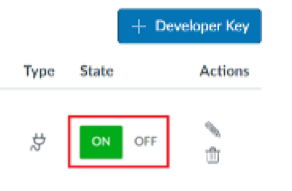
Click OK on the pop-up message.
Under Details, copy the Client ID number for the Developer Key you just created.

You will need this number for the next step to complete the registration.
Complete the Registration
Go to the registration email you received from National Geographic Learning.
Click Complete Registration located within the email.
You will be taken to the National Geographic Learning LTI 1.3 Registration page.
In the Client ID field, paste or enter the Client ID number you copied from Step 7 above.
In the Token Endpoint URL field, enter:
https://[your Canvas URL]/login/oauth2/tokenNavigate back to Canvas, and copy the URL for your site.
This is the URL shown when signed into Canvas ( Example:
cengage.instructure.com).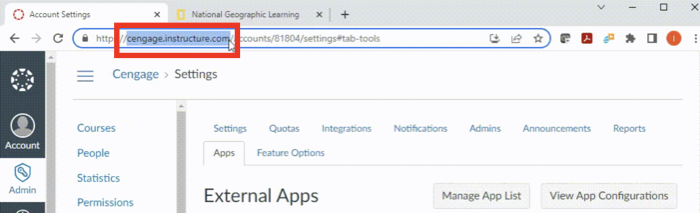
Navigate back to the National Geographic Learning LTI 1.3 Registration page, and in the Token Endpoint URL field, replace
[your Canvas URL]with your site URL that you just copied.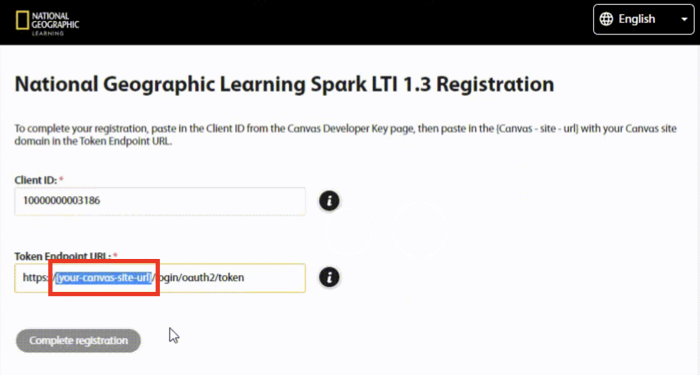
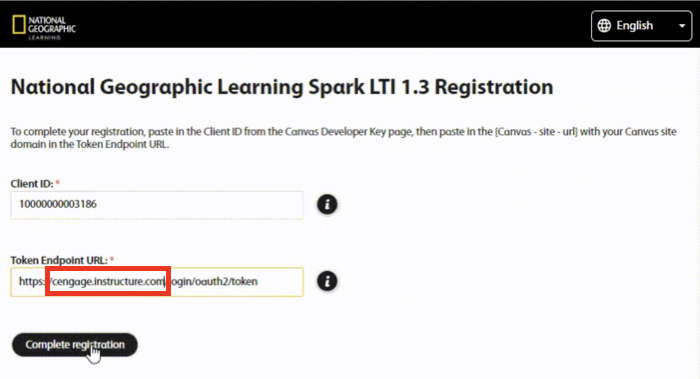
Click Complete registration.
Deploy the Registered Spark App
Go to your Canvas admin page.
Click Settings.
Open the Apps tab and click View App Configurations.
Click +App.
Enter the following information:
Field
Value
Configuration Type
Select By Client ID from the dropdown menu.
Cliend ID
Paste or enter the Client ID number from Step 7 above.
Click Submit.
Click Install.