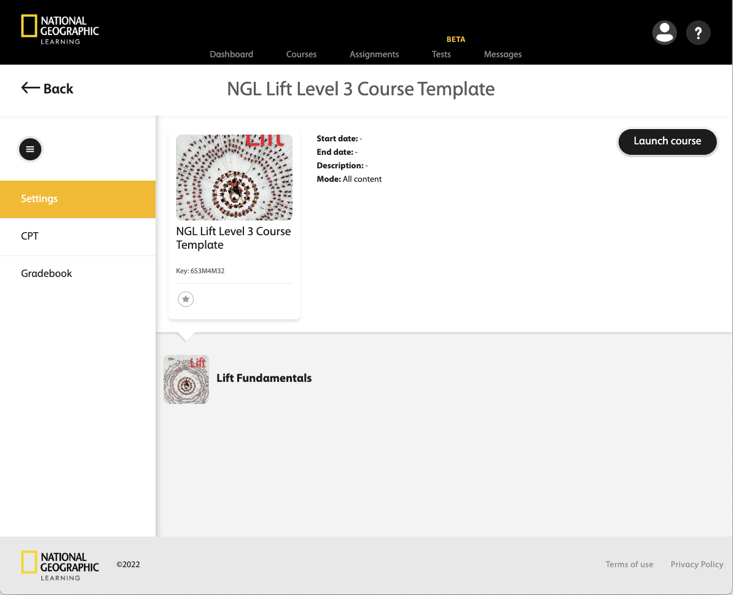
Spark ELT LMS Admin Help
Create a New Course Template
Sign in to Canvas as an administrator.
Navigate to All Courses.
Click + Course.
Field
Value
Course Name
Create a name for your course.
Recommended format: NGL - [program and level] Course Template.
Example: NGL Lift Level 3 Course Template.
Short Name
Create a short version of the course name.
Example: NGL_Lift_L3.
Content License
Select Private (Copyrighted).
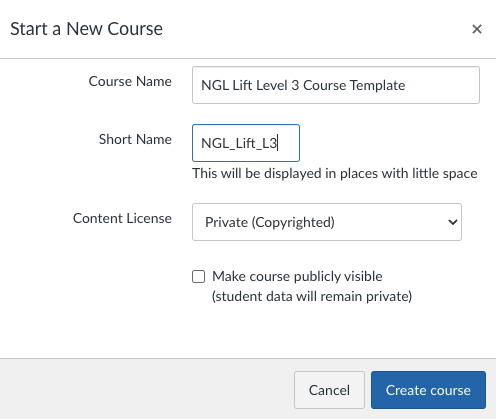
Click Create course.
Click Settings.
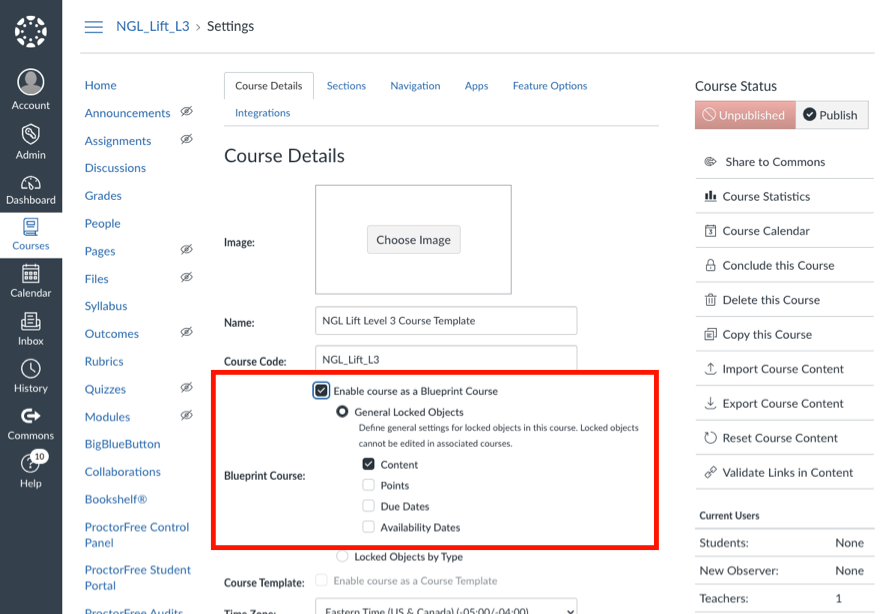
Under Course Details, select either Enable course as a Blueprint Course, or Enable course as a Course Template.
Select Content.
Deselect Points.
Deselect Due Dates.
Deselect Availability Dates.
Configure LTI Tool
Open the Apps tab and click View App Configurations.
Click +App.
Enter the following information:
Field
Value
Configuration Type
Manual Entry
Name
Title of the program and level.
Example: NGL Lift Level 3
Consumer Key
The consumer key you were given.
Shared Secret
The shared secret you were given.
Launch URL
https://learn.eltngl.com/lti/v1/launchDomain
https://learn.eltngl.comPrivacy
Public
Custom Fields
The ISBN you were given for the program and level.
Example:
isbn=9781658234510Click Submit.
Navigate back to Home.
Click + Module.
Create a name for the module, using the title of the program and level.
Click Add Module.
Click
 and specify the item details.
Select External Tool from the dropdown menu.
Select the tool you just created.
Select Load in a new tab.
Click Add Item.
To make the link available to your students, click
 for both the tool and the module you created.
 The icon is now
 .
.
Create a Course From a Blueprint Course
Short Description: After configuring the LTI tool, create a Spark course from a Blueprint course for instructors to import.
Navigate to All Courses.
Click + Course, and complete the following:
Field
Value
Course Name
Create a course name using your institution's naming standards.
Content License
Private (Copyrighted)
Click Create Course.
Click Import Existing Content.
Select Copy a Canvas Course from the dropdown menu.
In the Search for a course field, enter the National Geographic Learning Template course name that matches the program and level you are teaching, then select it from the menu.
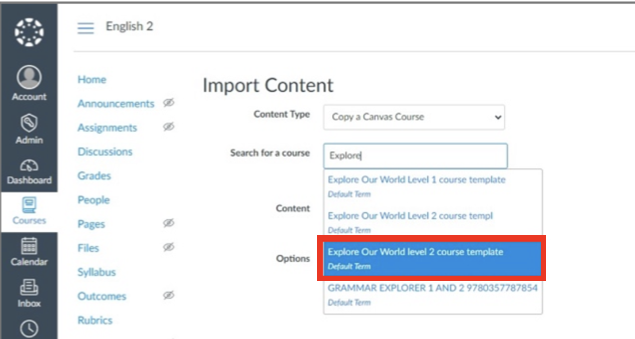
In the Content field, select All Content from the dropdown menu.
Click Import, and wait for the course copy to complete.
Click the link you created in the module, confirm the course launches, and the course name matches the name in Spark.