

Spark ELT LMS Admin Help
Spark uses LTI 1.3 and LTI Advantage to allow instructors and students to access the platform via their Moodle course, without having to create a separate username and password.
Install the Spark App in Moodle
In Moodle, navigate to Site administration › Plugins › Activity modules › External tools › Manage tools › .
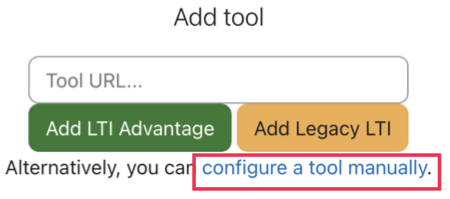
Under Add tool, click configure a tool manually.
Enter the following information:
Field
Value
Tool name
The name of the external tool ( Example: National Geographic Learning Spark platform).
Tool URL
https://learn.eltngl.com/LTI version
LTI 1.3
Public keyset
https://learn.eltngl.com/lti/v13/platform_keysInitiate login URL
https://learn.eltngl.com/lti/v13/connectRedirection URI(s)
https://learn.eltngl.com/lti/v13/launchCustom parameters
context_id_history=$Context.id.historycourse_start_date=$Context.timeFrame.begin
For Tool configuration usage, select Show inactivity chooser and as a preconfigured tool.
For Default Launch Container, select New Window.
Select Supports Deep Linking (Content-Item Message).
For IMS LTI Assignment and Grade Services, select Use this service for grade sync and column management.
For IMS LTI Names and Role Provisioning, select Use this service to retrieve members' information as per privacy settings.
Click Save changes.
In the Tool configuration details pop-up message, copy the Client ID.
You will need this number for the next step to complete the registration.
Complete the Registration
Go to the registration email you received from National Geographic Learning.
Click Complete Registration located within the email.
You will be taken to the National Geographic Learning LTI 1.3 Registration page.
In the Client ID field, paste or enter the Client ID number you copied from step 8a above.
Click Complete Registration.