

Spark School Administrator Help
Video Tutorial: Import Multiple Instructors
Click User Management in Spark.
Click Import
 › Instructors.
The Import Instructors menu opens.
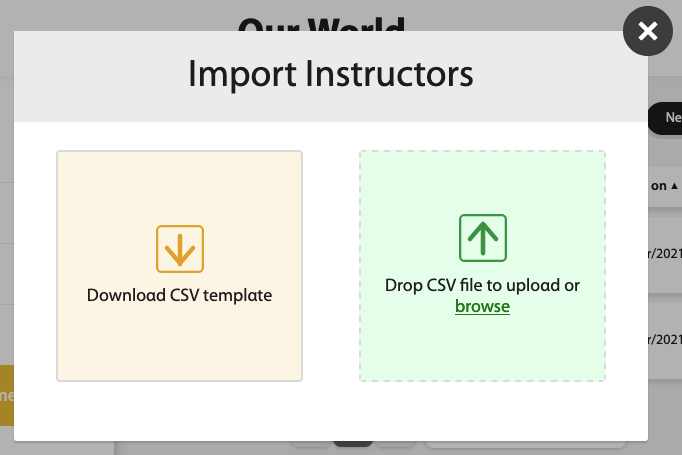
Click Download CSV template.
A.CSV template will download on your computer.
Open the template in a spreadsheet editing program such as Excel.
Enter instructor information.
- Username
The username for the account.
Usernames can include the following characters:
A B C D E F G H I J K L M N O P Q R S T U V W X Y Z a b c d e f g h i j k l m n o p q r s t u v w x y z 0 1 2 3 4 5 6 7 8 9 ~ ` ! @ # $ % ^ & * ( ) _ - + = { [ } ] | \ : ; " ' < , > . ? /- First Name
User's given name.
- Last Name
User's family name.
Optional: An email address where Spark can send the user a link to set their password, or verify their identity if they forget their password.
- Course Key
1-20 Each course's 8-digit identification code.
Save your spreadsheet as a.CSV file.
Upload the file you just saved by dragging it to Drop CSV file to upload or clicking browse and selecting your file.

A message is shown in your Messages tab after each roster upload. It contains information about the created accounts or any errors.

Check your messages to be sure all users were added successfully.
Click the Messages tab.
If your upload had errors, click the Error Report to download a report explaining each error in your original document.
Common errors include not completing required fields or using an existing username.

Correct your.CSV file and import it again.
If your upload was successful, your message does not link to an error report.
The instructors are added to their courses.