

Spark Instructor Help
Prerequisite: Create a Course
Launch the National Geographic Learning Content Selector
Before you can create an assignment, you must first lauch the National Geographic Learning Content Selector in Blackboard.
Navigate to your Blackboard course.
Add the content app.
Blackboard Ultra
Click +Add Content.
Select Content Market.
Blackboard Original
Click Content.
Click Build Content.
Select the National Geographic Learning Spark content app.
Scroll to the Spark program and level you want and click Link to Course.
Click Select Content.
Create an Assignment
Short Description: After you have launched the Content Selector, you can create an assignment.
Click Create.
Click New Assignment.
Select content to add to your assignment.
Use any of the following filters to view the activities you want:
- Unit Number
- Grading: select auto-graded or manually-graded activities
- Skills
- Assigned Status: select activities that are already assigned or not assigned
Click Apply.
Select the activities you want for your assignment.
You can click the activity name on the left side of the page to preview it.
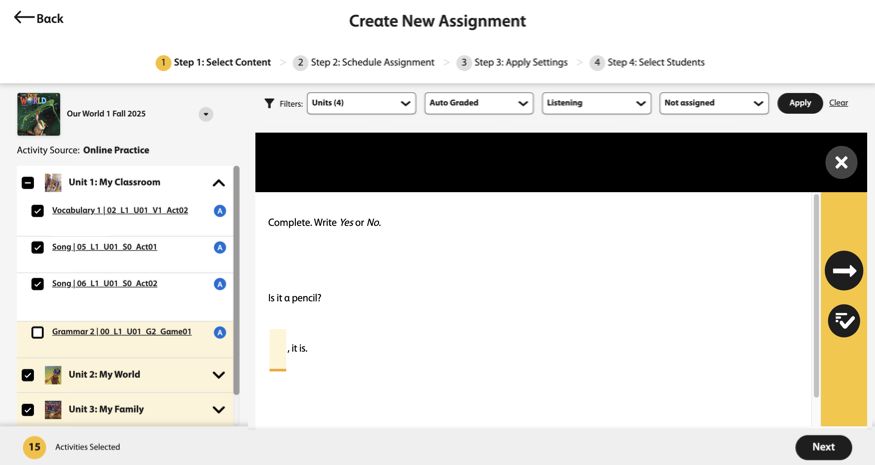
Click Next in the bottom-right of the page.
Enter the assignment’s basic information.
- Name
Assignment title
- Start Date and Time
When students can first access the assignment
- End Date and Times
When the assignment is due
- No dates
Optional: Students can access the assignment at anytime throughout the course.
- Notes
Optional: Additional instructions for your students
Click Continue.
Apply the assignment settings.
- Activity attempts
How many times students can attempt the activities within an assignment
- Show correctness marks
When students can see if their answers were correct
- Show correct answers
When students can see the correct answers
Click Continue.
Select the students who should complete the assignment. Select Assign to all students, including students that join the course later, or select individual students.
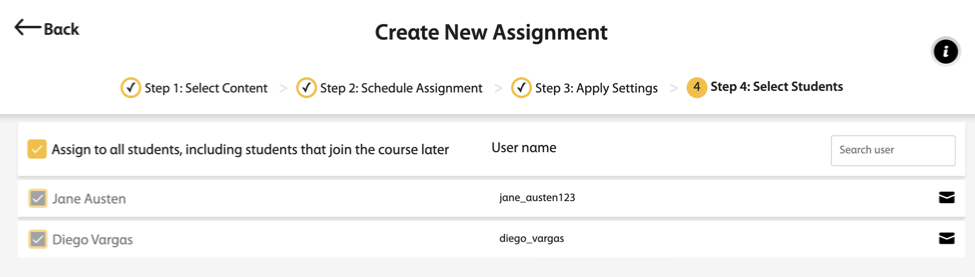
Click Assign to save your new assignment.
Click Create Links.
Scroll to Assignments and select the assignment you just created.
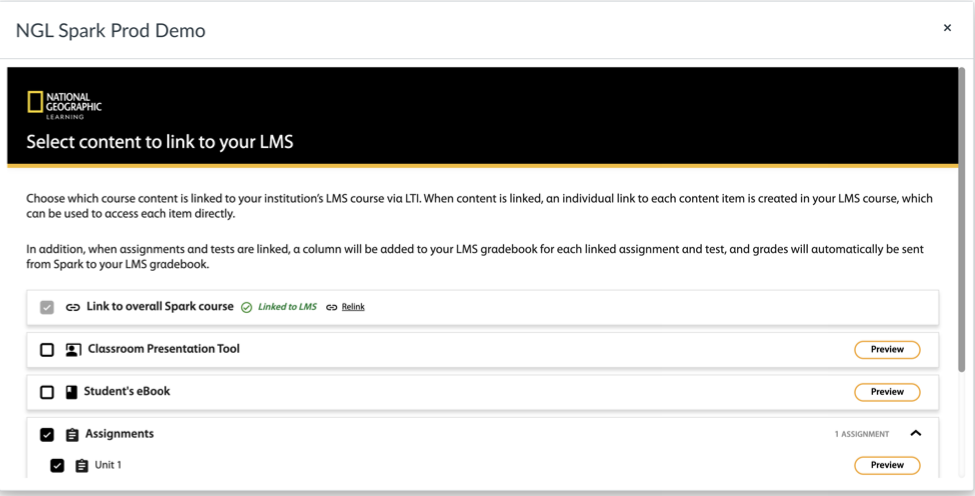
Click Link to LMS.