
OWLv2 Instructor Help
- Proctoring Solutions Help
- Cognero
Honorlock is a browser extension and works only with Google Chrome. Students must use Google Chrome to take their exam.
Students will be prompted to download the Honorlock extension when they open the exam.
Before you begin, you must have a link to your OWLv2 exam published in Canvas. However, students should not access the exam directly through this link. To avoid confusion, consider creating a new module titled "Do not access" and let your students know that you will be notified if they attempt to access the exam through this link.
In Canvas, open a course.
Click Quizzes › +Quiz.
Select Classic Quizzes and click Submit.
This process does not work with New Quizzes in Canvas.
Enter a quiz name and other required information.
Click Questions › +New Question.
Set the question type to Text (no question).
In the empty field, enter instructions for your students and the password you set in OWLv2.
Click Insert › Link › Course Link.
Click Assignments and select your OWLv2 exam to add a link to the exam.
Example:
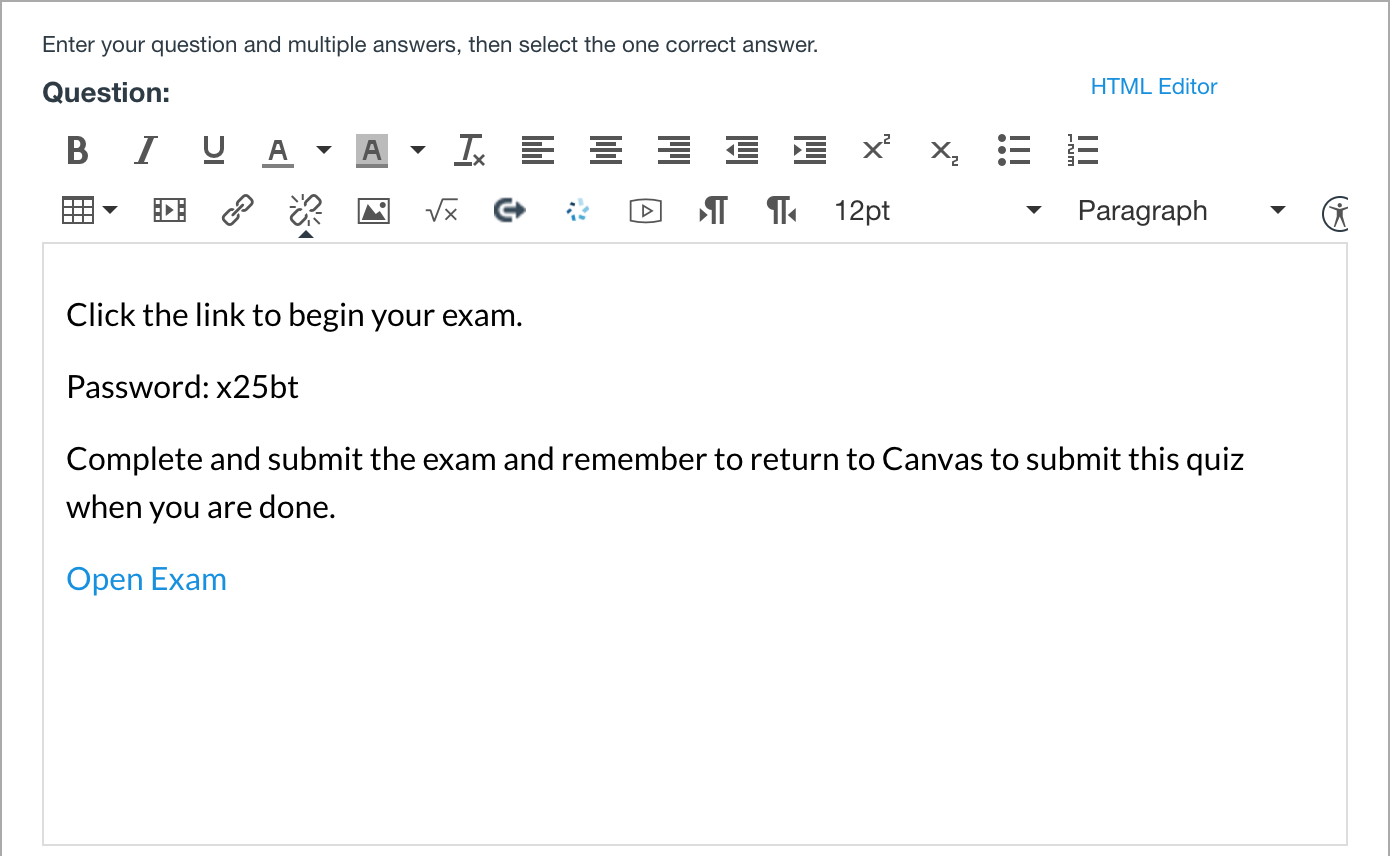
Click Update Question › Save.
In the sidebar, click Honorlock.
If prompted, authorize Honorlock.
Your new quiz is listed.
Click Enable.
Enter the required information and click Enable.
Open your test in student view to test the experience and make sure you can access OWLv2.
Students will access the exam by clicking Honorlock in the course navigation.