Spark School Administrator Help
You can filter questions based on the following. Depending on the program you are using, some of these filters may not be available.
- Activity Type (fill in the blank, multiple choice, etc.)
- Auto/Manually Graded
- Unit Number
- Skills and Learning Objectives (grammar, listening, reading, etc.)
- Depth of Knowledge Levels
- Common Core State Standards
- CEFR
- CCRS
- CASAS Competencies
- CASAS Reading
- ELPS
Click Switch to teacher view in the top navigation bar.
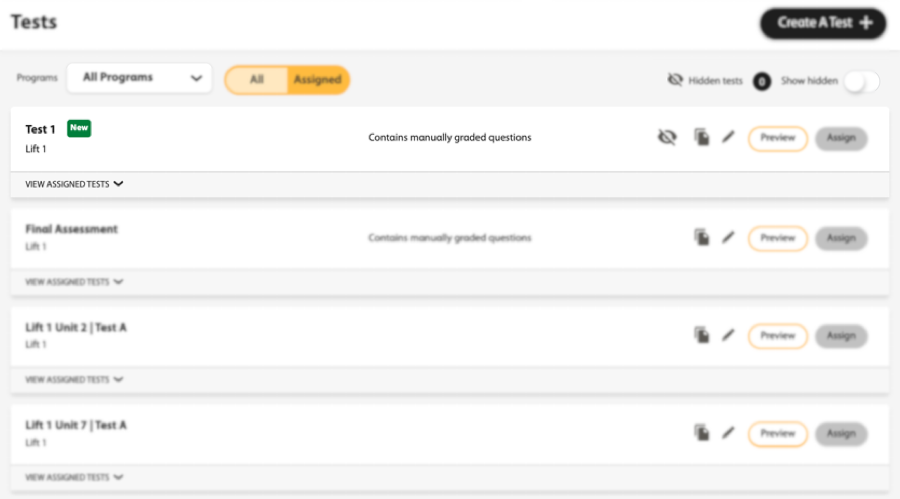
Click Tests in Spark.
Click Create a Test +.
In the Test Title field, create a name for your test.
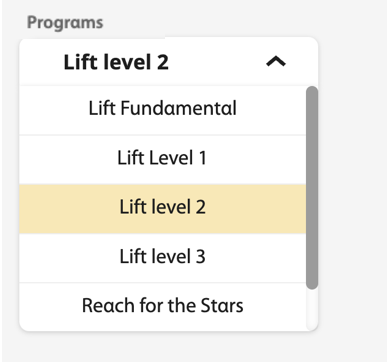
Select your program from the Programs dropdown menu.
Click Add Questions +.
The filters display on the left-side of the screen, and the test questions display on the right.
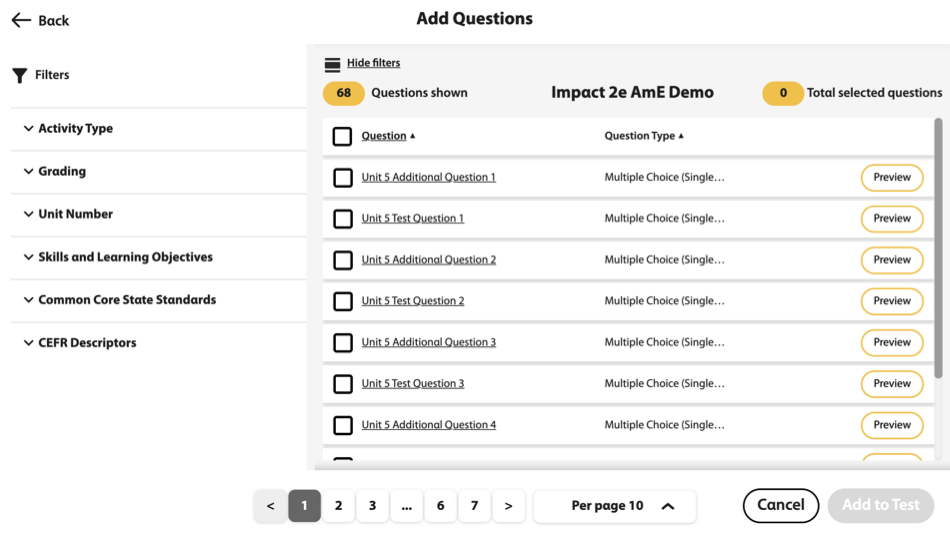
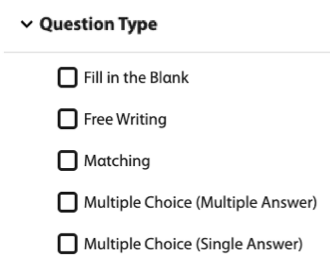
Optional Use the filters to display the types of questions you want for your test.
Optional Click
 next to a question to view it.
Select the questions you want by clicking the box to the left of each question.
Click Add to Test to add the questions to your test.
Your test questions will display in the order they are shown to your students.
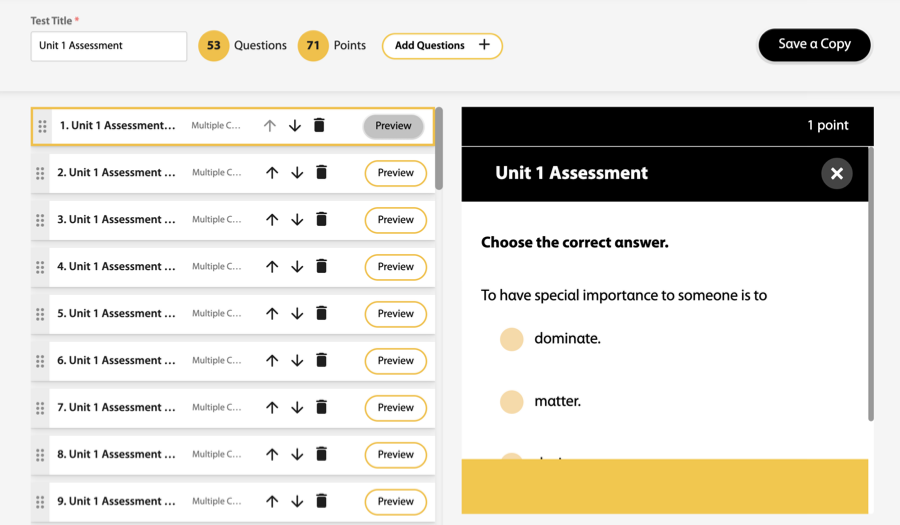
Edit your test before saving.
Rename your test
Enter a new title in Test Title.
Add a question
Click Add Questions+ and select additional questions.
Preview a question
Click
.Remove a question
Click
 .
.Change the order of questions
Click
 or
or  , or click
  next to a question, drag the question and drop it to the position you want.
Click Save & Close.
Your new test will be listed and indicated by
 .
.