

Spark Instructor Help
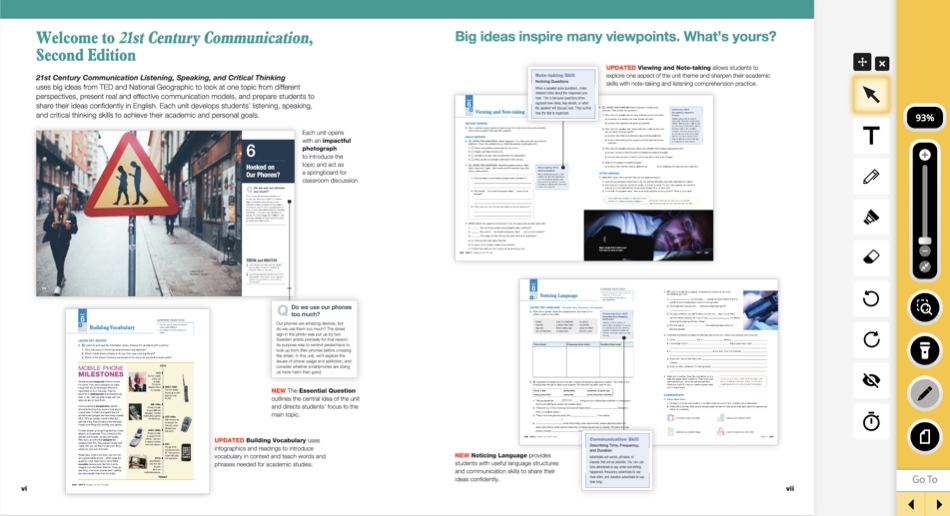
Zoom
Click the zoom slider tool to zoom in or out.

Solutions
Click  in the right-hand menu to reveal all the solutions to the activity. You can also click next to an individual activity to see only its solution.
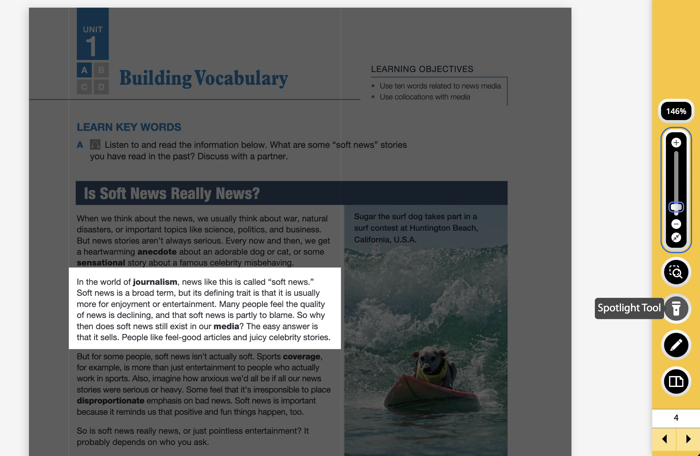
Spotlight
Click  to use the spotlight tool. With this tool you can draw a box around any element or part of the page to highlight it.
Tools
Click  to access annotation and timing tools such as the text box tool, pen, highlighter, eraser, undo, re-do, show/hide annotations, and timer buttons.

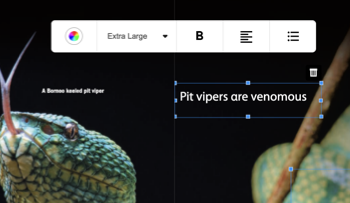
Click to add text to your page (Example: "Pit vipers are venomous").

Click to move the toolbar around the page within the application in any direction.

Click to open the Pen Tool option menu and select a pen size and color.

To exit the Pen Tool, click
.

Click to open the Highlighter Tool option menu and select a different line size and color.

Click the page to begin highlighting. Release to end the highlight. To change the cursor back to the pointer, click the Pointer button. To exit the Highlighter Tool, click
.

Click to erase markup (pen or highlighter) made on the page.
You can erase individual markup or all the markups on the page.

Click to undo the last edit made.

Click to redo the last edit removed.

Click to show or hide annotations and edits made on the page.

Click to open the countdown tool and use it for activities and games.
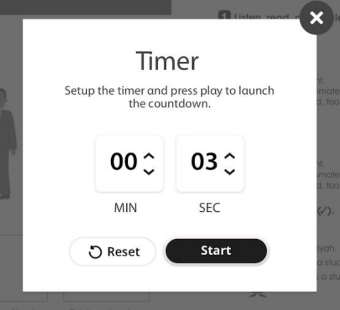
Click Start to start the countdown.
Page view

Click to view one or two pages at a time.
Page number

Type in the page you want to go to and press Enter on your keyboard.

Move to the next page or the previous page.