

Spark Instructor Help
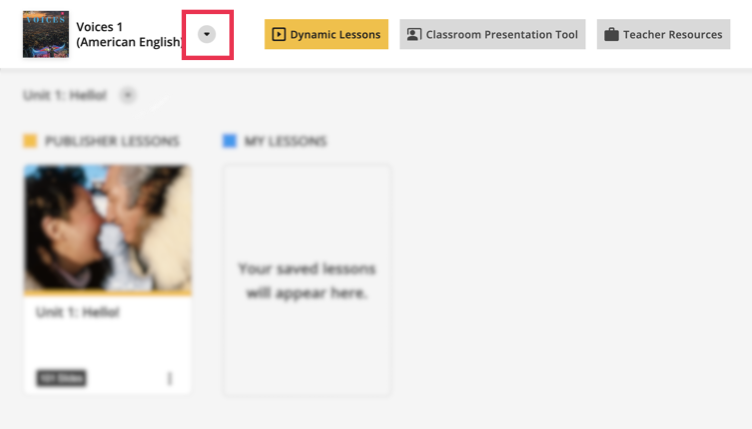
In the Class Content tab, select your program from the program dropdown menu.
Select the Unit you want from the dropdown menu.
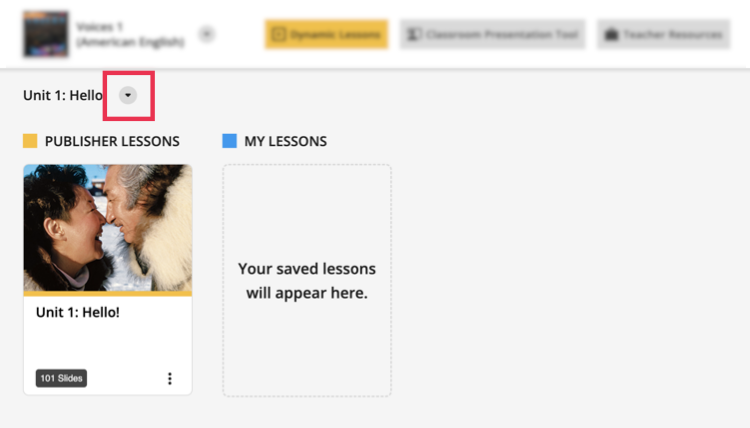
Click the slides under PUBLISHER LESSONS.
To do this
Do this
Preview the content of a slide
Click the slide.
Rearrange the order of slides
Select the slide you want and move it to the position you want.
You can move the slide to a different position within that section, or to a different section.
Delete a section
Click
 .
.Hide, delete, or copy a specific slide to another unit or lesson
Click
 on that slide and select the action you want.
When you delete a slide, it is removed from that lesson.
When you hide the slide, it will not display during presentation, but you can unhide it when you want.
Hide, delete, or copy multiple slides
- Click
 .
. - Select the slides you want to edit.
- Click Hide, Copy to, or Delete at the bottom of the page.
- Click
After customizing your lesson, click
 next to the lesson name to return to the Class Content tab, or click
  to present your lesson.