

Spark Instructor Help
Video Tutorial: Assign an In-Class Activity
In the Class Content tab, select your program from the program dropdown menu.
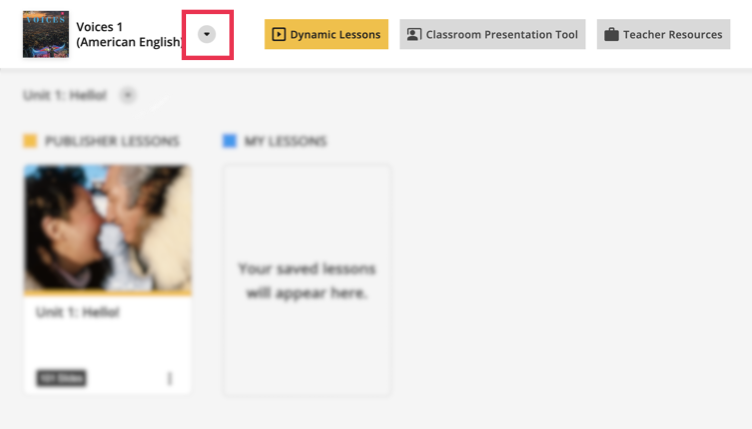
Select the lesson you want.
You can choose Publisher Lessons, or My Lessons, if you have created a custom lesson.
If you know which activity you want to assign, scroll to that activity and click the slide.
If you are presenting a lesson, the activities that can be assigned will display
 in the tool bar.
Click
to launch the activity.
From the Course selection dropdown menu, select the course you want to assign from.
Click Student selection and select all students, or individual students to assign the activity to.
Under Activity Settings, select whether you want to save the activity in the gradebook.
Click Start Activity.
Students are prompted to start the activity in Spark.
For you, an in-progress report page opens in a new tab, where you can monitor the students' performance in real-time.
Optional Students have the option to request help during the assignment. If a students does request help, it will display under the student's status column.
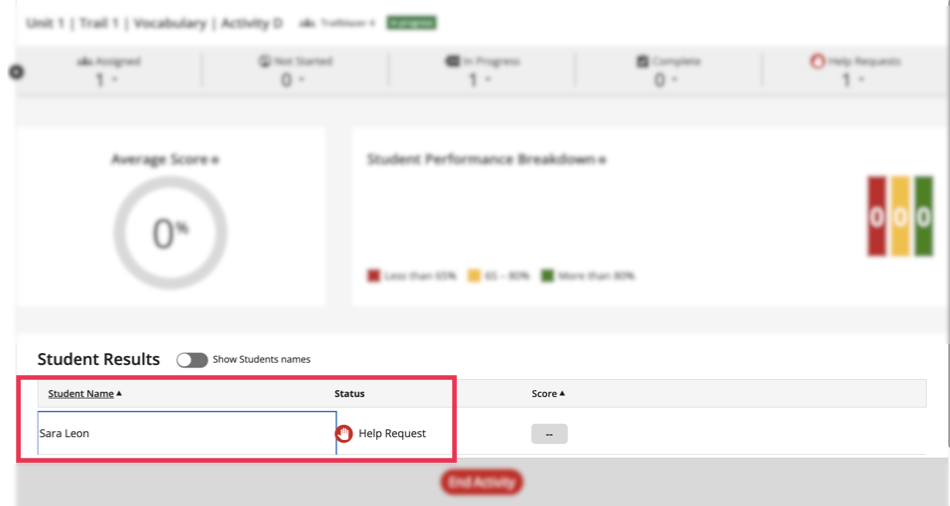
To end the activity, click End Activity at the bottom of the in-progress report page.