

Spark Instructor Help
Click Dashboard in Spark.
Add or remove courses from your Starred Courses.
- To add a course to your Starred Courses, click
 .
. - To remove a course from your Starred Courses, click
 .
.
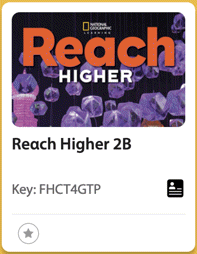
Your starred courses are shown in the Starred Courses list on the Dashboard.

- To add a course to your Starred Courses, click
To see only your starred courses, click Starred Courses.